Syncer
If you don't see this page, you need to enable the Advanced options toggle in the top right.
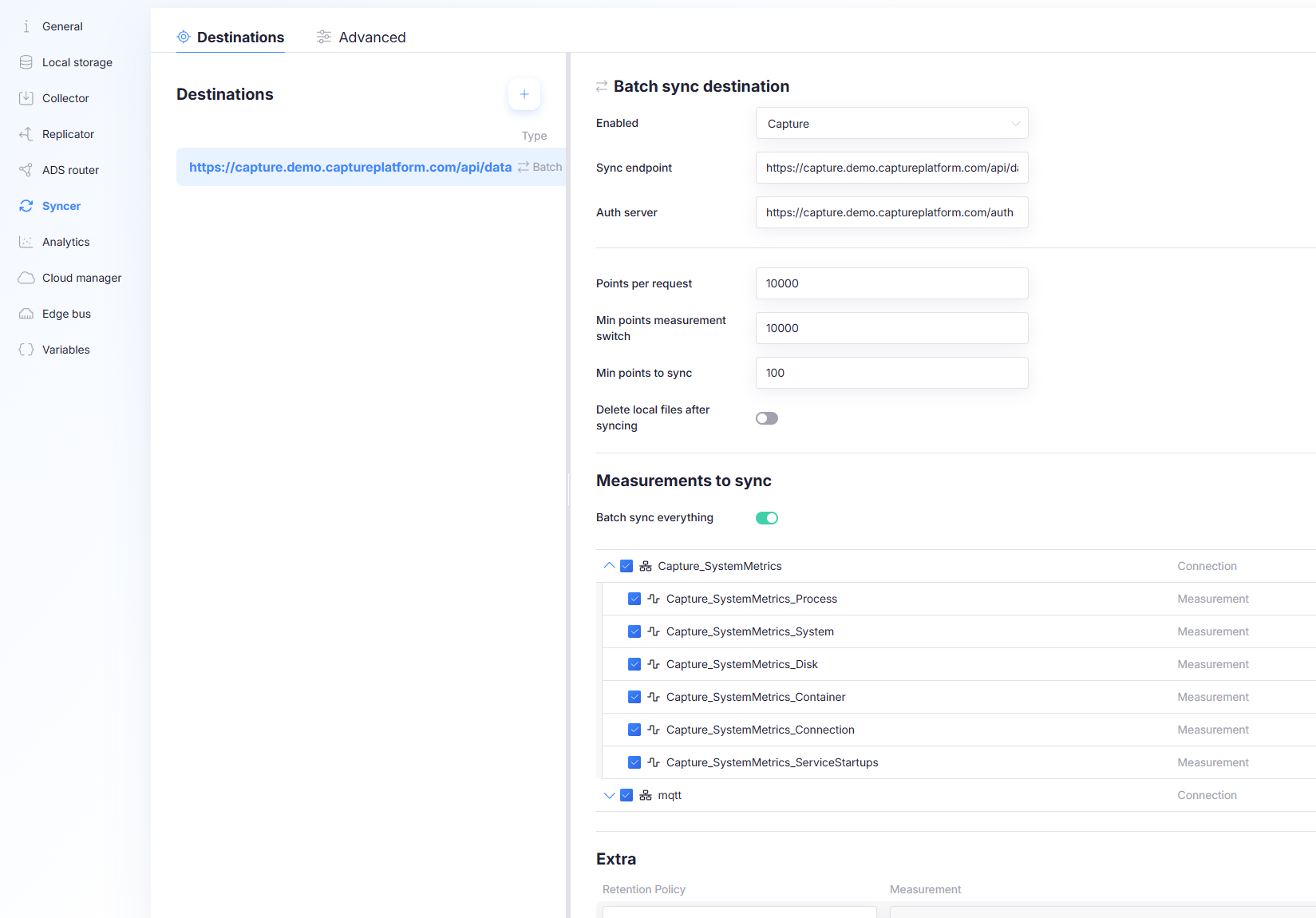
The Syncer controls where locally stored data is sent. In most deployments, the destination is the Capture platform Data API.
Syncing is configured per destination. You can add multiple destinations and choose between Batch and Realtime delivery.
Destinations tab
The Destinations tab lists all configured sync destinations.
- Select a destination to edit its settings.
- Use + to add a new destination.
- Use the three dots menu on a destination to Duplicate or Delete it.
You cannot delete the last remaining destination.
Add a destination
Select + and choose one of:
- Batch sync destination
- Realtime sync destination
Use Batch for reliable, complete uploads to the cloud. Use Realtime only for time-critical signals.
Batch sync destination
Batch sync uploads points (or files) in chunks to a destination endpoint (typically the Capture Data API).
Batch sync is the primary mechanism for complete, reliable cloud synchronization.
Min points measurement switch
After sending this many points for a single measurement (table), the Syncer switches to the next measurement.
- Use this to prevent one high-volume measurement from monopolizing upload time.
Min points to sync
If a measurement has fewer than this number of points ready, the Syncer skips it for now to avoid many small uploads.
If enough time passes, the measurement is uploaded anyway: after 3 × Sync delay (configured on the Advanced tab), pending points will be uploaded even if the threshold is not reached.
Delete local files after syncing
Only applies when syncing files (instead of points).
- Enabled: Capture deletes files after they are successfully synced.
- Disabled: an external system is responsible for file retention/cleanup.
Upload speed limit
Older Capture Edge versions ignore this property and upload at full speed.
Caps how fast this destination may upload files, in bytes per second. 0 (the default) means
unlimited.
The cap is an aggregate over all of this destination's workers, so the Syncer's total outbound traffic to it stays at the configured rate no matter how many workers are configured.
Time-series points, which go up as JSON, are not throttled — and neither are files small enough to be inlined into that JSON, which is what happens when the destination does not support multipart uploads. The setting shapes bulk file traffic; it is not a cap on everything the Syncer sends.
Use this where the gateway shares a metered or narrow link with something that matters more — a machine's own control traffic, a site's uplink. A file sync that would otherwise saturate the line is stretched out instead.
This setting is maxUploadBytesPerSecond on the sync destination. It is not yet a field in the
configuration editor, so set it through the JSON config editor.
Measurements to sync
Choose which measurements are uploaded by this destination:
- Sync everything: upload all measurements.
- Select specific measurements: upload only a chosen subset.
Source bucket per measurement
A measurement can be written to more than one local database — for example to Influx for local dashboards and to a SQLite Queue for uploading. The Bucket column picks which of that measurement's own buckets this destination reads from.
The list only offers buckets that measurement actually writes to, and exactly one can be selected. If the column is greyed out, the measurement has only one bucket and there is nothing to choose.
Per-measurement overrides
An older gateway ignores the overrides and uses the destination's values for every measurement.
The slider icon at the end of a measurement's row opens Measurement settings, where three of the destination's settings can be overridden for that one measurement:
- Points per request
- Min points to sync
- Min points measurement switch
Each has its own checkbox. Leave one unchecked and that measurement keeps the destination's value, which is shown beside it. A dot on the row's icon marks a measurement that has at least one override.
The destination's values suit most measurements. Override for the outliers: a very wide measurement whose rows are large enough that the normal Points per request makes a request too big, or a low-rate measurement that would otherwise sit below Min points to sync for a long time.
Extra measurements (tables)
Use Extra to sync measurements that exist in local storage but do not have Collector configuration.
Examples:
- Monitoring (automatically created)
- any custom table receiving data from outside Capture
Each Extra entry associates:
- a retention policy / bucket selection
- the measurement (table) name to upload
Use Extra for “out-of-band” data that lands in the local database through external processes, but still needs to be uploaded.
Realtime sync destination
Realtime sync streams points to an endpoint as they are produced.
Realtime sync is not a replacement for batch sync. Use it for time-critical variables only.
Destination type
Type of realtime endpoint.
Currently, only MQTT is supported for realtime syncing.
Queue capacity
Maximum number of points held in the realtime queue for this destination.
- If the queue is full, no new points are added to the realtime queue.
- Points are not attempted for realtime syncing again until there is space in the queue.
Points are still stored in the local database and remain eligible for batch sync, unless you enable Skip local database.
Max send threads
How many threads upload points to this realtime destination concurrently.
Skip local database
If enabled, a point that is successfully queued for realtime syncing is not stored in the local database.
This reduces safety: when the point is queued, but the Collector process is killed, or the system is shut down, these points are lost. The safest configuration is:
- store points locally, and
- upload them via batch sync as well.
Only consider skipping local storage when upload volume or disk storage is a hard constraint and the risk of loss is acceptable.
Authentication
Controls which credentials are used to authenticate against the endpoint.
- Use Capture credentials: use Capture environment credentials (when the endpoint is a Capture environment).
- Disabled: provide custom credentials (username/password).
Variables to sync (Realtime)
Choose what is streamed in real time:
- Sync everything: stream all measurements/variables (not recommended).
- Select subset: stream only specific measurements and/or variables.
Enable realtime syncing only for time-critical variables (for example, live dashboards) and avoid enabling it for high-volume signals.
Advanced tab
The Advanced tab controls global sync behavior.
Sync delay (seconds)
How many seconds old data must be before it is considered for upload.
The Syncer will not go back in time. Set Sync delay high enough to ensure all data for a moment has arrived before upload. This matters when sources have clocks that are not fully reliable.
If Sync delay is too high, new data will appear in the Capture portal later than necessary. Use Realtime for time-critical visibility instead of pushing Sync delay too low.
Workers
How many threads upload in parallel (batch sync workers).
Reading from the local database
How the Syncer asks the local database for the next batch is configured on the database, not here — the properties below live on each entry of Local storage, because the right values depend on what that database can take. They apply to every destination reading from it.
| Property | Default | What it does |
|---|---|---|
queryTimeoutMs | 60000 | How long a single query to the local database may take before it is abandoned. After a timeout the Syncer retries with a smaller time range, down to minimumTimeRangeToQueryMs. |
minimumTimeRangeToQueryMs | 1000 | The smallest time range worth querying. A measurement whose unsynced window is shorter than this is left for later, which keeps the Syncer from hammering the database with tiny queries. It is also where the retry-with-a-smaller-range loop stops. |
maximumTimeRangeToQueryMs | 86400000 (24 h) | The largest time range fetched in one query. A bigger backlog is worked through in steps of this size instead of in one query. |
backoffWhenNotEnoughDataMs | 5000 | How long to wait before looking again at a measurement that did not have enough data to sync. |
Lowering maximumTimeRangeToQueryMs is the first thing to try when catching up on a long backlog makes the
local database struggle: it trades a few more queries for much smaller ones. Raising
backoffWhenNotEnoughDataMs reduces load on a quiet gateway, at the cost of some extra sync delay.
These are not fields in the configuration editor. Set them through the JSON config editor, on the local database entry.
Several destinations, several databases
On an older gateway, two destinations reading from the same local database left the second one without data, and two databases sharing a bucket name were not kept apart.
- One local database can feed two destinations. Two sync destinations, each reading its own bucket on the same local database, both receive data.
- Bucket names do not have to be unique across databases. Two local databases may use the same bucket or database name; the Syncer keeps their sync progress apart.
A SQLite Queue — like any queue-type source — deletes a point as soon as one destination has uploaded it, so there is nothing left for a second destination to read. Sending the same measurement from a queue bucket to two destinations is not supported: Capture Edge detects it when the configuration is loaded, logs an error and keeps the measurement on the first destination only. Fan-out is fine for time-range databases such as Influx and TimescaleDB.
Network adapter constraints
Network adapter constraints allow you to restrict uploads for specific buckets to only occur when a specific network adapter is connected.
Configuration per rule:
- Bucket: the bucket to which the rule applies
- Network adapter: adapter name that must be present and connected to upload
- Fallback time (optional): if the adapter is not online after this duration, upload anyway
- Fallback duration (optional): how long uploads are allowed during fallback
Supported units for Fallback time and Fallback duration:
ms,s,m,h,d
Leave fallback fields empty to disable fallback behavior entirely.