Configurations
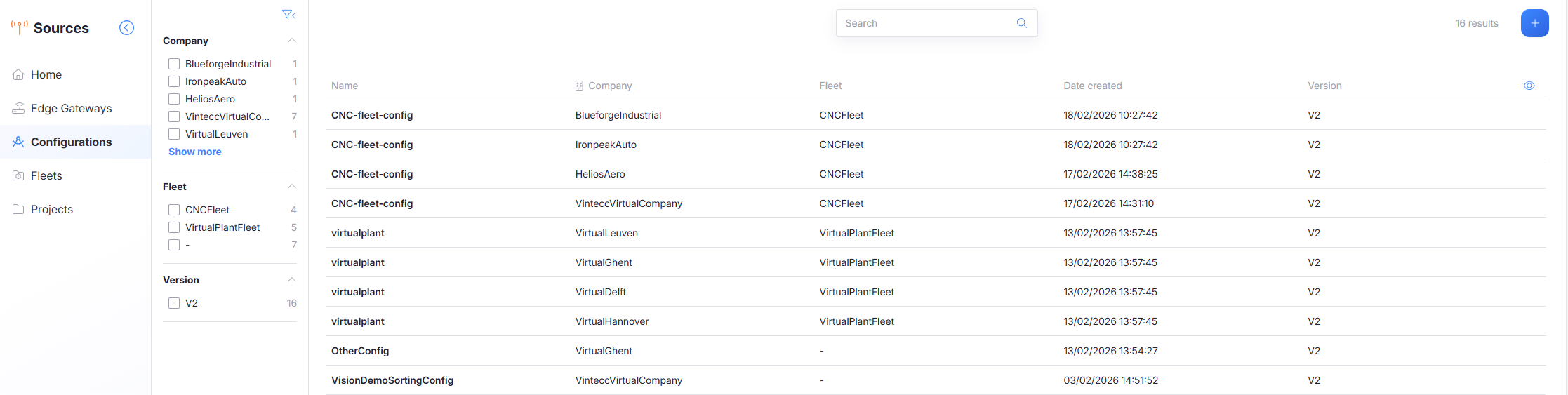
The Configurations page lists all available configurations. From here you can search, filter, customize the table view, and open a configuration for editing.
What you see on this page
The main area contains a table of configurations. Columns include:
- Name
- Company
- Fleet
- Date created
- Version
The left side contains filters (for example Company, Fleet, and Version) that narrow down the visible rows.
In the list, you can:
-
Open a configuration: Click any row in the table to open the selected configuration. This navigates you into the configuration editor for that item.
-
Search: Use the Search box at the top of the table to filter configurations by text match. Search applies to the list immediately and can be combined with the left-side filters.
-
Filter: Use the filter panel on the left to narrow the result set. Filters can be combined. Filters include:
- Company: show configurations belonging to selected companies.
- Fleet: show configurations scoped to selected fleets.
- Version: show configurations of selected configuration versions.
-
Customize the table view (Edit view): The Eye icon in the top-right opens an Edit view overlay. Use this overlay to control which columns are visible in the table.
-
Show or hide columns: In the overlay, toggle columns on/off (for example: Name, Company, Fleet, Date created, Version).
-
Save changes: Select Save to apply the updated column visibility to the table.
-
Add a configuration: Clicking on the + icon in the top right creates a new gateway configuration.
If there are many configurations, the table shows pagination controls at the bottom. Use them to move between result pages.