Fleets
A Fleet is a managed group of similar Edge Gateways.
Use fleets to standardize rollout, monitoring, and visibility across many gateways—without repeating the same setup per gateway.
A lot of elements can be linked to a fleet, as you will read below.
Fleets are the backbone for operating at scale:
- one place to link shared assets
- consistent configuration recommendations
- fleet-level dashboards, reports, and alerting
- optional propagation to subcompanies (when applicable)
Any time you have multiple gateways that should behave the same way:
same configuration baseline, same dashboards, same reports, same alerting rules.
Fleet overview page
The Fleet overview shows:
- a list of all fleets you can access
- high-level metadata per fleet (columns vary by environment)
- quick scanning and filtering
You can customize which metadata is shown using the eye icon on the right.
This is useful when different teams care about different properties (operations vs. rollout vs. reporting).
You can create a new Fleet by pressing '+' in the top-right corner.
Fleet detail page
Open a fleet to access its detail page.
This page is the control center for everything the fleet shares.
Typical sections include:
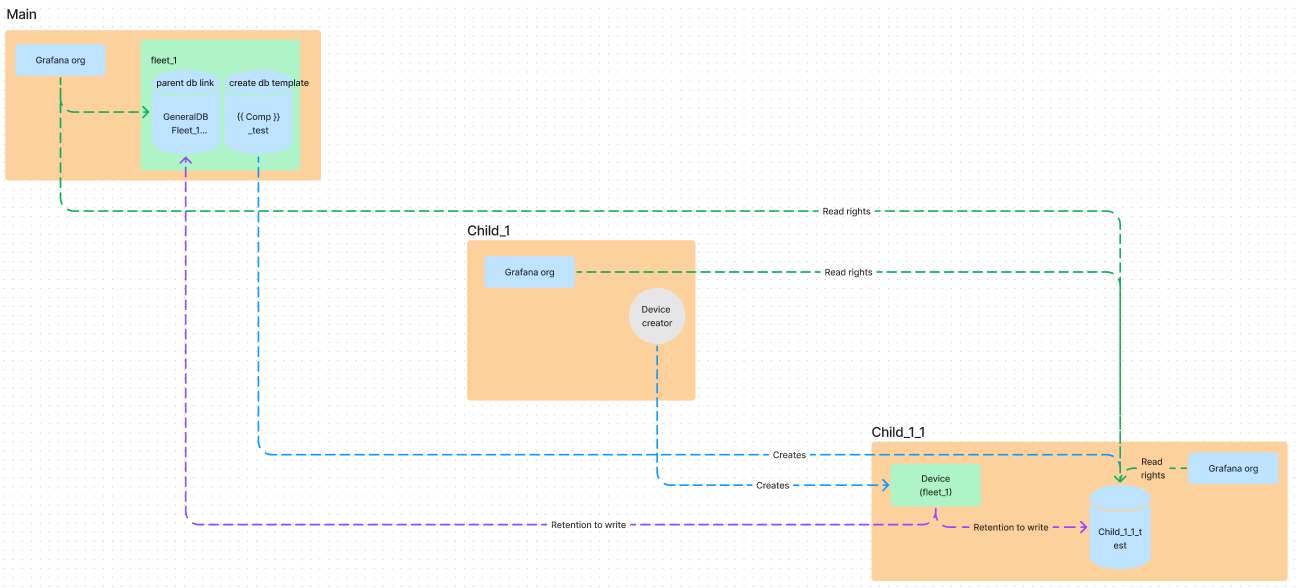
General fleet info
General identification and metadata about the fleet.
In multi-company environments, a fleet can be restricted to the parent company by default.
To allow gateways from subcompanies to join the fleet, enable Make fleet available for subcompanies in the fleet’s settings.
When enabled:
- Edge Gateways owned by subcompanies can be added to the fleet
- The fleet becomes a shared operating model across the company hierarchy
- Fleet-linked assets can propagate where the fleet is actually used (based on fleet membership)
- Management of the fleet stays at parent company level
Enable when you operate a standardized solution across sites/customers that live in subcompanies and you want:
- one fleet baseline (configs/dashboards/reports/alerts)
- centralized governance
- consistent rollout mechanics
Making a fleet available for subcompanies increases the blast radius of fleet changes.
Treat changes to fleet-linked assets like production rollouts (test first, then propagate).
Edge Gateways
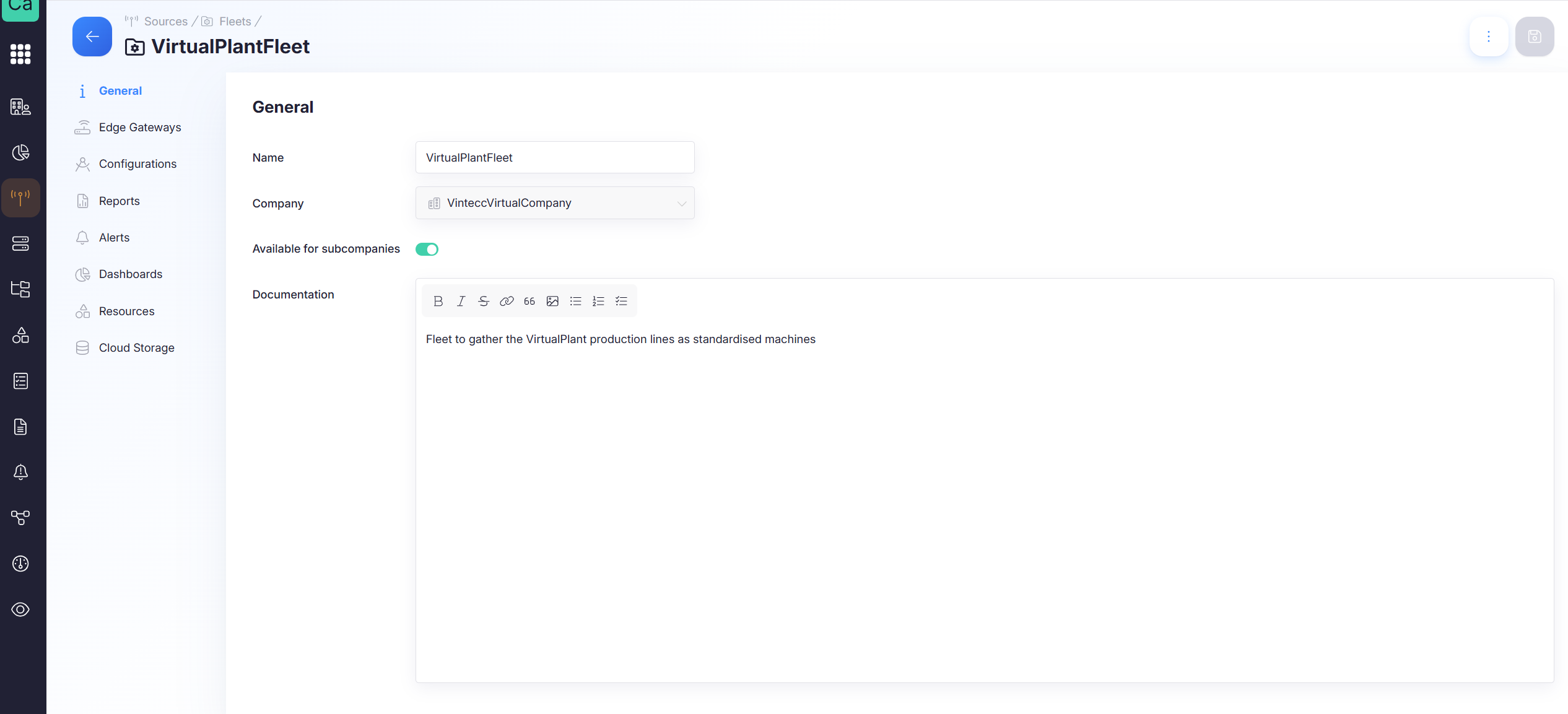
A list of all edge gateways that belong to this fleet.
Use this tab to confirm membership and quickly verify whether the fleet represents the expected set of gateways.
Fleet membership matters because it determines:
- which assets apply
- where copies appear (subcompany scenarios)
- which dashboards/reports/alerts are relevant
When the fleet is available for subcompanies, also their edge gateways can be added.
Moving a gateway into or out of a fleet can change what it “inherits” (assets, recommendations, monitoring scope). Treat fleet membership changes as a deployment action.
Configurations
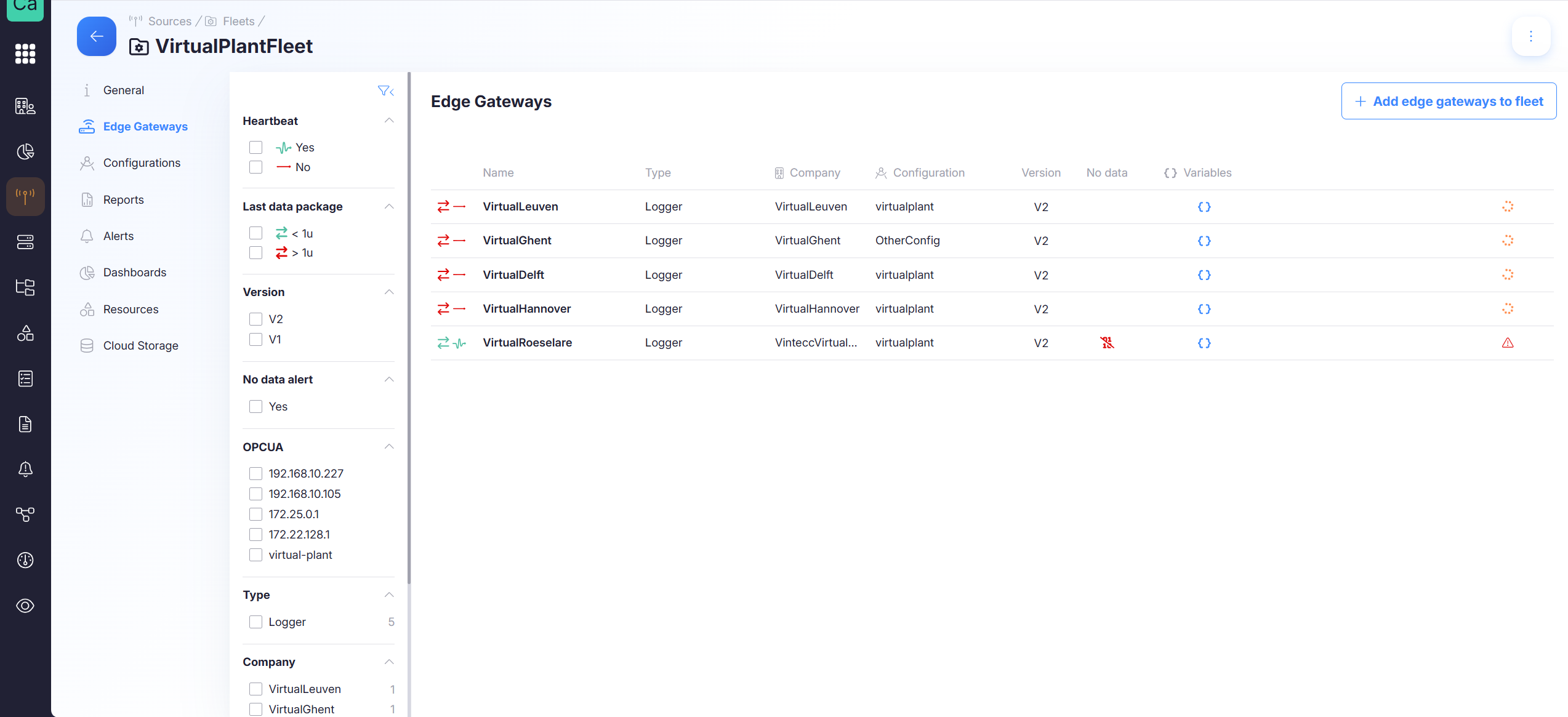
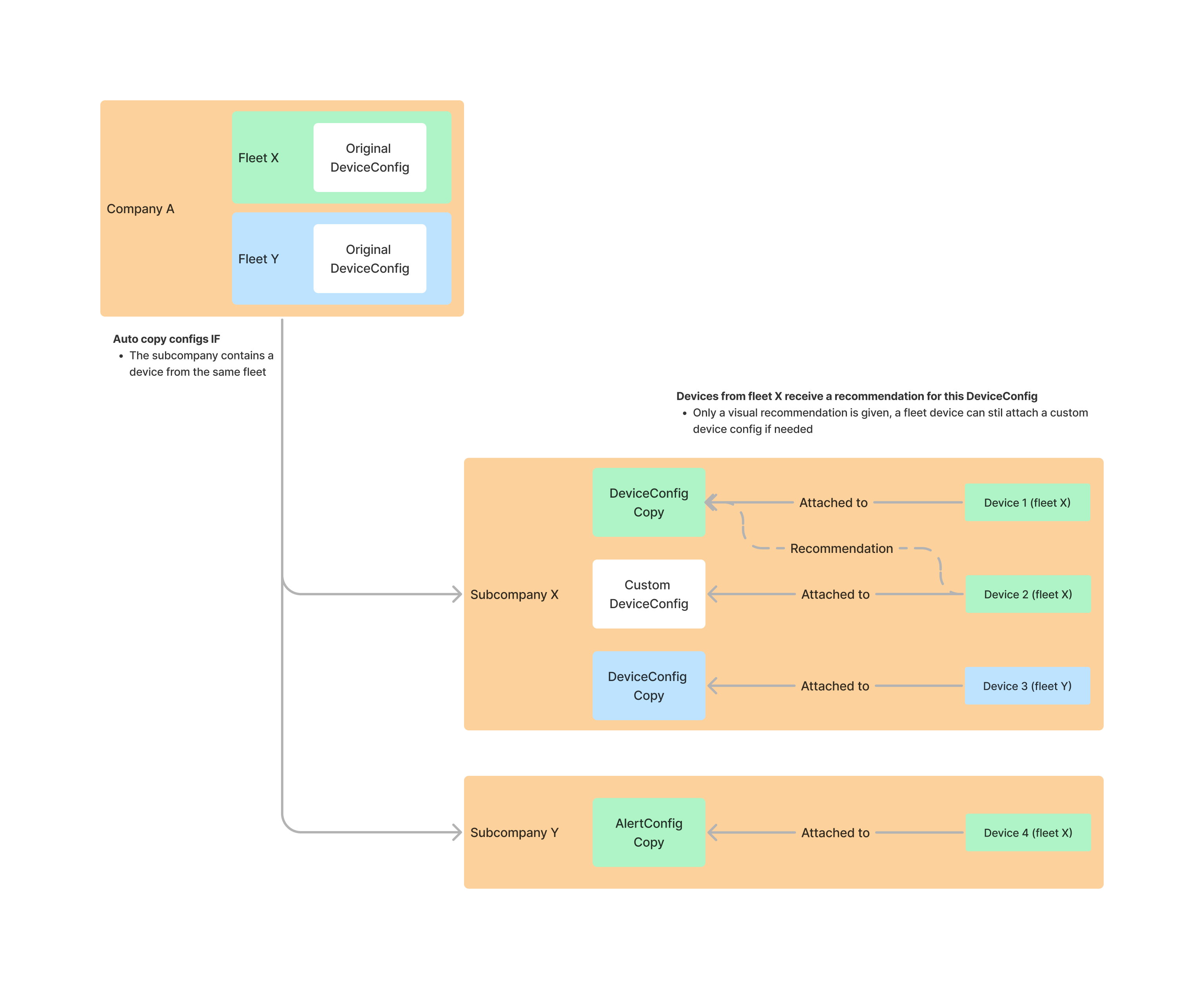
It is possible to link a list of configurations to a fleet. This provides the benefit of standardization across gateways.
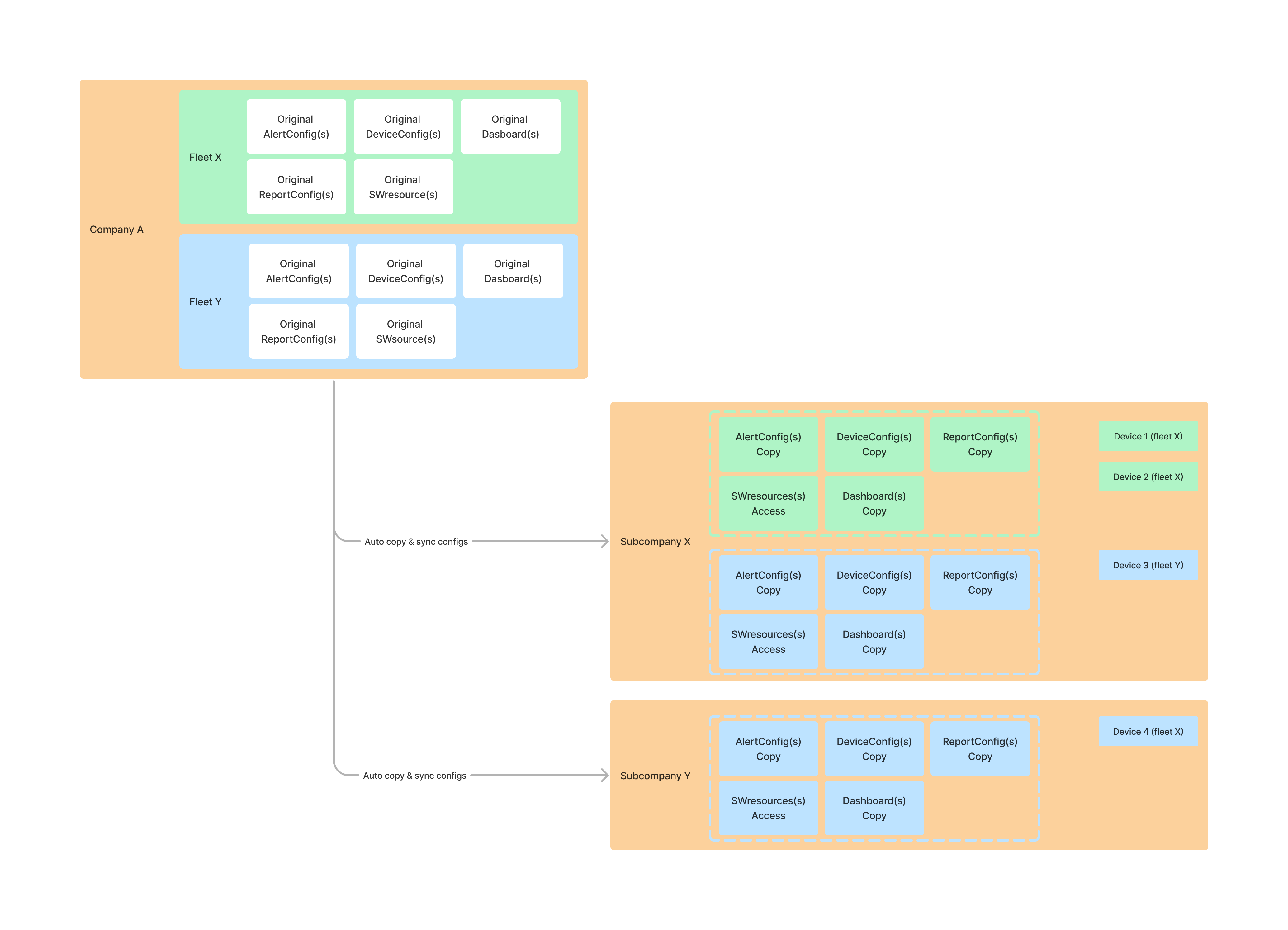
If a fleet is shared with subcompanies, the linked configurations are copied to each subcompany that contains an edge gateway from the fleet. These copies are non-editable for subcompanies, so changes should be made on the original config. To keep the subcompany-copies in sync, it is possible to do this automatically via the 'Auto-Update' option. If not enabled, 'Update Copies' does the job manually.
Configurations for the fleet are recommendations for the respective gateways, but this is not a strictly hard attachment. This means that gateways can still have a custom config, although one configuration is of course easier to manage.
See schematic overview: Configurations schematic
Reports
This page shows a list of report templates linked to the fleet.
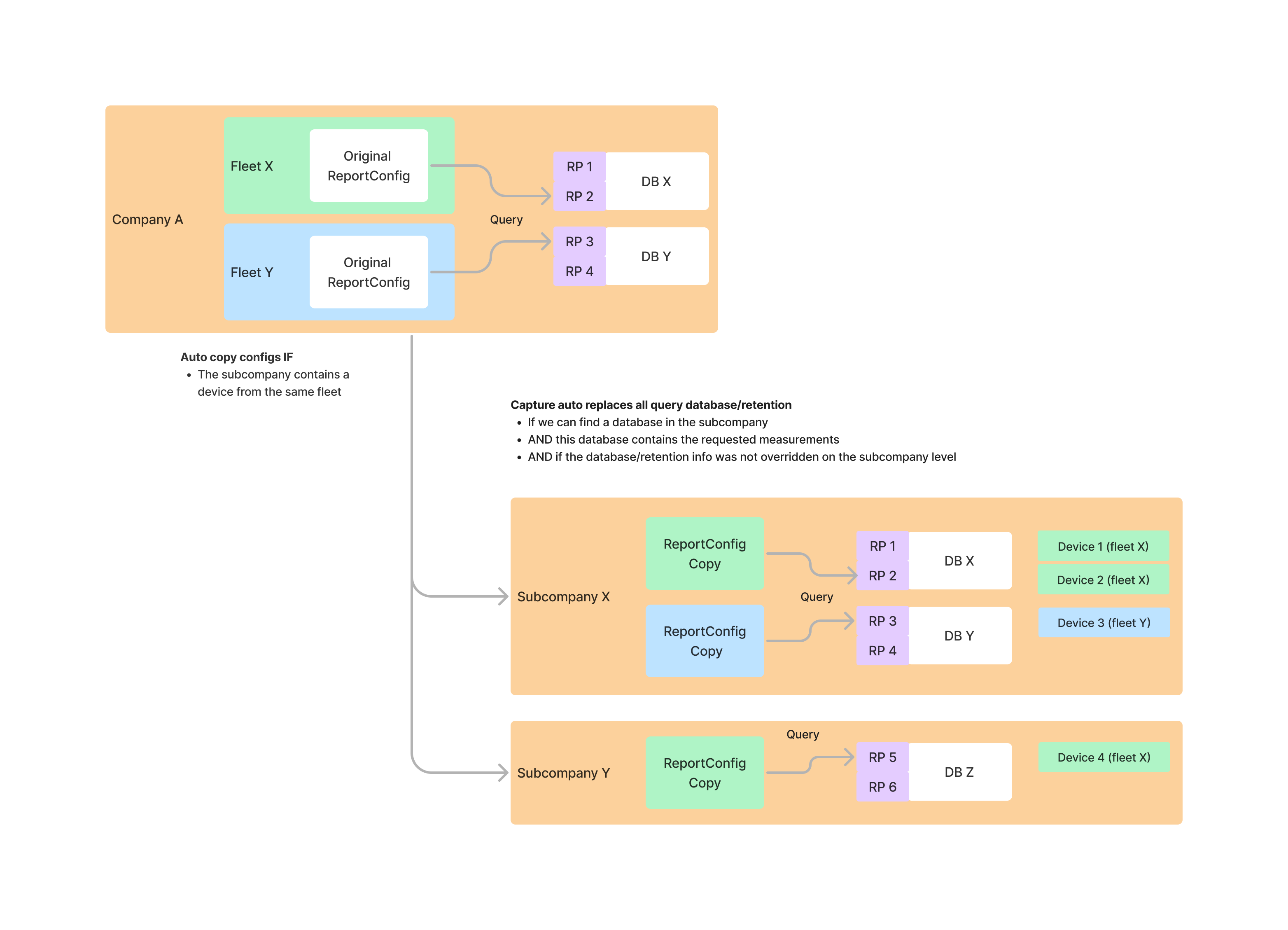
If a fleet is shared with subcompanies, the linked reports are copied to each subcompany that contains an edge gateway from the fleet. These copies are non-editable for subcompanies, so changes should be made on the original template. To keep the subcompany-copies in sync, it is possible to do this automatically via the 'Auto-Update' option. If not enabled, 'Update Copies' does the job manually.
Report notifications in a subcompany only work if the notification tag is shareable and usable by subcompany users.
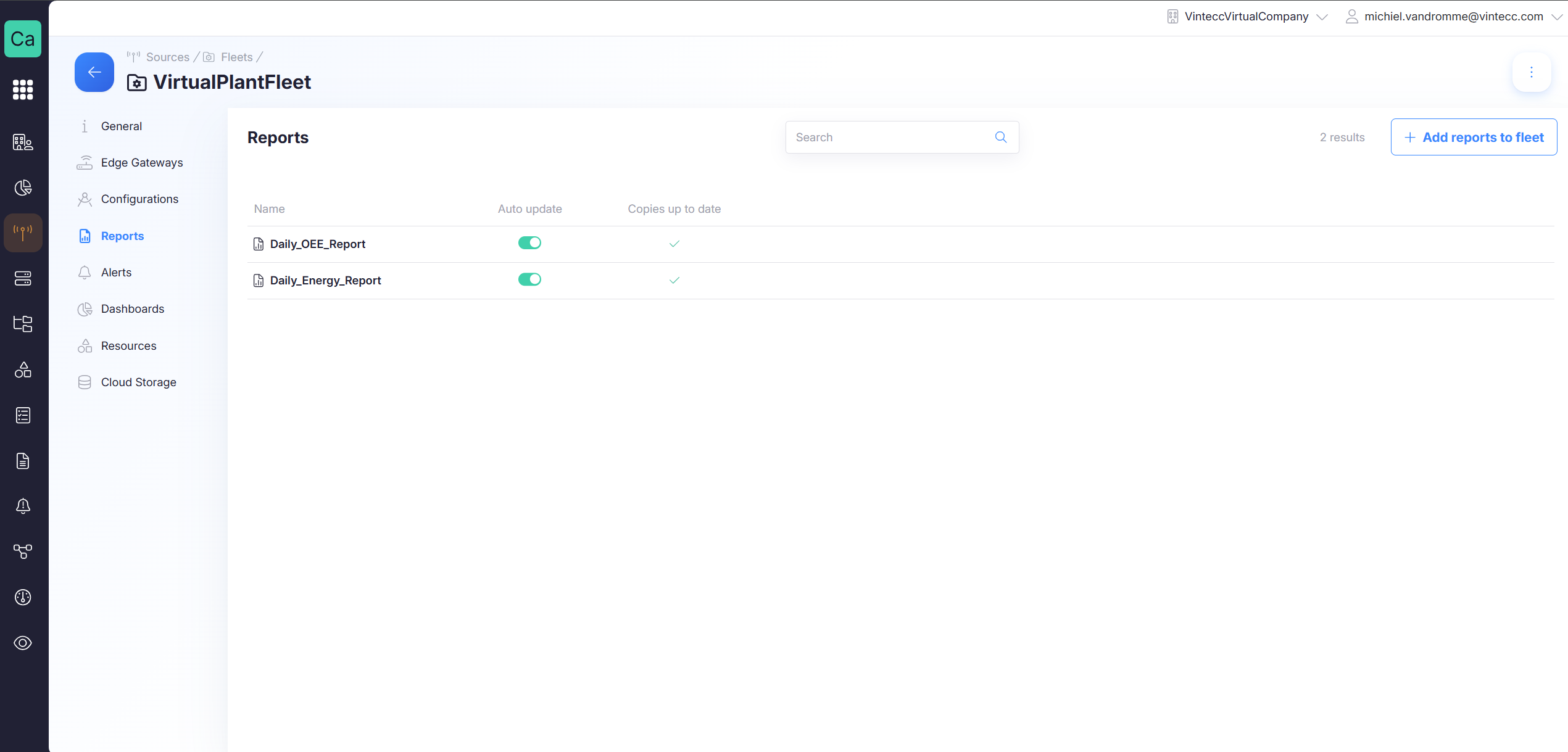
See schematic overview: Reports schematic
Sharing reports with subcompanies - requirements & implications
To create a report template in the parent company, the parent company must have access to a database with the same data structure that fleet gateways generate.
This is the case when:
- the parent company also contains a gateway from that fleet that generates the data
- an “existing database” from a subcompany is added and used as the report’s data source (Read further here to learn how to do this)
What happens during a report copy to subcompanies:
- A report template explains Capture how to query data for the report's content. For each query in this template:
- a search for a database/retention in the subcompany is done where the requested measurements are available.
- replaces original data sources (unless subcompany users manually replaced the data source)
Alerts
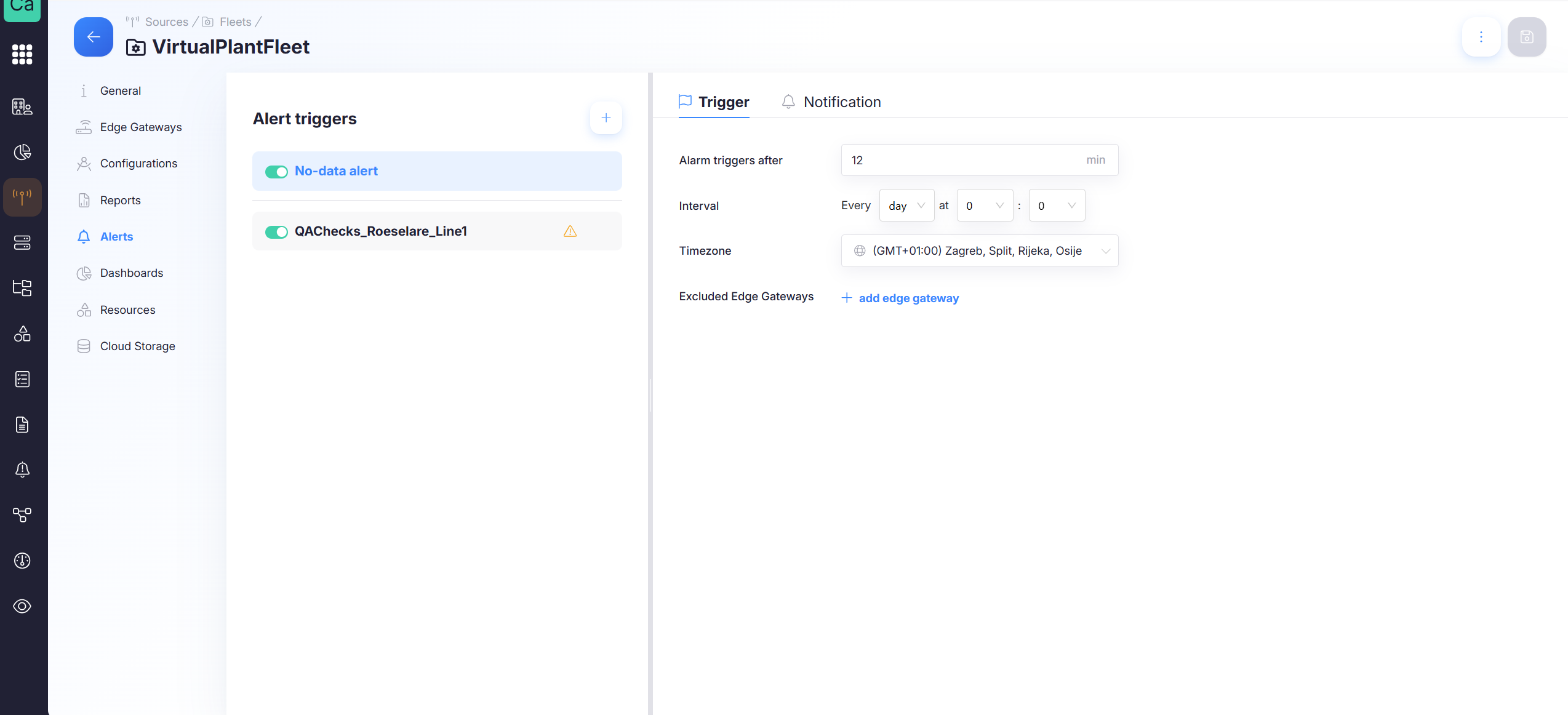
No Data Alerts
Fleet-level No Data alerting detects when one or more gateways in the fleet stop delivering data.
When enabled, you typically configure:
- Timezone: The timezone used to display times in the alert
- Alarm triggers after: How long the gateway should be offline before it is included in the alert mails.
- Interval: How often this should be checked.
- Notification message: The message to include in the alert email.
- Recipients: Email addresses of the people that need to receive these alert mails. When configured Groups in Capture, also a group can be selected.
Tags allow targeted alerts without leaking visibility across companies.
Recipients only get alerts for gateways they have access to (company/subcompany scope).
You can exclude specific gateways from the fleet “No Data” alert.
This is useful for:
- retired gateways not yet removed
- intentionally offline gateways
- lab gateways that should not trigger operations paging
See schematic overview: Alerts schematic
Alert Templates
This page shows a list of alert templates linked to the fleet.
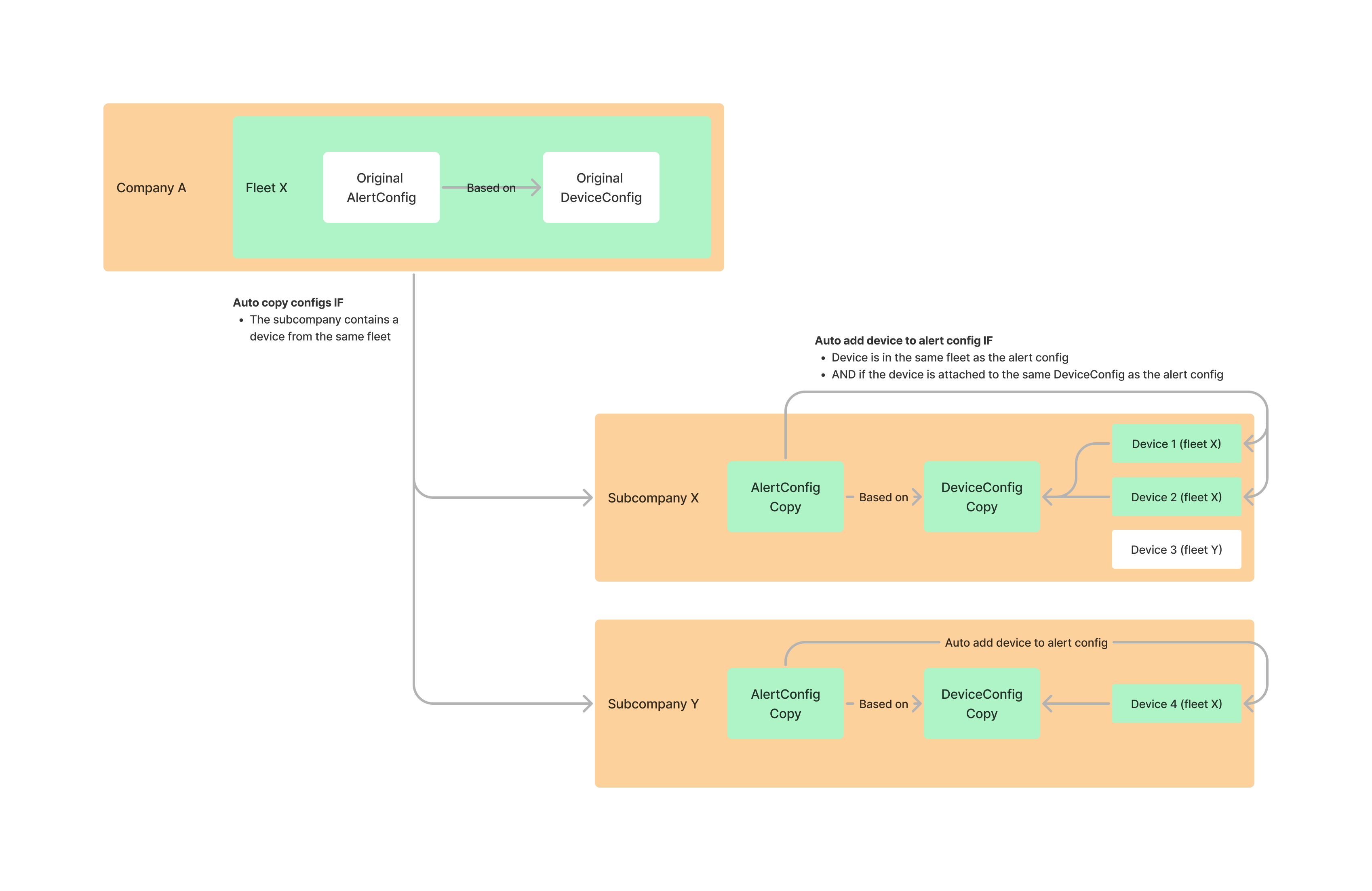
If a fleet is shared with subcompanies, the linked alerts are copied to each subcompany that contains an edge gateway from the fleet. These copies are ineditable for subcompanies, so changes should be made on the original template. To keep the subcompany-copies in sync, it is possible to do this automatically via the 'Auto-Update' option. If not enabled, 'Update Copies' does the job manually.
Sharing alerts with subcompanies - requirements & implications
To create an alert template in the parent company, the parent company must have access to a database/retention with the same data structure that fleet gateways generate. An alert template is tied to a gateway configuration and therefore requires a gateway context to be saved.
Requirements:
- The gateway configuration referenced by the alert template must be attached to the same fleet. This ensures that subcompanies receive a copy of the gateway configuration that the alert depends on.
What happens when an alert template is copied to a subcompany:
- For each query used by the alert template, Capture searches the subcompany for a database/retention that contains the same measurements/data model as the original.
- If the subcompany has not manually replaced the original data source, Capture replaces the original data sources in the copied template with the matching subcompany data sources.
- All edge gateways that are attached to the gateway configuration on which the alert is based are added to the copied template's list of monitored gateways.
Notes:
- If subcompany users have manually replaced a data source in a copy, Capture will not overwrite that choice during copy/update operations.
- Keep gateway configurations shared and stable when you intend alerts to be propagated deterministically across subcompanies.
See schematic overview: Alerts schematic
Dashboards
This page shows a list of dashboards linked to the fleet.
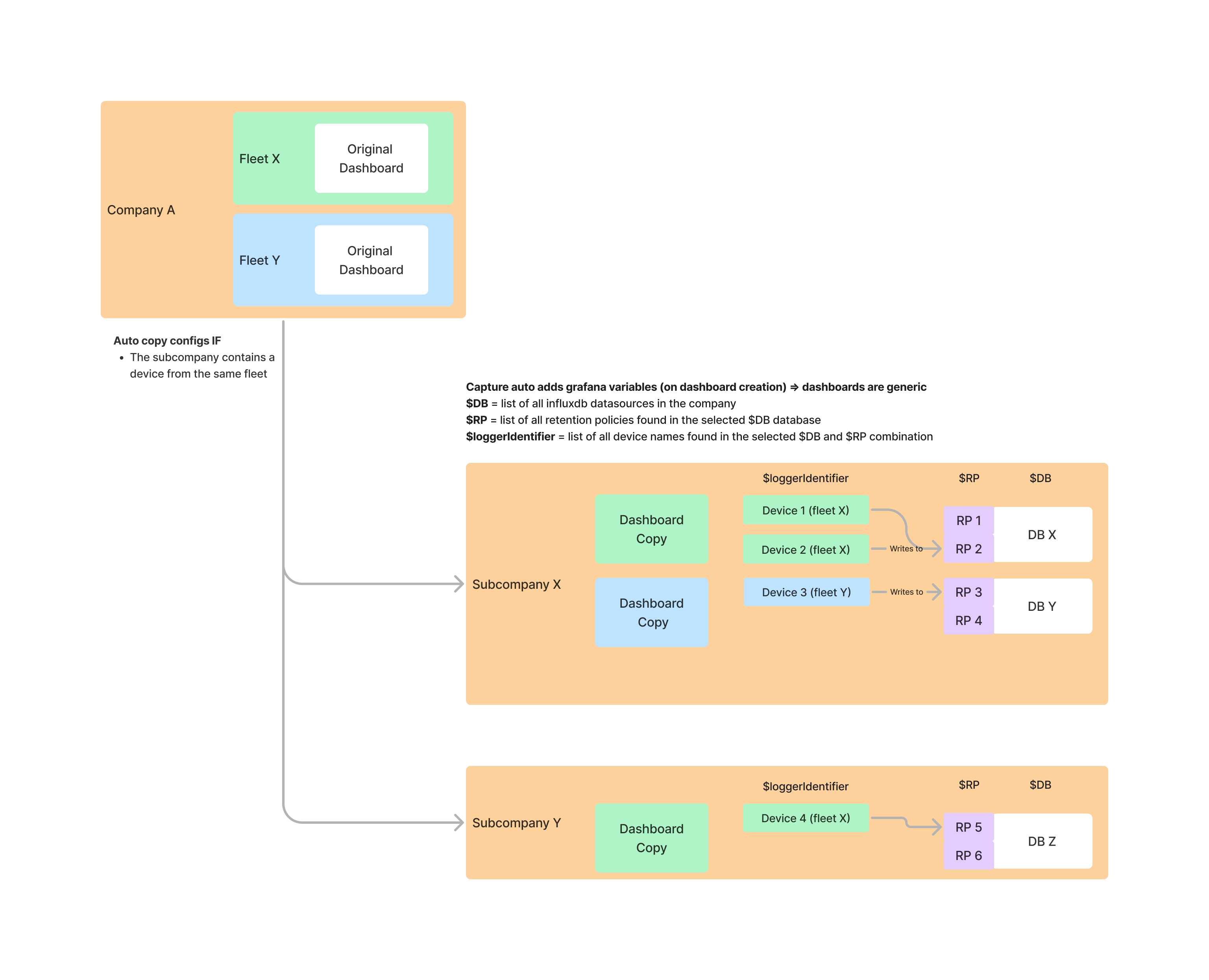
If a fleet is shared with subcompanies, the linked dashboards are copied to each subcompany that contains an edge gateway from the fleet. These copies are ineditable for subcompanies, so changes should be made on the original dashboard. To keep the subcompany-copies in sync, it is possible to do this automatically via the 'Auto-Update' option. If not enabled, 'Update Copies' does the job manually.
Best practice: build dashboards using variables
To keep dashboards portable across companies and retentions, build queries using the dashboard variables Capture generates on dashboard creation.
If all queries consistently use:
$DB$RP$loggerIdentifier
…then the dashboard can render correctly in subcompanies (as long as they contain at least one gateway from that fleet and data is stored in that company’s database).
Gateways in the fleet can provide direct links to these dashboards and automatically pass:
- the retention-to-write combination (
$DB+$RP) - the gateway identifier (
$loggerIdentifier)
If queries hardcode database names or identifiers, fleet copies may display empty results in subcompanies.
Use $DB, $RP, and $loggerIdentifier wherever possible.
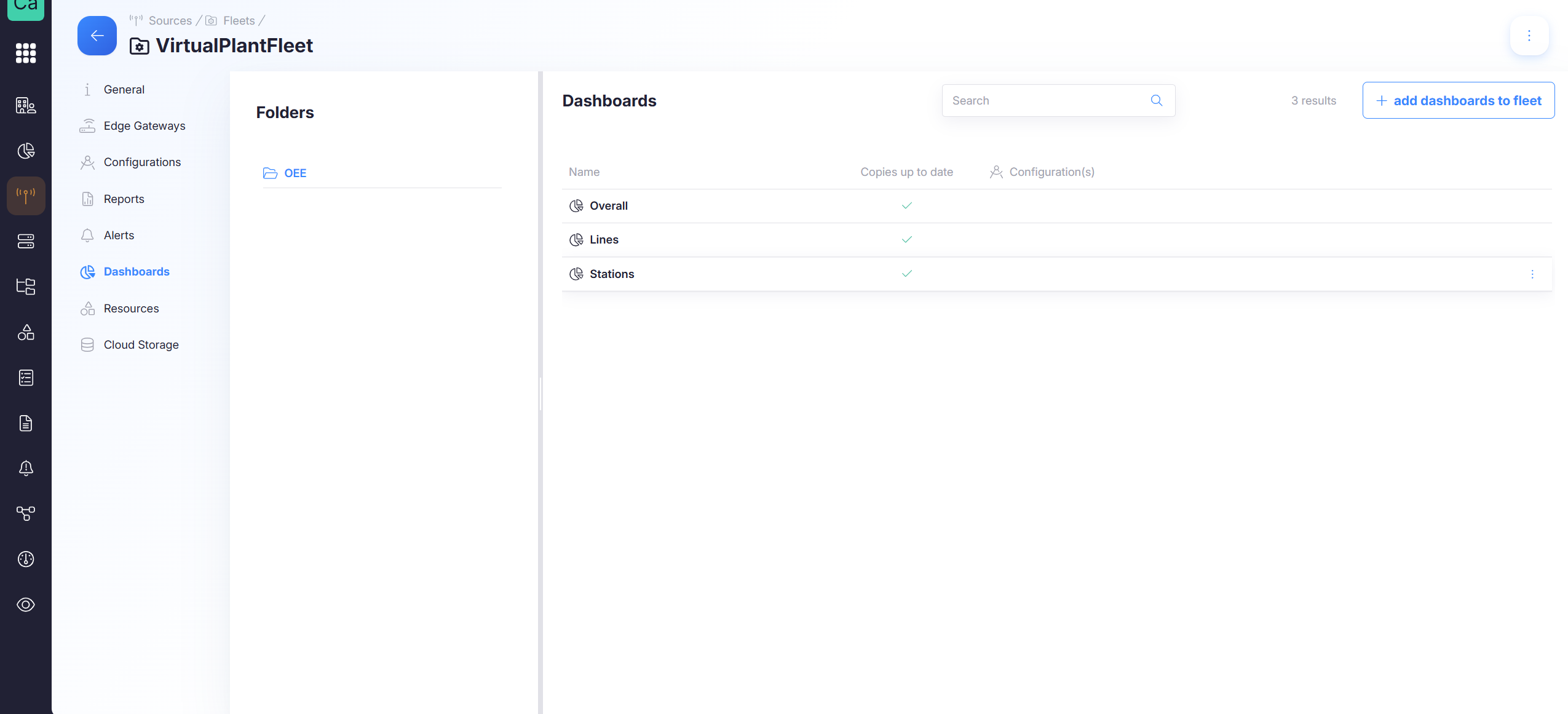
See schematic overview: Dashboards schematic
Resources
This page shows a list of software resources linked to the fleet.
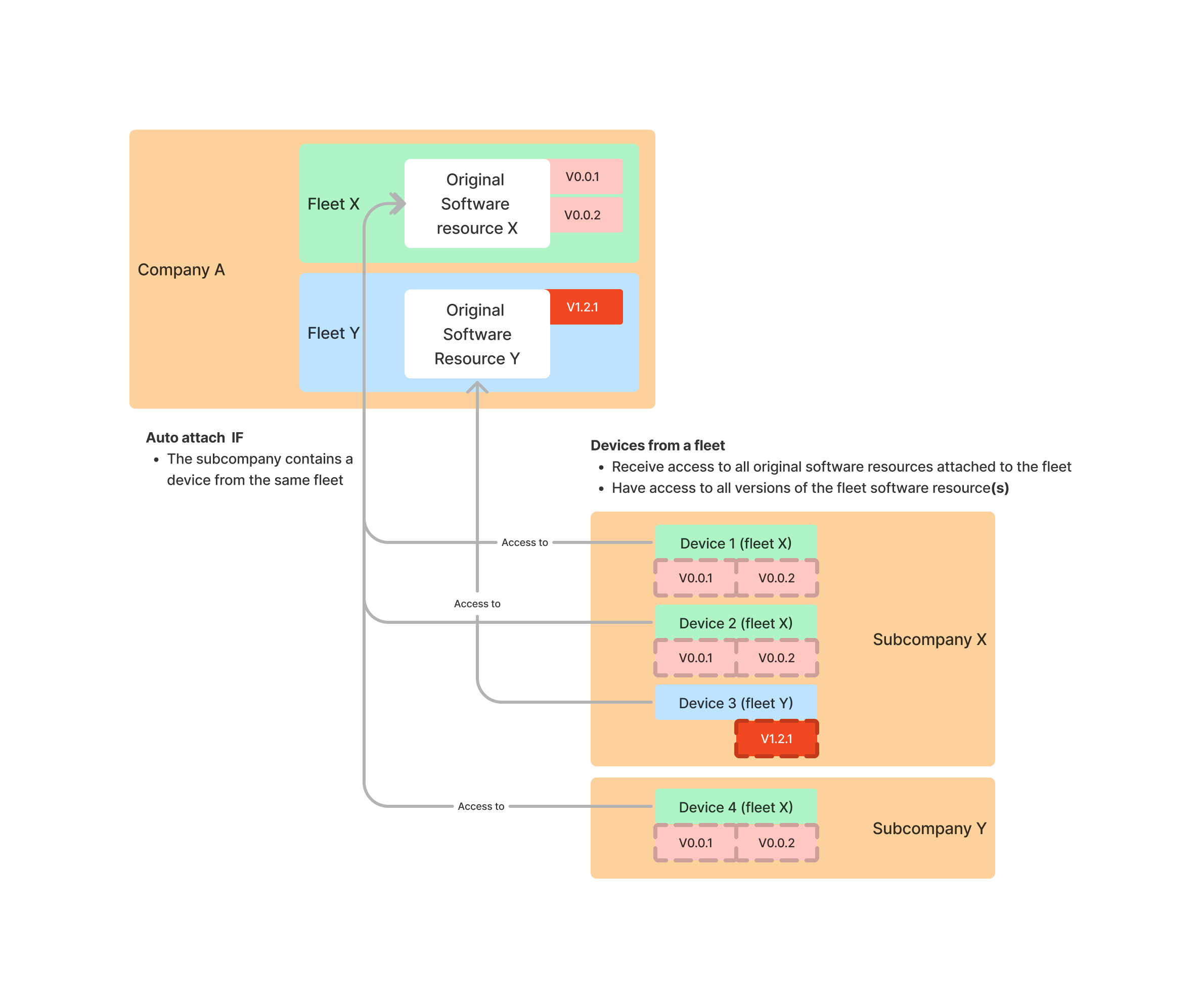
When adding a software resource link to a fleet, each gateway attached to the fleet receives access to all software versions of the software resource.
Under gateway details > versions, the resource will be available and all software versions can be pushed to the gateway No copies are made, the edge gateways gain access to the original software resource A mass update over an entire fleet can be done via the software library
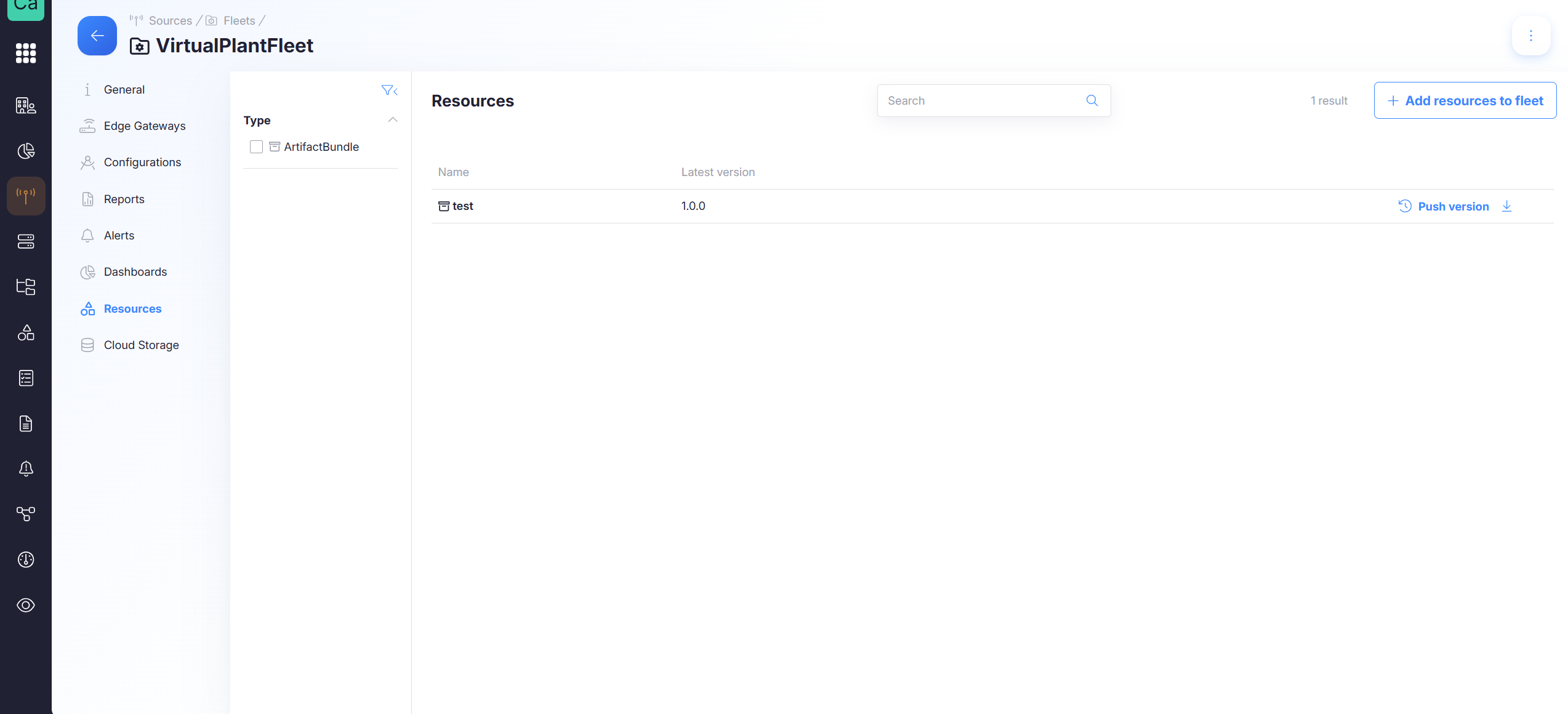
See schematic overview: Resources schematic
Cloud Storage
Databases
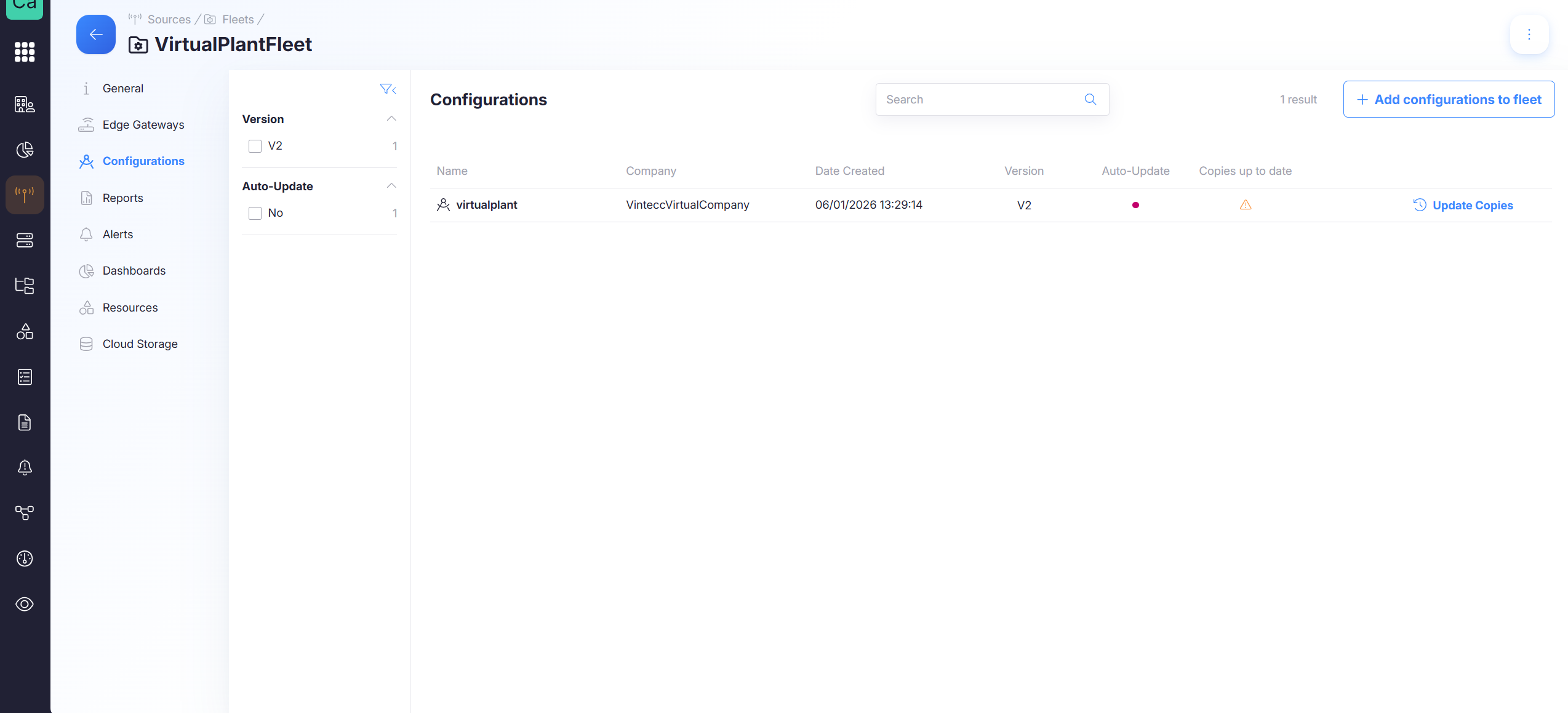
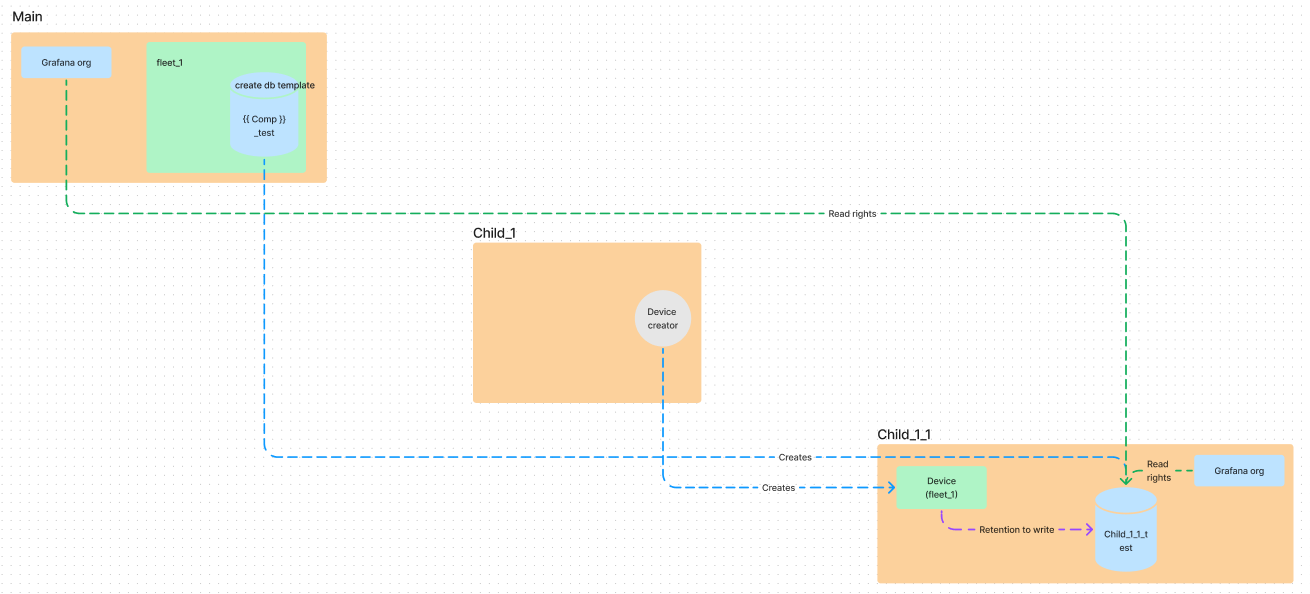
When adding a database template to a fleet, a database based on this template will be created in each company with a gateway in this fleet. All fleet gateways will have a retention to write to the new database in the gateway company.
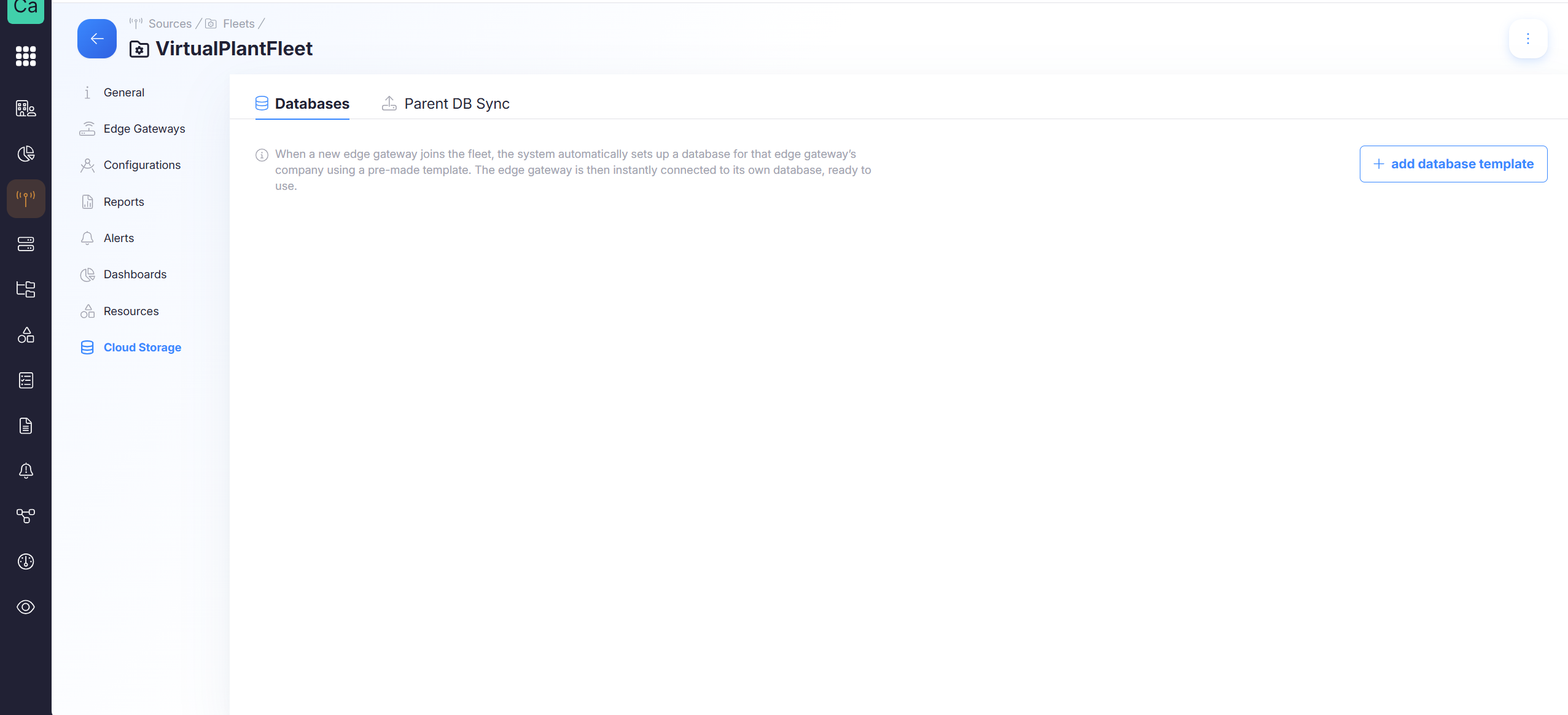
See schematic overview: Databases schematic
Good to know:
- Multiple templates can be added to a fleet
- A database created by a fleet database template will be named "[company name]_[database postfix]".
- No database will be created in a company where a database with the same name already exists, a retention to write to this database will be added to each fleet gateway.
- A change of the templates retention will result in the creation of a new retention (if this retention does not already exist) and the gateways of the fleet will write to this (new) retention.
Parent DB Sync
An edge gateway from a subcompany that is part of the fleet, will write to the linked database/retention within the subcompany. This data can also be synced with a database on parent company level. To do this, you can add a database retention from this parent.
See schematic overview: Parent DB Sync schematic
Cross-company behavior (parent → subcompanies)
In organizations with parent companies and subcompanies, fleets can synchronize linked assets across those boundaries.
When copies are created
A fleet element copy occurs when:
- a new fleet element is added
→ copies to all subcompanies that contain a gateway from the fleet - a gateway is added to the fleet
→ copies if this is the first gateway of that fleet in that company
Auto copy vs. manual push
For each fleet element type, there may be an Auto copy option:
- Auto copy enabled
Changes to the original element are automatically saved to all copies. - Auto copy disabled
The fleet manager must push changes manually after updating the original.
Manual pushing is available via the Update Copies button in the fleet element list (Fleet details).
Auto copy is powerful.
Enable it only for elements you want to keep strictly identical everywhere.
When copies are removed
A fleet element removal can happen when:
- an element is removed from the fleet
→ the original resource is not removed - the original element is removed from the original company
→ all subcompany copies should be removed as well - a subcompany removes a copy
→ a later push from the original can recreate it - the last gateway of a fleet is removed from a subcompany
→ all copies created by the fleet for that subcompany should be removed
Schematic Overviews
Overview Cross-company behavior
Configurations
Reports
Alerts
Dashboards
Resources
Cloud Storage
Databases
Parent DB Sync