Variables and sources
A variable is a leaf of the namespace that carries values, such as a speed, a temperature or a counter. The UNS builder calls it a parameter. A variable gets its values from a source: a field in the raw data of an edge gateway, or an API token that publishes values to the platform.
Nothing can be placed under a variable. To group several values, create an asset and put the variables under it.
Add a variable
- In the UNS builder, open the … menu of an asset and choose Add parameter. A draft row New parameter appears.
- Fill in:
- Name (required): letters, digits, underscores and hyphens only, no spaces, such as
Speed. No other node under the same asset may have the same name. - Description and Unit (optional), such as
bottles/min. - Raw data source (optional): see Bind a source.
- Name (required): letters, digits, underscores and hyphens only, no spaces, such as
- Click Save. The message Variable created confirms it.
Bind a source
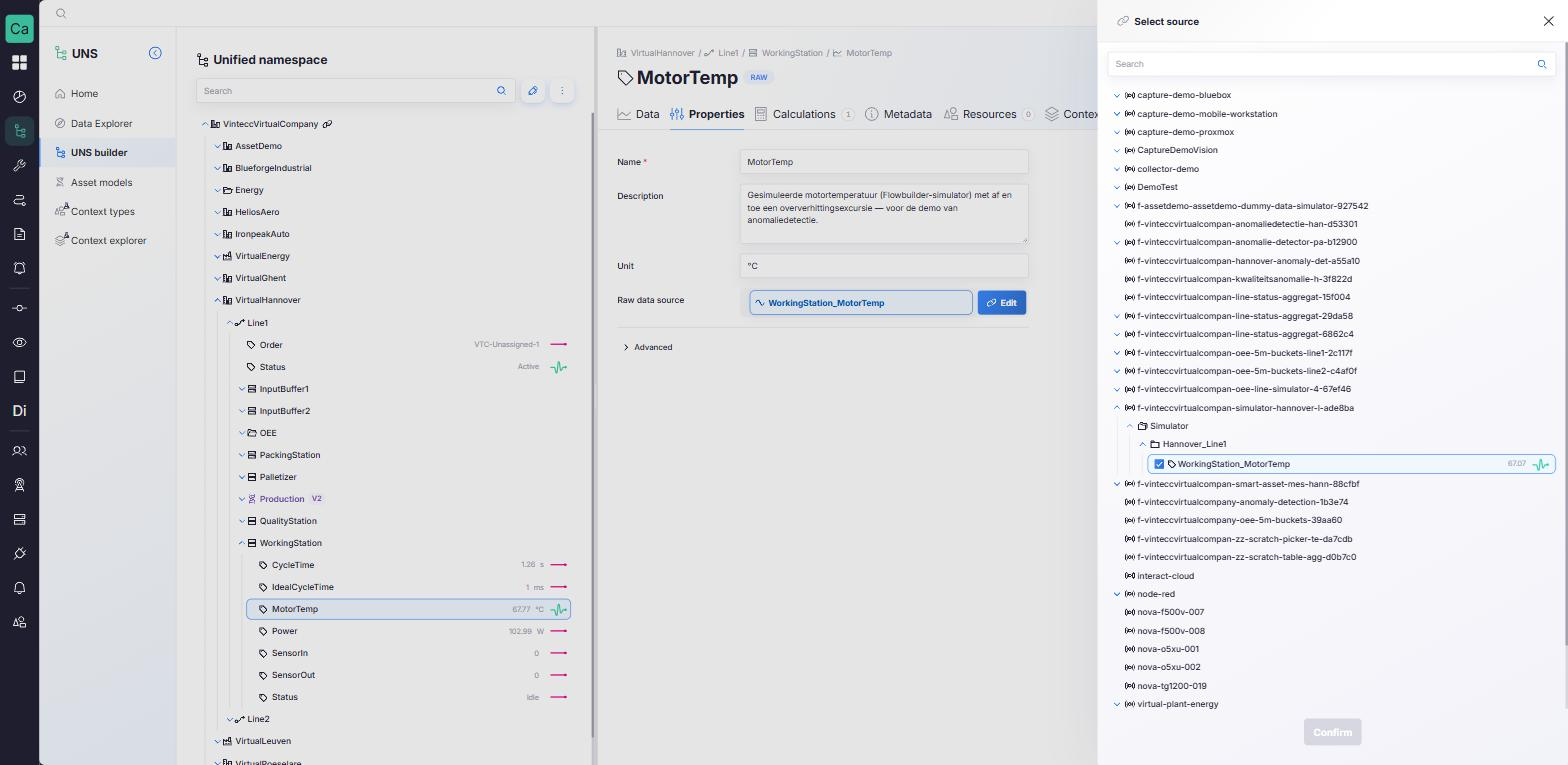
- On the variable's Properties tab, click Select source next to Raw data source (or Edit when a source is already set).
- In the Select source panel, browse the raw data: gateway → connection → measurement → field.
- Select the field and click Confirm, then save the variable.
The field shows the name of the selected source field. From then on, every value that arrives on that field is stored under the variable. To move a variable to another source, select a different field the same way; the variable keeps its name, path and history.
You can also bind a source from the Data Explorer: while a new parameter is open, the explorer offers Map to <name> on a field.
The header of a variable shows where its values come from: Raw for a gateway field, API Token for a variable fed by an API token. A variable fed by an API token shows the token in an Api Token field; it cannot also get a raw source.
Variables without a source
A variable does not need a source. You can save it without one and bind it later. Its Raw data source then shows Currently unmapped. Such a placeholder is useful to:
- lay out the full structure of a line before the gateways are connected;
- receive the parameters of an asset model instance whose sources still have to be mapped. In an instance, an unmapped parameter is marked with an orange dot in the tree.
A placeholder has no values until it gets a source. Metadata and resources can already be set on it.
The tabs of a variable
| Tab | Shows |
|---|---|
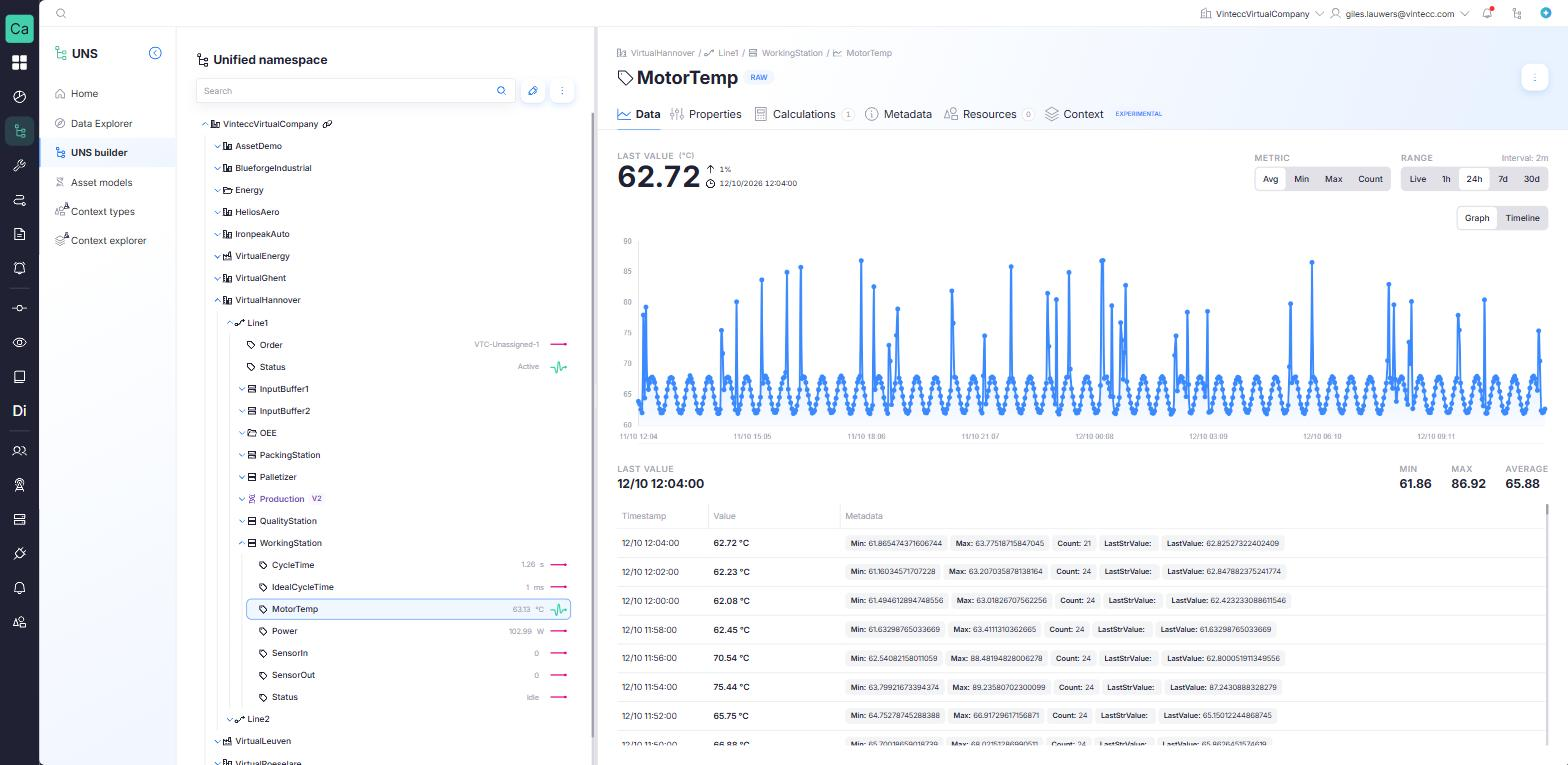
| Data | The last value and its history as a Graph or Timeline, Live or over a range from 1 hour to 30 days, with minimum, maximum and average |
| Properties | Name, description, unit, source and the advanced settings below |
| Calculations | Steps that compute the stored value from the incoming one, such as Multiply, Round or an Expression, with optional Validations |
| Metadata | Key/value pairs; see Metadata |
| Resources | Linked files; see Resources |
| Context (Experimental) | What happened on this node; see Context episodes |
Advanced settings
Under Advanced on the Properties tab:
| Setting | What it does |
|---|---|
| Hysteresis deadband | Suppresses a reading that has not moved far enough from the last stored value (Absolute or Percentage Threshold), so noise does not count as change. A value is stored anyway once Max silence (s) has passed. Set both or neither |
| MQTT export | How the variable is published to MQTT: Publish to MQTT, Retain last message, Quality of service and Debounce interval (ms). Default uses the exporter's own setting. It does not affect what is stored |
| Persisted tags | Up to 16 extra tags stored with every measurement of the variable |
The MQTT broker keeps a variable's last retained message. Turning off publishing or retaining does not remove that message from the broker: new subscribers keep receiving it until it is cleared manually.
Metadata
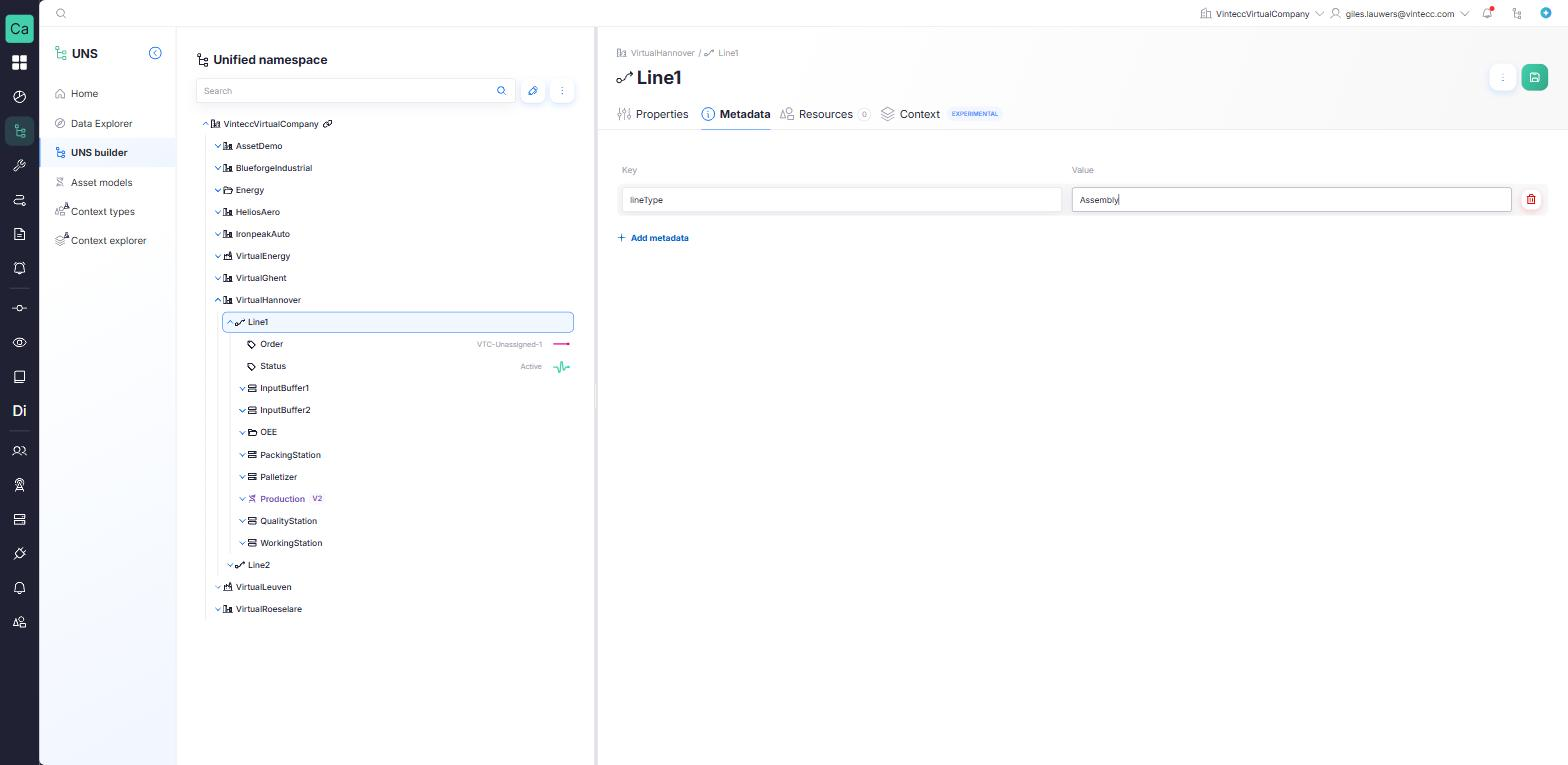
Metadata describes a node with key/value pairs, such as serialNumber = 4471-A or supplier = Krones. Assets and variables both have a Metadata tab.
- Open the Metadata tab and click Add metadata.
- Enter a Key and a Value.
- Add, change or delete more rows, then click Save. The message Metadata saved confirms it.
Rules:
- A key must not be empty, and a key may appear only once per node (Duplicate key detected in the metadata). Keys are case-sensitive.
- Saving stores the whole set: rows you deleted are removed, and rows with an empty key are dropped.
- On an asset model instance, the keys that the model defines are fixed; only their values can be changed.
Resources
Link files from the resource library to a node, such as a manual, a drawing or a maintenance procedure.
- Open the Resources tab and click Link resource(s).
- Select one or more resources and confirm.
- For each linked resource, choose the Linked version: a fixed version, or Always latest to follow new versions automatically.
Use Unlink resource to remove a link; the resource itself stays in the library. A resource that is no longer available is marked Unavailable. Resources that an asset model added are marked From model and cannot be unlinked or re-pinned on the instance.
Delete a variable
Open the … menu of the variable and choose Delete parameter. The variable and its measurement history are deleted, and this cannot be undone. See Delete nodes.