Asset models
An asset model is a reusable template for a piece of equipment: a filler, an oven, a compressor. It describes the structure once (the assets, variables, metadata keys, calculations and linked resources) so that you can create the same structure many times in the namespace. Each copy is an instance of the model.
When the model changes, it gets a new version. Existing instances stay on the version they were created from until you upgrade them, and you can compare versions to see what an upgrade would change.
Asset models are switched on per environment. If you do not see Asset models in the UNS menu, the feature is not available to your company yet.
The asset models overview
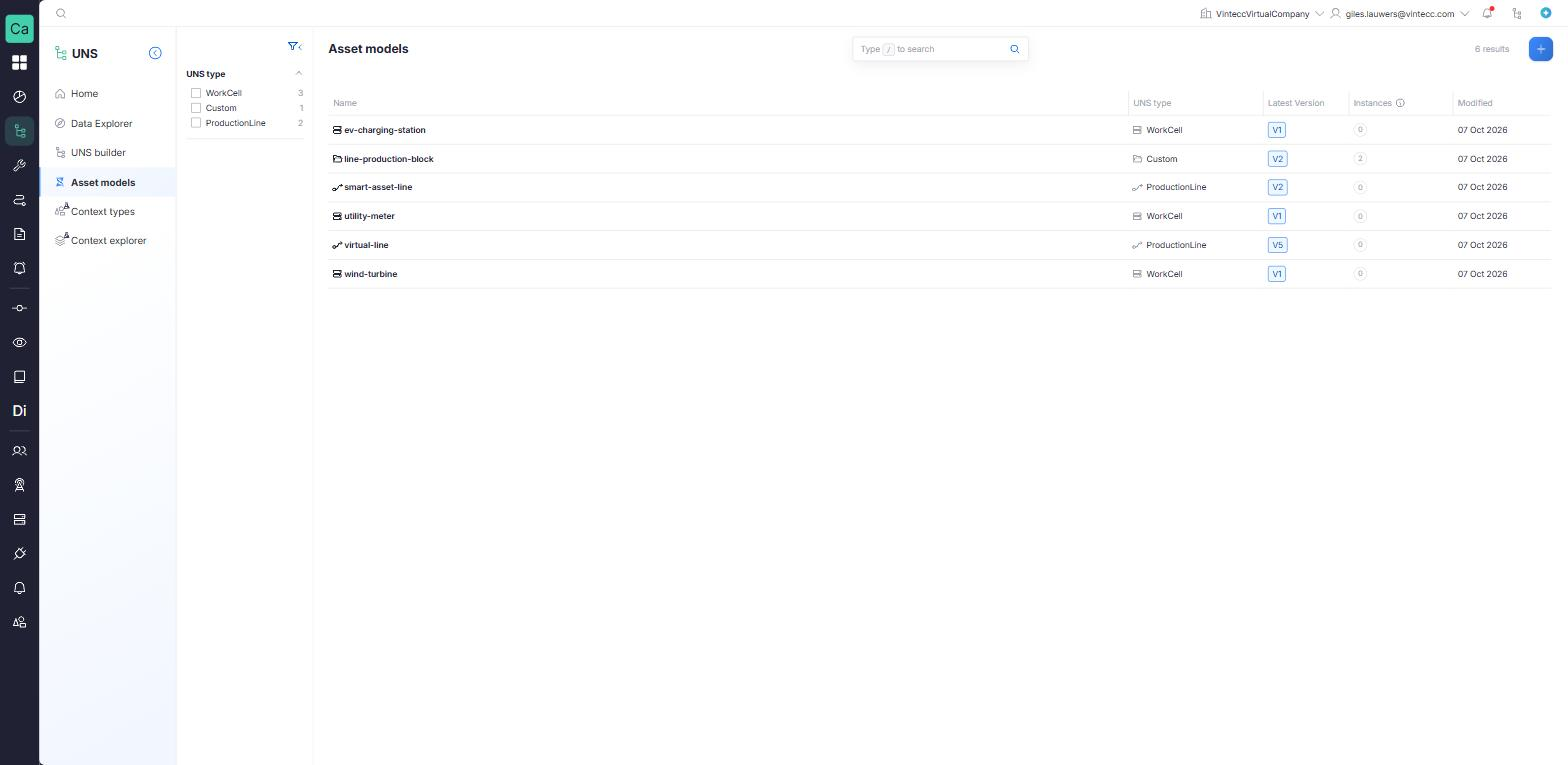
Go to UNS → Asset models. The list shows every model your company can use:
| Column | Meaning |
|---|---|
| Name | The model's name |
| UNS type | The component type of the model's root, such as WorkCell |
| Latest Version | The newest published version, such as V3 |
| Instances | How many instances were created from the model. An orange highlight means some instances are still on an older version |
| Modified | When the model last changed |
Models that a parent company shares with you are listed as well. Their instance count is shown as —, because instance counts are only shown for the models your company owns.
Creating, editing and deleting models needs the Manage right on the Unified Namespace.
Create a model
There are two ways to start: build the model by hand, or save an existing asset from the tree as a model.
Build a model by hand
- In Asset models, click + (Add asset model). The New asset model page opens.
- On Properties, fill in:
- Name (required).
- Description: shown to users, and given to Captain as context for this model.
- Component type (required): the type of the model's root, such as
WorkCell. It decides where instances may be placed, following the equipment hierarchy. - Shareable: when on, companies under your top-level company may instantiate this model, but never edit it.
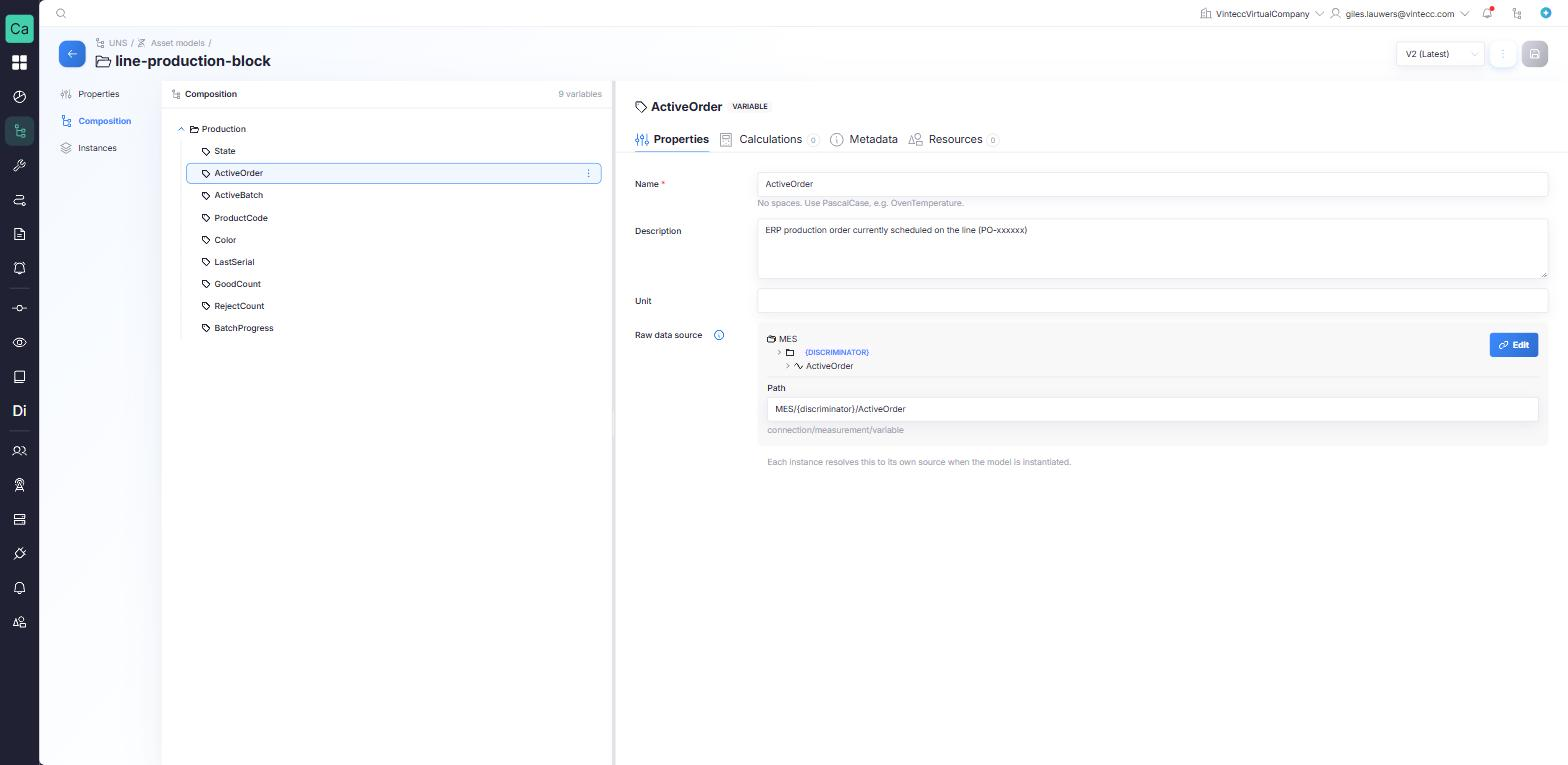
- On Composition, build the structure under the root. Use the node options to Add asset, Add parameter or Delete a node.
- Select a node to edit it in the node panel. Its tabs are Properties, Calculations (variables only), Metadata and Resources.
- Save. The first save publishes V1.
Node names
- Letters, digits, underscores and hyphens only; no spaces. PascalCase is recommended, such as
OvenTemperature. - Unique among siblings. Names that differ only in upper and lower case count as the same name.
- At most 200 characters; a description at most 2000 characters.
Parameters and their raw data source
A parameter (variable) in a model can carry a Raw data source. In a model this is a template, not a fixed path. You fill in its last three segments, the connection, the measurement and the variable (connection/measurement/variable), and the platform resolves the rest to the right gateway for each instance.
- Write a literal value in a segment that is the same for every instance, such as
PackML. - Write
*(Matches all) in a segment that differs per instance and should be chosen when the instance is mapped. - Leave the source empty for a parameter that each instance maps by hand. Such a parameter is tagged unmapped in the composition, and every instance gets it as a placeholder variable without a source.
A calculation on a model parameter is the recipe every instance uses to compute that variable. Metadata keys and linked resources on a model node are created on every instance.
Limits
| Limit | Value |
|---|---|
| Nodes in one model | 1000 |
| Depth of the composition | 50 levels |
| Node name | 200 characters |
| Description | 2000 characters |
Versions
Only changes to the composition, including the root's Component type, create a new version. Changing the name, description or Shareable does not.
- The first save publishes V1.
- On a later save that changes the composition, the platform shows This creates Vn. Click Continue to publish it, or Discard to drop your changes. Existing instances keep their version until they are upgraded.
- Use the Version selector to look at an older version. It lists the versions with (Latest) and, while you are editing, (draft). An older version is a read-only snapshot: switch to the latest version to make changes.
Compare two versions
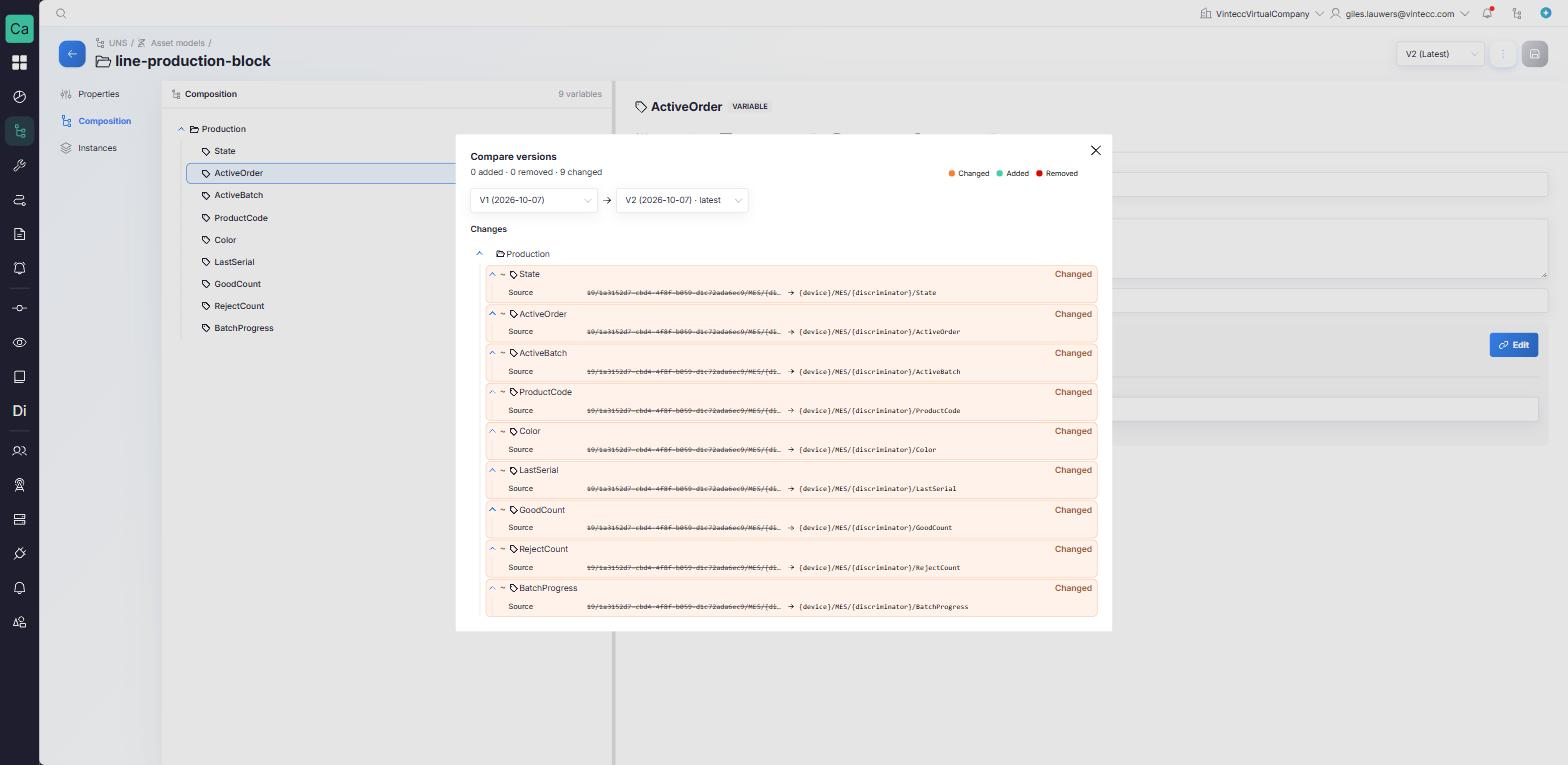
- Open the model and choose Compare in its options menu. It is available once the model has a second version.
- In Compare versions, pick the From and To versions.
The comparison shows the composition of both versions in one tree, with every node marked Added, Removed or Changed, and a summary of the counts. For a changed node it lists the fields that differ: Name, Description, Type, Unit, Source, Calculation, Metadata and Resource.
Nodes are matched by name under the same parent, the same way an upgrade matches them. A renamed node therefore shows as one node removed and another added, which is exactly what an upgrade will do with it.
Save an existing asset as a model
If you already built a machine by hand in the tree, you can turn it into a model instead of retyping it.
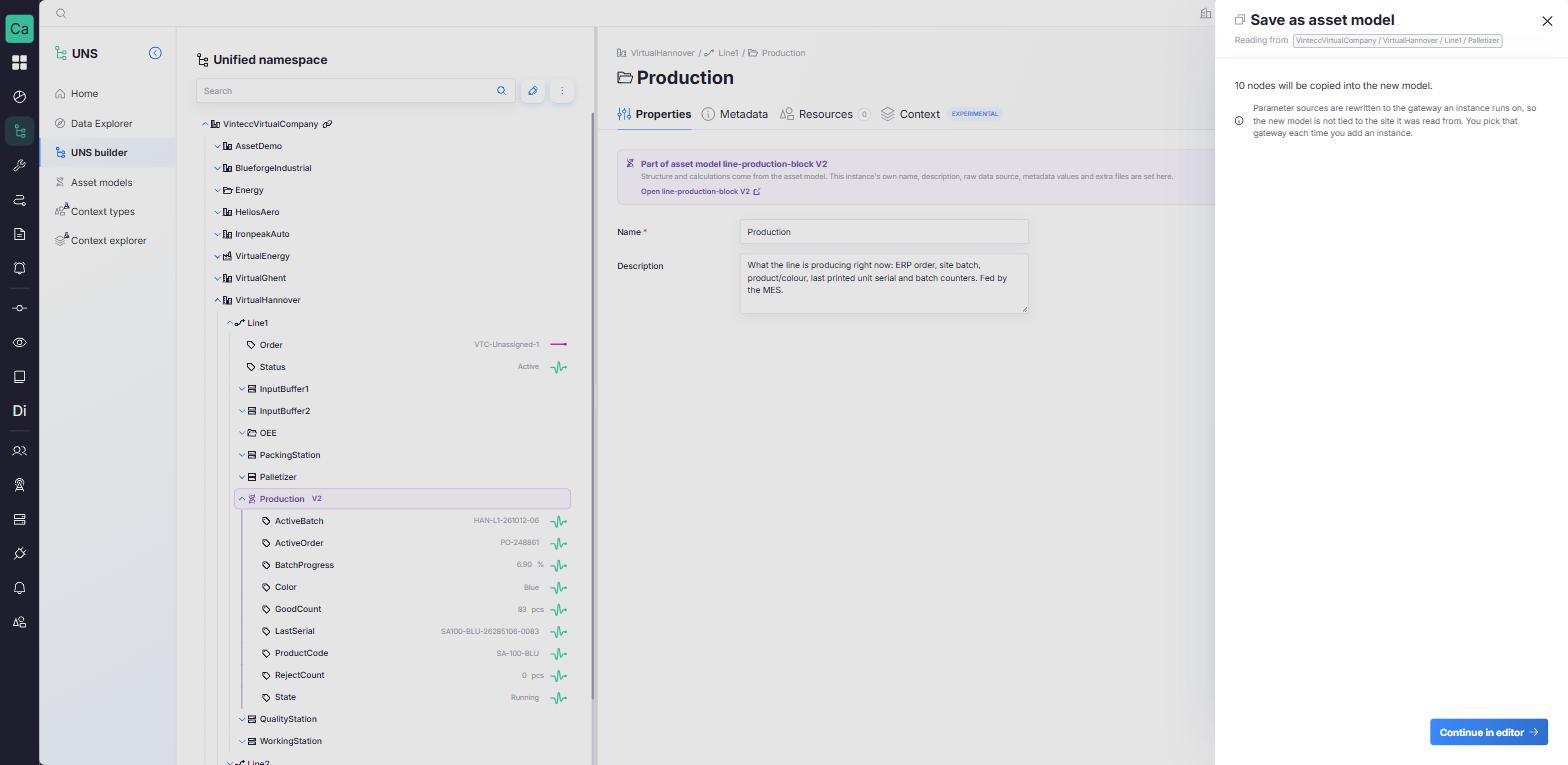
- In the UNS builder, open the … menu on the asset and choose Save as asset model.
- The panel shows what will be copied (Reading from, the number of nodes) and lists the parameters that have no source pattern and will have to be mapped on every instance.
- Click Continue in editor. A new, unsaved model opens with the copied structure.
- Review it, correct what is needed, and save to publish V1.
Parameter sources are rewritten so that the model is not tied to the gateway it was read from: each instance picks its own gateway when it is created. Nothing in the tree changes, and the original asset does not become an instance of the new model.
If the structure cannot be published as it is (for example, it uses a component type that no longer exists), the panel says so and you fix it in the editor before saving.
Delete a model
You can delete a model only when it has no instances left, and only from the company that owns it, on its latest version.
- Open the model and choose Delete in the options menu (or on its row in the overview).
- If instances remain, the dialog lists them, each with a Detach button. Detach each one first. Instances that belong to another company show Can't detach here and have to be detached from that company.
- Confirm. Deleting a model cannot be undone.
Next: create and manage instances.