Data Explorer
The Data Explorer shows the raw data that arrives from your gateways, before it is placed in the Unified Namespace. Use it to check that a source is sending data, see what its values look like, and find out which UNS parameters read from it.
It does not show the UNS tree itself. To browse and edit the namespace, use the UNS builder.
Open it from the UNS menu: UNS → Data Explorer.
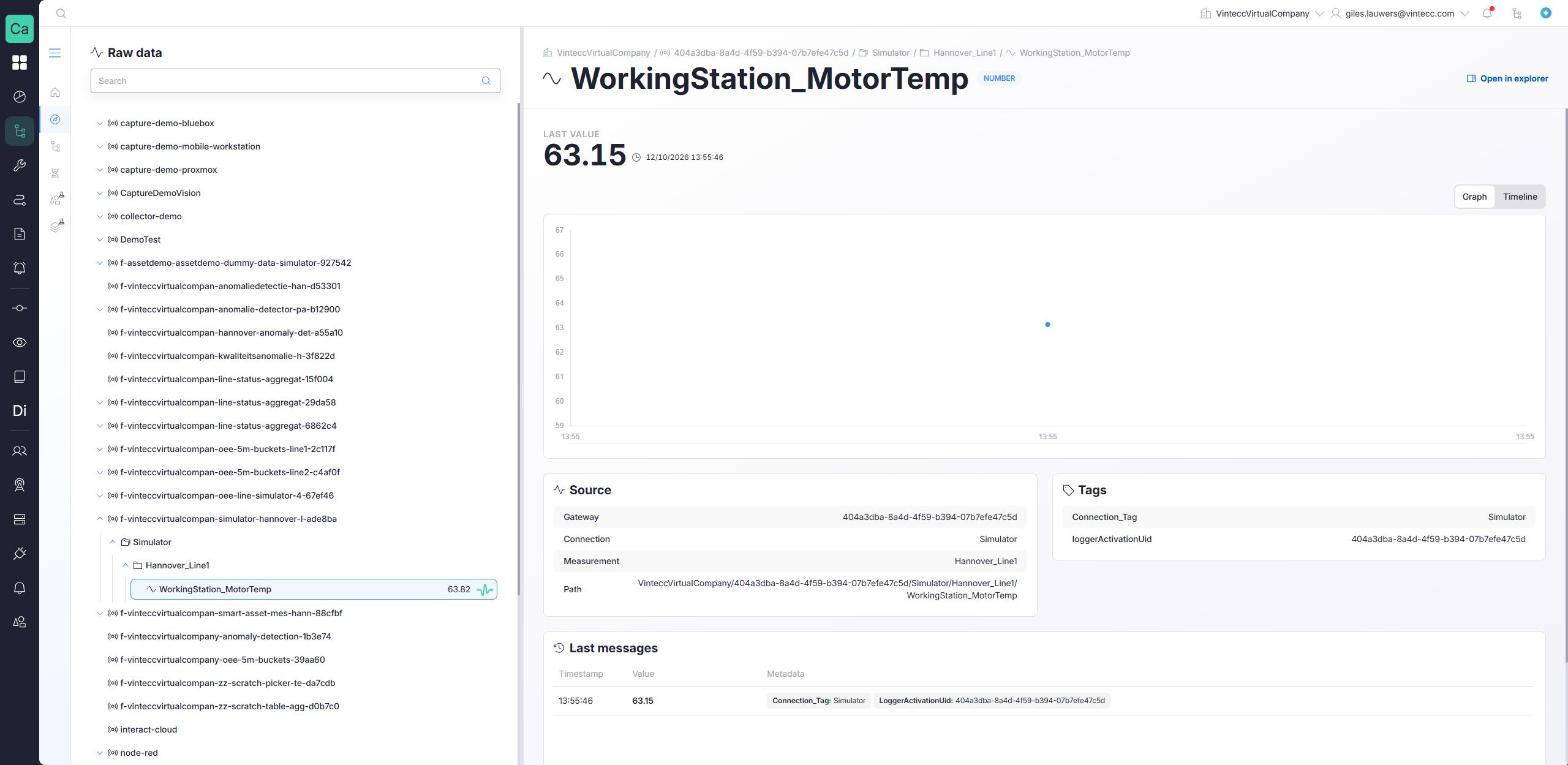
The raw data list
The left side lists your raw data per source:
- Gateway: the device or service that sends the data
- Connection: a connection configured on that gateway
- Measurement: a group of values within the connection
- Field: one value, such as
WorkingStation_MotorTemp
Expand a level to see what is under it, or type in the search box to find a field by name. While you search, the matching fields are shown grouped by their source.
Click a field to open its details on the right. Until you do, the right side says Select a parameter from the raw data tree to view its live details.
Field details
The header shows the field's name, its source as a breadcrumb, and a badge with the kind of value it carries: Number, Text or Object. Open in explorer opens the same field in the explorer side panel, so you can keep it next to another page.
Below it:
- Last value: the most recent value, how much it changed, and when it arrived.
- Chart: the values received while the page is open. Numbers can be shown as a Graph or a Timeline; text values are shown as a state timeline. When values change too often to draw one by one, the timeline says Showing a simplified view.
- Source: the Gateway, Connection, Measurement and full Path of the field. If UNS parameters read from this field, Linked UNS parameters lists them with their place in the tree; click one to open it in the UNS builder.
- Tags: the tags that come with the field's values.
- Last messages: the values received so far, newest first. For an object value, click a row to view that message, and Back to live to return.
The Data Explorer shows what arrives while the page is open, starting from the field's last known value. It has no time range. To look back over hours or days, bind the field to a UNS parameter and use the parameter's Data tab in the UNS builder (see Variables and sources).
Clean up a topic
Users who can manage the Data Explorer get a row menu (⋮) with Cleanup topic. It clears the latest real-time value of that field or source, for example after a gateway stopped sending a field that should no longer show up. Stored history is not affected. When there is nothing to clean up, the action is disabled.
Mapping from the explorer
The same raw data list appears when you pick a source for a parameter:
- Select source on a parameter in the UNS builder opens it as a picker. See Bind a source.
- The explorer is also available as a side panel through Open explorer. While a new parameter is open in the UNS builder, select a field there and click Map to <name> to bind it, or Open in Data Explorer to see the field on this page.