How to Use the UNS Builder
The UNS Builder is a visual tool for creating, organizing, and maintaining a Unified Namespace (UNS). It provides a hierarchical tree structure where you can add nodes, manage metadata, and attach data streams in a structured and contextual way.
1. Interface Overview
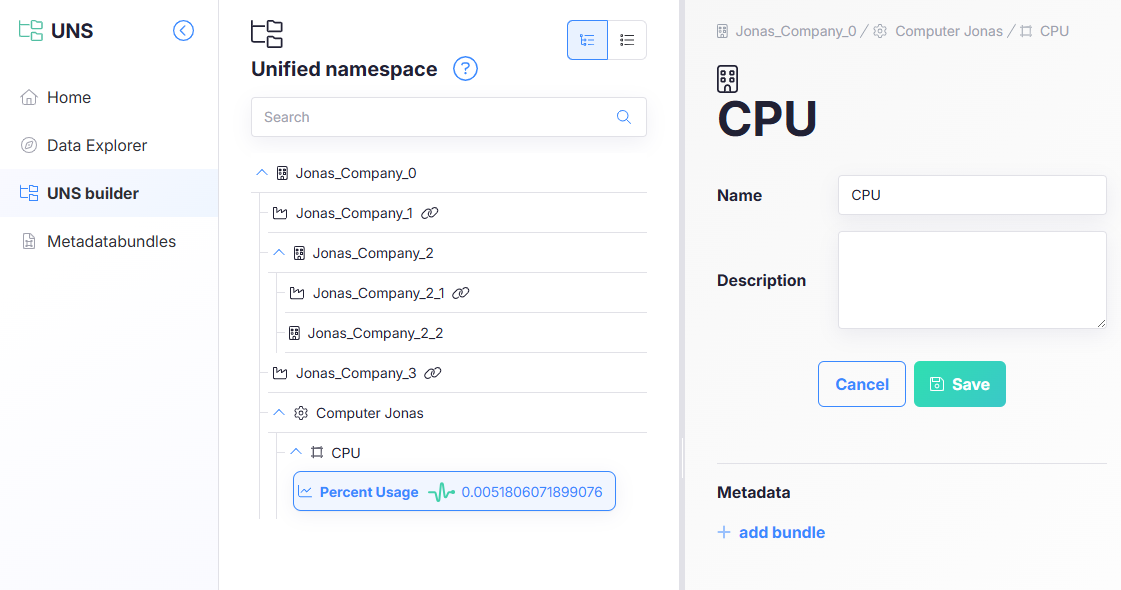
Center Panel — Namespace Tree
- Displays the hierarchical UNS structure
- Expandable/collapsible nodes
- Search bar for quick navigation
- Icons indicating folders, assets, or data streams
Right Panel — Node Editor
An editor for an asset or parameter node
2. Default configuration
By default each company gets its own UNS retention which is a narrow table timescale retention. Data configured in the UNS is saved there unless configured differently. Data from a subcompany in UNS is saved in both the root company's database and the one of the subcompany
3. Creating New Nodes

- Navigate to the level where you want to add the node.
- Select the Add asset or Add parameter option.
Assets
Assets are like folders that help organize different parts of your business (for example, factories, production lines, or custom groups).
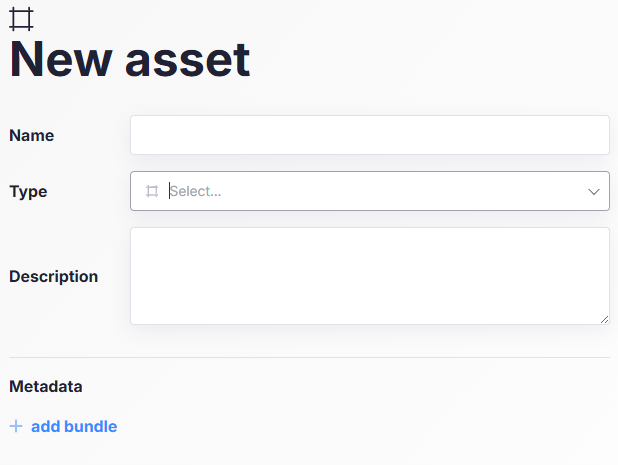
- Name: An easy-to-understand name for the asset, for example "Factory 1" or "Packaging Line".
- Type: Select one of the types defined by asset types.
- Description: A detailed description of the asset, this is optional but can help provide more context about the asset.
- Metadata: You can add metadata bundles to provide additional information about the asset, such as location, technical specifications, or maintenance details. You can learn more about metadata bundles in the Metadata Bundles page.
Available asset types
To keep things structured, we provide several predefined asset types:
- Site: Represents a physical location, like a factory or warehouse.
- Area: A section within a site (e.g., assembly area, packaging area).
- Production Line: A specific line where manufacturing happens.
- Workcell: A small, organized group of machines within a production line.
- Custom: A flexible asset type for anything that doesn't fit the standard categories.
These types are based on the ISA-95 standard, which is widely used in manufacturing for structuring enterprise data. You can ignore this standard by using the Custom asset type, which allows you to create your own structure without following the predefined hierarchy.
Special asset types
Site asset
A Site can either be a simple asset (just a location with a description and metadata) or linked to a subcompany. If linked to a subcompany, you can also link it to a separate database where the subcompany's data will be stored. This means the data from this part of the structure will also be visible in the subcompany’s system.
Custom asset
Unlike other asset types, Custom Assets do not follow a strict structure. This makes them useful for companies that need unique data groupings that don’t fit the predefined asset types.
Parameters
Parameters are linked to real-world data points, such as machine temperatures or energy consumption.
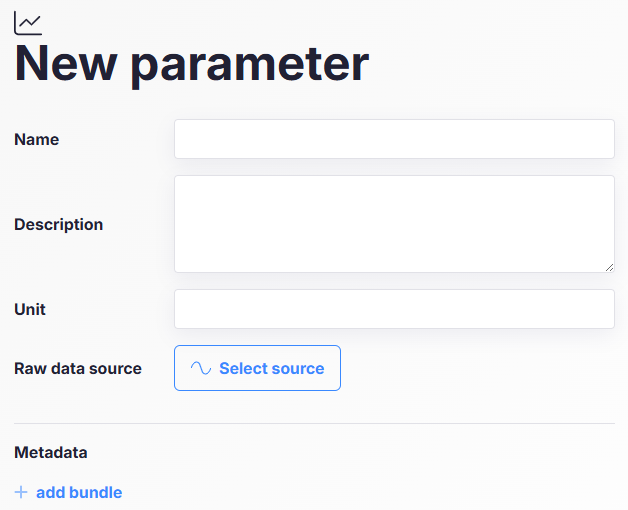
- Name: An easy-to-understand name for the parameter, for example "Temperature" or "Speed".
- Description: A detailed description of the parameter, this is optional but can help provide more context about the parameter.
- Unit: The unit of measurement for the parameter, for example "°C" for temperature or "RPM" for speed. This is optional but useful for providing context about the data.
- Raw data source: The original source of the data for this parameter, for example a specific sensor or database field.
- Metadata: You can add metadata bundles to provide additional information about the parameter, such as location, technical specifications, or maintenance details. You can learn more about metadata bundles in the Metadata Bundles page.