Building the namespace
You build and maintain the namespace in UNS → UNS builder. The tree is on the left; the details of the selected node are on the right.
Changing the tree needs the Manage right on the Unified Namespace. With only View, you can browse it but the platform refuses every change.
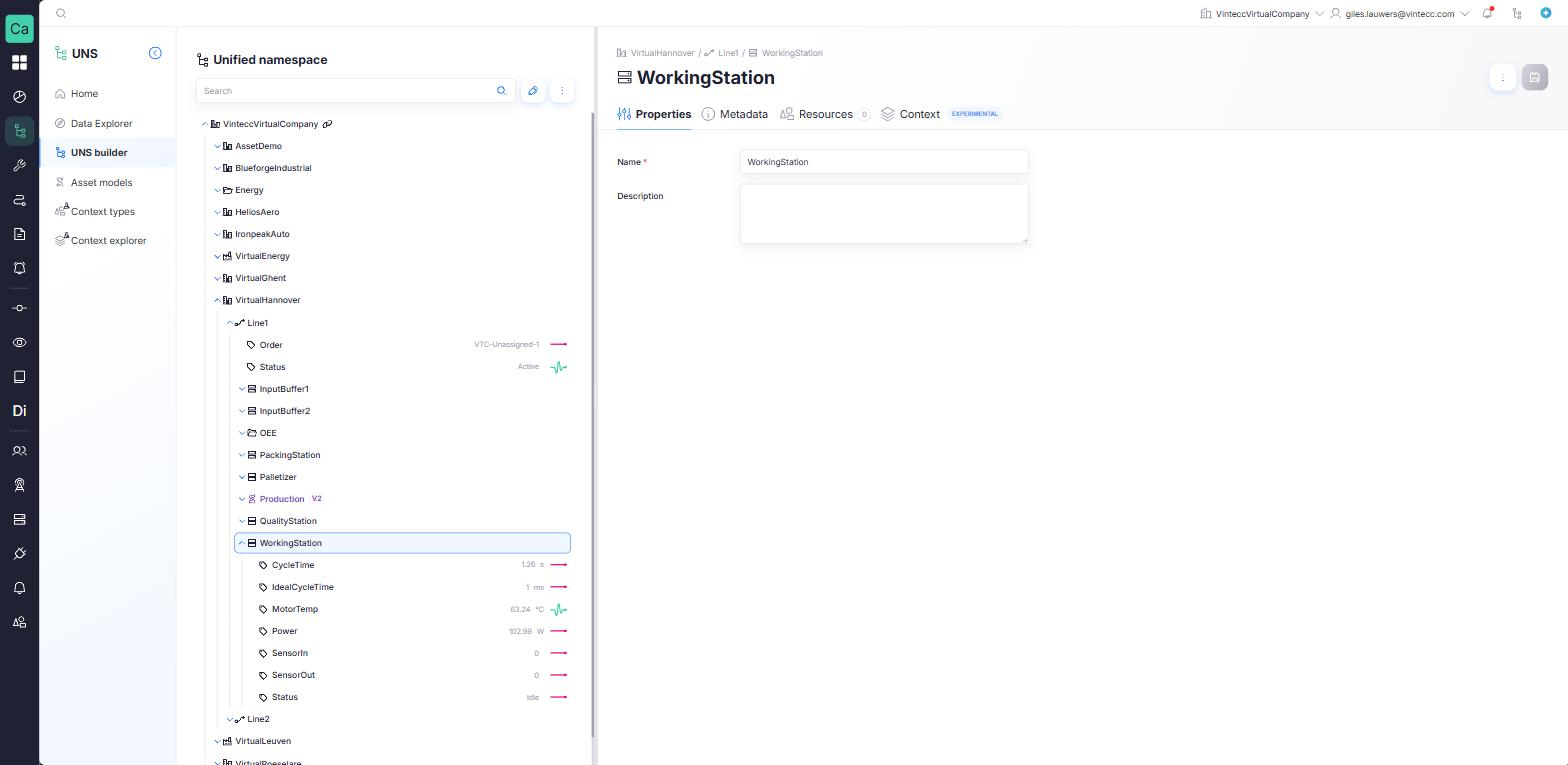
The tree
- The root of the tree is the Enterprise node. It carries your company's name and stands for the company itself. Sub-companies have their own Enterprise node.
- Assets can be expanded to show their child assets and variables (parameters).
- Type in Search to filter the tree: it shows the matching nodes together with the assets above them.
- Every row has a … menu with the actions for that node.
Actions on a node
| Action | On | What it does |
|---|---|---|
| Add asset | asset | Adds a child asset |
| Add parameter | asset | Adds a variable under the asset. See Variables and sources |
| Add asset model | asset | Adds an instance of an asset model under the asset. See Asset model instances |
| Save as asset model | asset | Starts a new asset model from this asset. See Asset models |
| Duplicate asset / Duplicate parameter | both | Makes a copy next to the original |
| Copy UNS path | both | Copies the node's path to the clipboard |
| Delete asset / Delete parameter | both | Deletes the node; see Delete nodes |
The asset-model actions appear only when asset models are available to your company. Inside an asset model instance, some actions are not offered; see what you can change on an instance.
Copy UNS path copies the names separated by slashes, such as acme/ghent/packaging/line1. Integrations, context links and Grafana write the same path with dots: acme.ghent.packaging.line1.
Add an asset
- Open the … menu of the parent asset and choose Add asset. A draft row New asset appears.
- Fill in:
- Name (required): letters, digits, underscores and hyphens only, no spaces, such as
filler01. No other node under the same parent may have the same name. - Component type (required): the list only offers the types that are allowed under the parent, following the equipment hierarchy. Types are shown by their catalog name, such as
ProductionLine. - Description (optional).
- Name (required): letters, digits, underscores and hyphens only, no spaces, such as
- Click Save. The message Asset created confirms it. Cancel discards the draft.
The component type cannot be changed after the asset is created. To change it, create a new asset with the right type and move the content by duplicating or rebuilding it.
You cannot create an Enterprise by hand: it is created together with the company.
Edit an asset
Select the asset, change its Name or Description on the Properties tab, and save. Renaming an asset changes the UNS path of everything below it. Context links follow the renamed nodes automatically; dashboards or integrations that use the old path must be updated.
The tabs of an asset
| Tab | Shows |
|---|---|
| Properties | Name, component type and description |
| Metadata | Key/value pairs; see Metadata |
| Resources | Linked files from the resource library; see Resources |
| Context (Experimental) | What happened on this node; see Context episodes |
Select several nodes
Click Edit mode (the pencil button) to show checkboxes in the tree. Select nodes, then use the bar at the top:
- Duplicate: asks Duplicate n selected item(s)? and copies each selected node.
- Delete: asks for confirmation and deletes the selected nodes. Nodes that belong to an asset model instance are skipped, and a message says how many.
- Clear: clears the selection.
Turning Edit mode off clears the selection.
Duplicate a node
Duplicate asset or Duplicate parameter creates a copy under the same parent, named after the original with _copy added (_copy2, _copy3 and so on if that name is taken).
| Copied | Not copied |
|---|---|
| The whole structure below the node: assets with their type and description, variables with their name, unit and description | Sources: every copied variable starts without a source |
| Metadata | Measurement data |
| Resource links, with their version pins | Deadband, MQTT export and persisted tags |
| Calculations, which become active once the copied variable gets a source | The link to an asset model |
Export and import the tree as JSON
Use the ⋮ menu above the tree:
- Export opens the whole tree as JSON in the Edit JSON panel. Click Download JSON to save it as
uns-tree.json. - Import reads a
.jsonfile from your computer into the same panel. Nothing is saved yet.
In the panel you can edit the JSON and click Save JSON to apply it. Nodes are matched by id and path: new nodes are created, existing ones are updated or moved. The hierarchy rules apply to every node the import creates, and a tree may be at most 50 levels deep. Only one import per company can run at a time.
With Prune on, existing nodes that are missing from the JSON are deleted. A prune that would delete a variable that has measurement data is refused, and nothing is deleted. Leave Prune off unless you mean to remove everything that is not in the file.
Delete nodes
- Open the … menu of the node and choose Delete asset or Delete parameter.
- Confirm: Are you sure you want to delete asset <name>?
- Deleting an asset deletes everything below it: child assets and variables.
- The measurement history of every deleted variable is deleted as well. For an asset with many variables this finishes in the background.
- This cannot be undone.
What happens to links and models:
- Context links that pointed at a deleted node become pending on that path. They bind again when a node is created at the same path. See Pending links.
- A deleted variable's source is released. The raw data of the gateway itself is not deleted.
What cannot be deleted:
| Node | Why |
|---|---|
| The Enterprise node | It stands for the company and is removed only together with the company |
| An asset or variable inside an asset model instance | The model decides the structure. Delete the instance root to remove the whole instance, or detach it first |
| A node of another company | Each company changes only its own part of the namespace |