Context episodes and links
The namespace already knows what a node is (its type and metadata) and what it measured (its variables). Context adds what happened on it: batch B12 ran on line 1 from 06:00 to 14:30, a planned stop lasted 20 minutes, the early shift worked from 04:00 to 12:00.
Each of these is an episode. An episode has:
- a type and type version, such as
batchv1, which decide the states and attributes it can have (see Context types); - a state, such as
runningorcompleted; - an optional label, the short text shown in lists;
- attributes, such as the product code of a production order;
- one or more links, each naming a node and the time window during which the episode applied to it.
Episodes usually arrive from business systems, such as an ERP, an MES or a maintenance system, through the platform API. You can also create and edit them by hand in the UNS screens.
Context is marked Experimental: screens and data may still change. It is switched on per environment, so Context explorer, Context types and the Context tab of a node may not be available to your company yet. The Unified Namespace must be enabled for the company.
Reading context needs the View right on the Unified Namespace. Creating, saving, closing and retracting episodes, and retrying pending links, need Manage.
How an episode is identified
An episode is identified by three values: its Source, its Type and its External ID.
- Source: where the episode comes from, such as
sap-pp. Episodes entered by hand usemanual. - External ID: the episode's own key in that source, such as an order number.
Writing an episode with a source, type and external ID that already exist does not create a new episode: it adds a new revision of the existing one. Every revision is a complete snapshot, and the platform keeps all of them in the change history. Episodes belong to the company that wrote them; two companies that write the same key get two separate episodes.
Links and time windows
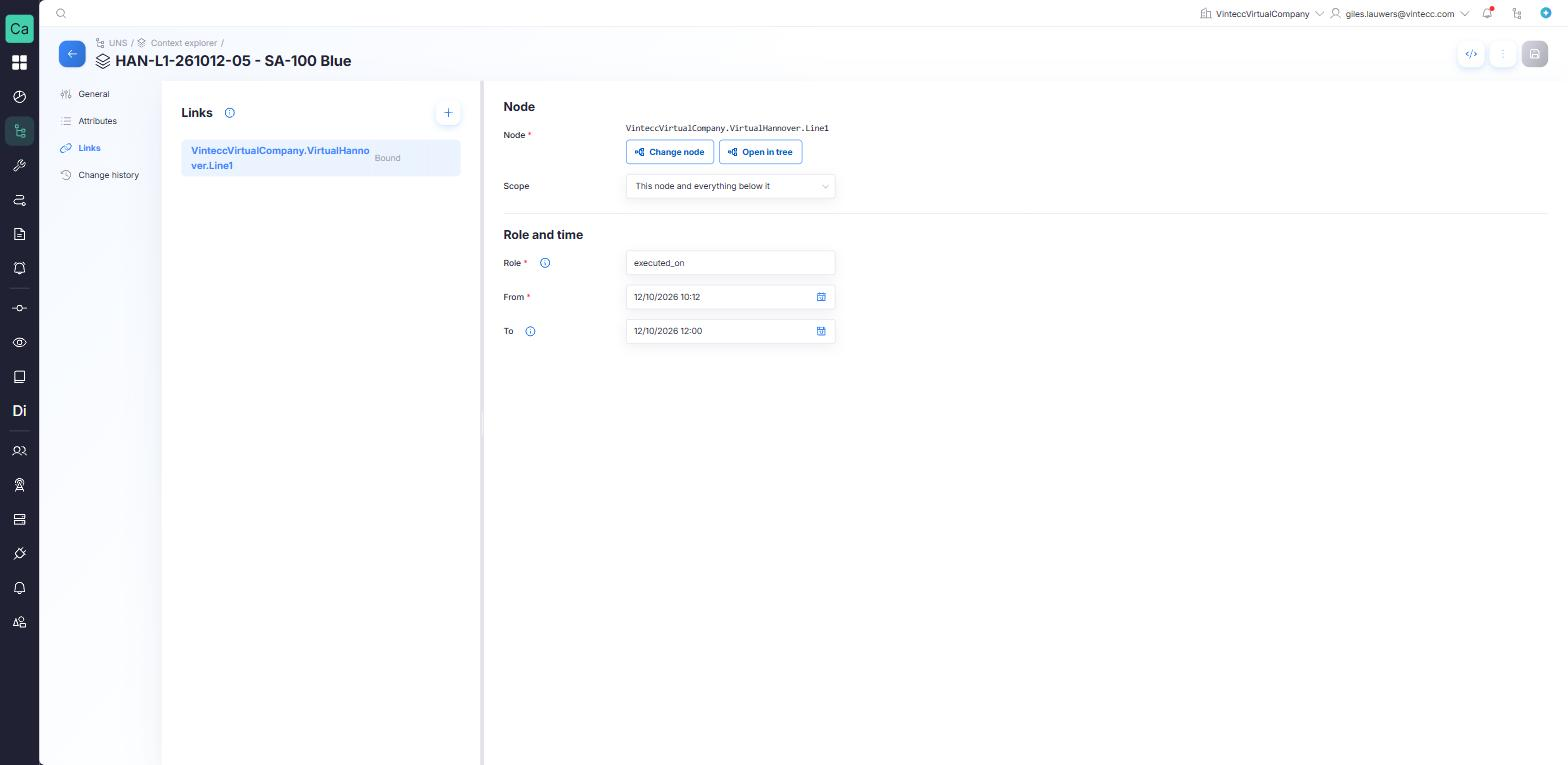
A link connects an episode to a node of the namespace:
| Field | Meaning |
|---|---|
| Node | The node the episode applied to, named by its UNS path |
| Role | What the node was to the episode, such as executed_on or scheduled_on. Required; the type suggests typical roles |
| Scope | This node only, or This node and everything below it (for example a batch on a whole line) |
| From | When the episode started on this node. Required |
| To | When it ended. Leave it empty while the episode is ongoing |
The window is half-open: an episode that ends at 14:30 and one that starts at 14:30 do not overlap. Windows on the same node may overlap, such as two shifts handing over, or a batch inside a production order. An episode can have up to 16 links, and a link can only point at a node inside your company's part of the namespace.
The window is when the episode actually happened. When it was planned goes in attributes such as plannedStart and plannedEnd.
Pending links
A link always names its node by UNS path. When no node exists at that path yet, the link is stored as Pending instead of being refused. The episode is kept, and the link binds to the node once one exists at that path. A bound link also becomes pending again when its node is deleted.
When a node is renamed or moved, a bound link follows it and shows the node's new path.
See Resolve pending links to bind them.
Links between episodes
An episode can also link to another episode of your company, for example:
- a
batchthat ispart_ofaproduction_order; - an
equipment_eventthat happenedduringabatch; - a
planned_stopthat wascaused_byamaintenance_order.
These links are usually written by the integration that sends the episodes. In the episode editor they are shown read-only on the Links tab, and the episodes that link to the open episode are listed under Linked from. You cannot create a link to another episode with the form; an advanced user can add one in the episode's JSON under View code, as an entry with a context object naming the other episode's type, source and externalId, plus a role and from.
A link to an episode that does not exist yet is pending until your company writes that episode.
The Context explorer
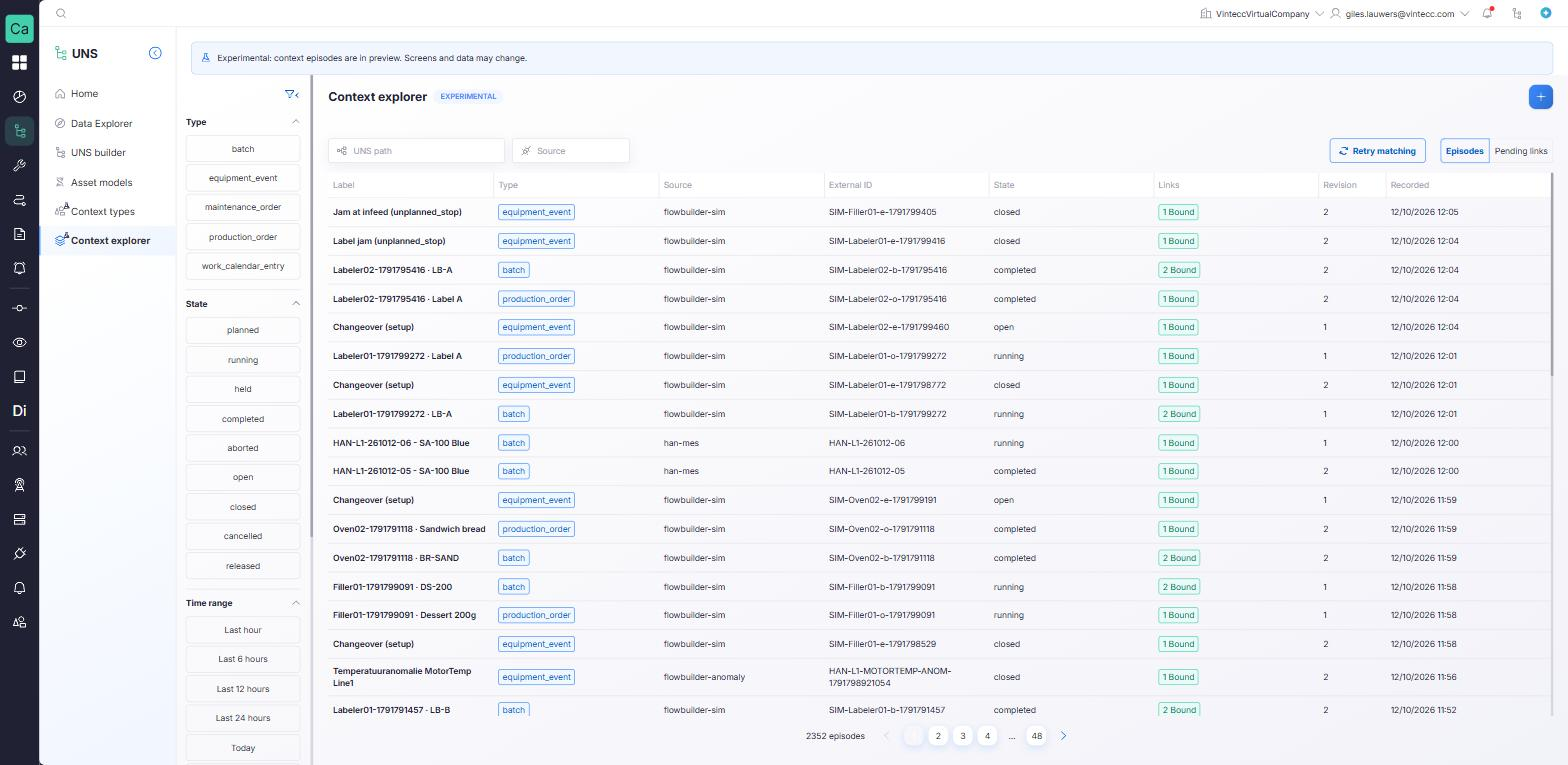
Go to UNS → Context explorer to find episodes across the whole namespace.
- Search by UNS path (episodes linked at or below that node) and Source.
- Filter by Type, State and Time range (presets such as Last 24 hours or Last 7 days, or a Custom range), and tick Pending links only to see only episodes with a pending link.
- Switch the View between Episodes and Pending links.
The episode list shows Label, Type, Source, External ID, State, Links (bound and pending), Revision and Recorded, 50 episodes per page. Click a row to open the episode.
Retracted episodes are not listed.
The Context tab of a node
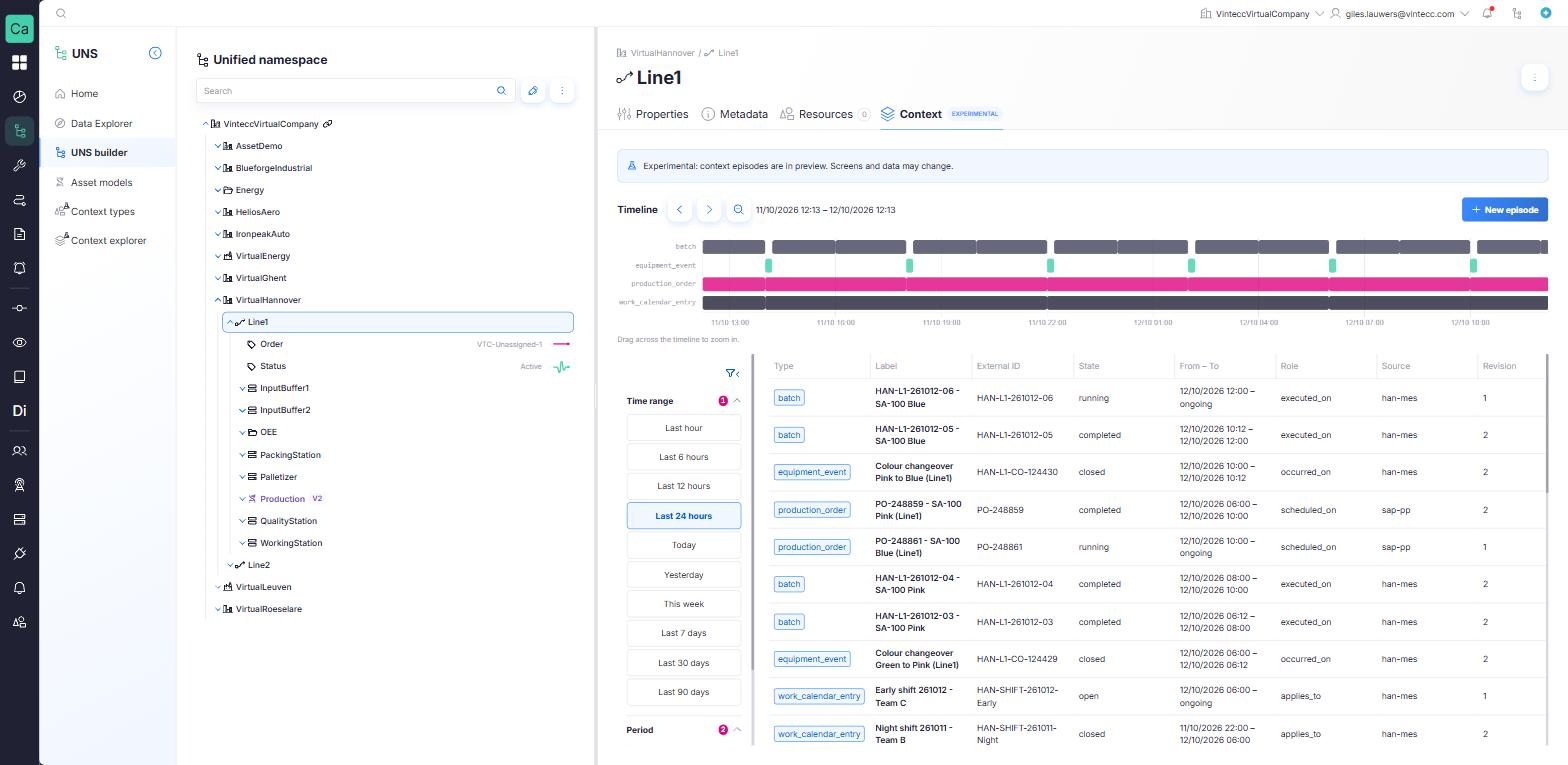
Select an asset in the UNS builder and open its Context tab to see what happened on that node.
- The timeline shows one lane per type and one bar per link, over the selected Period (default Last 7 days). Move with Previous period and Next period, drag across the timeline to zoom in, and use Zoom out to go back.
- The table below lists the episodes with Type, Label, External ID, State, From – To (ongoing while open), Role, Source and Revision.
- It includes episodes linked to the node itself, and episodes linked to one of its ancestors with the scope This node and everything below it.
- New episode opens the editor with a first link to this node already filled in.
Create an episode
- Click + (New episode) in the Context explorer, or New episode on a node's Context tab.
- On General, choose the Type and its Version, then the State. Optionally enter a Label.
- Check the Source (default
manual) and the External ID (a suggestion such asMAN-20261007-061500based on the current time). If you enter a source, type and external ID that already exist, saving writes a new revision of that episode instead of creating a new one. - On Attributes, fill in the fields of the type. Required attributes are marked; the form checks lengths, ranges and allowed values as you type.
- On Links, click + to add a link. Click Pick node, then set the Scope, Role, From and, if the episode has ended, To. At least one link is required.
- Click Create episode.
The result says Change 1 saved. When a link's path has no node yet, the message also counts the links that are still pending.
Your source's own fields (x_ objects, see Context types) are not shown in the form. Open View code to see and edit the episode as JSON, including those fields.
Edit an episode
Open the episode, change what is needed and click Save revision. Source, type and external ID identify the episode and cannot be changed. Every save writes a new revision (Change n saved.); saving content that did not change writes nothing.
A revision is a full snapshot: a link you remove is no longer part of the episode.
Close an episode
To end an ongoing episode now, choose Close now in the options menu. Every open link ends at the current time, and the state becomes the type's closing state, such as closed or completed. When the type has no such state, you choose the Closing state. This writes a new revision.
When an episode is read-only
- Another company wrote it. You can see an episode of another company when one of its links points into your part of the namespace, but only the company that wrote it can change, close or retract it.
- Its type version is deprecated. No new revision can be written with that version. Pick an active version on General to save.
- You do not have the Manage right.
Change history
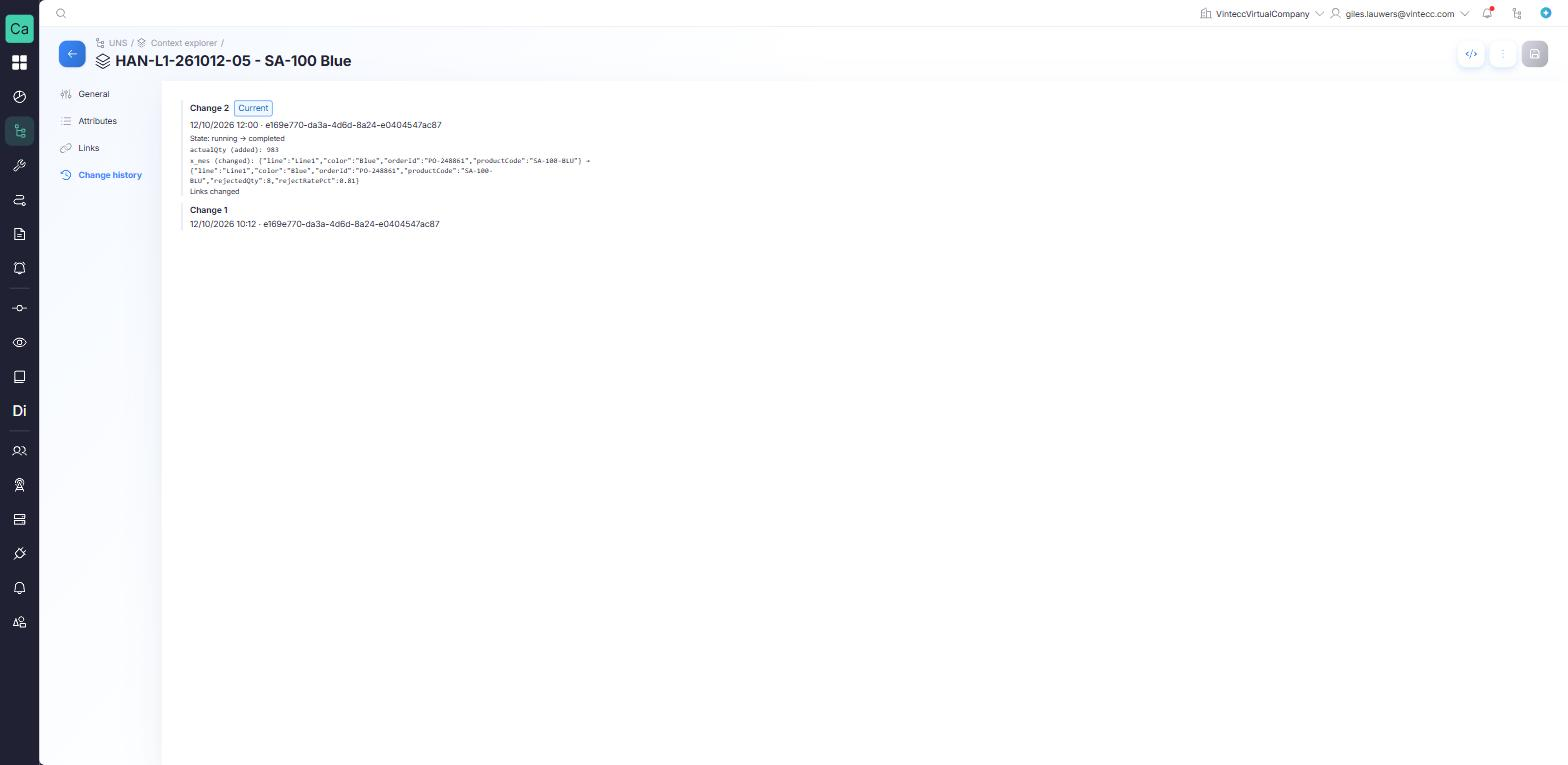
The Change history tab lists every revision of the episode, newest first. Each entry shows:
- Change n, with Current on the latest revision and Retracted on a retraction;
- when it was recorded and by whom;
- what changed compared with the previous revision: the State, the Label and each attribute added, removed or changed, and Links changed when the links differ. An entry without differences says No attribute changes.
Retract an episode
Retract an episode to withdraw it, for example an order cancelled at its source that should disappear rather than show as cancelled.
- Open the episode and choose Retract in the options menu.
- Confirm.
A retracted episode disappears from lists, node timelines and Grafana. Its change history is kept, with the retraction as the last change. To restore it, write the same content again. Only the company that wrote an episode can retract it.
Resolve pending links
Pending links bind by themselves when the integration sends the episode again. After you have added the missing nodes, you can also bind them yourself:
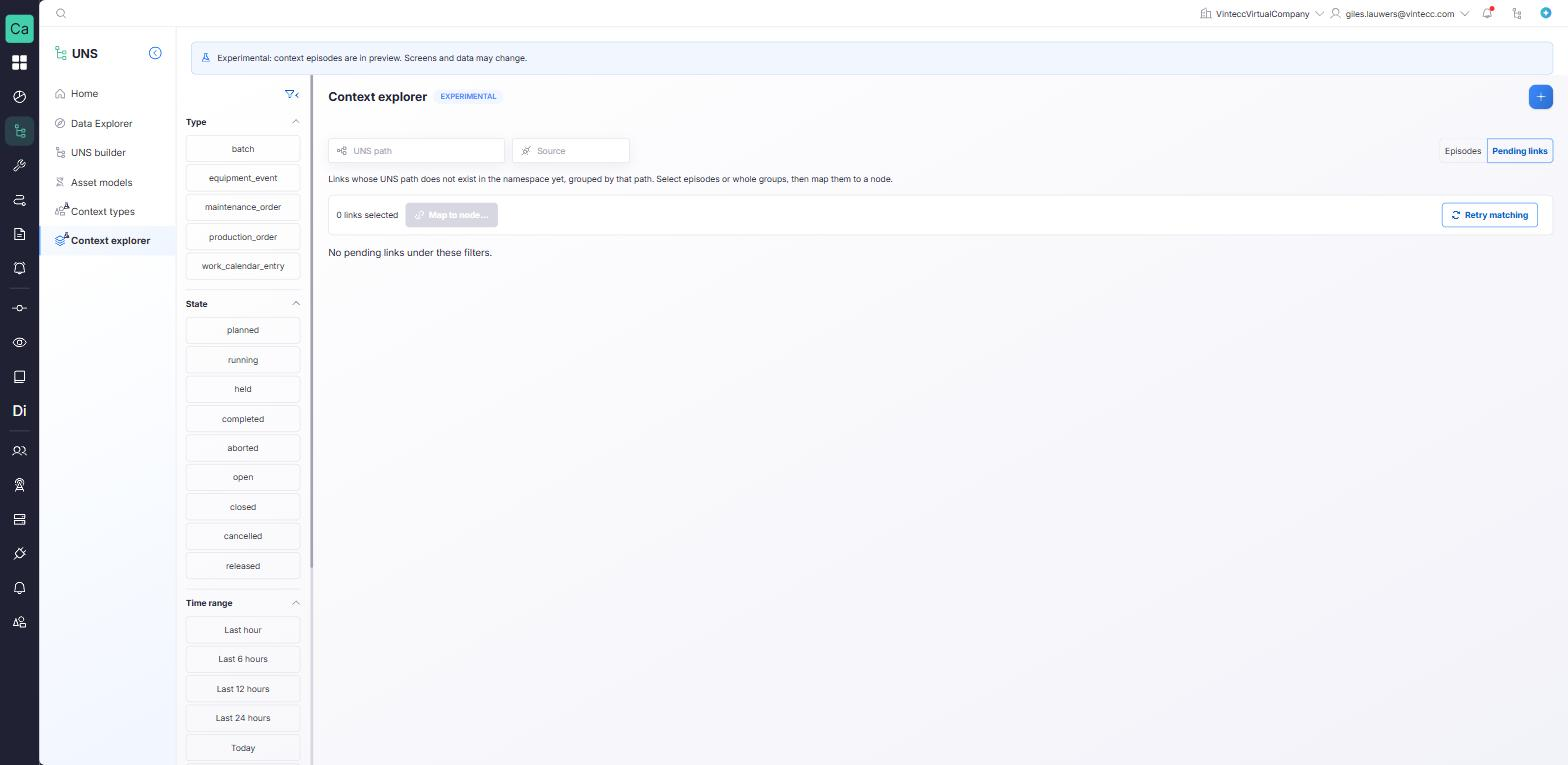
- Retry matching retries the pending links of every episode your company wrote, and reports how many were tried, bound and are still pending.
- In the Context explorer, switch the View to Pending links. Pending links are grouped by the path they wait on. Select episodes or whole groups, click Map to node…, pick the node and click Map. This writes a new revision of each selected episode, under its original source, with the selected links pointing at the node you picked.
Map to node… changes the episode, not the source system. If the source later sends the episode again with the old path, the link becomes pending again. Fix the path in the source system as well.
Some episodes cannot be mapped: a retracted episode (mapping it would restore it), an episode another company wrote, and an episode whose type version is deprecated.
Limits
| Limit | Value |
|---|---|
| Links per episode | 16 |
| Label | 200 characters |
| Role, state | 40 characters |
| External ID | 128 characters |
| Source | 64 characters |
| Attributes | 64 KB |
| Episodes per write from an integration | 500 |
Seeing context in Grafana
Context episodes are available in your company's PostgreSQL datasource in Grafana, limited to your part of the namespace. You can draw episodes as annotations on a time series, show them on a state timeline, or join them to the variables of the same nodes, for example to compare stop minutes per production order. Retracted episodes and pending links are left out.
Ask your Capture contact for the ready-made example dashboard of a production day and the query recipes.