Blob Stores
A blob store in Capture is a link to an Azure Blob Storage container that you own. Capture uses it to upload and read files (images, recordings, exports, and other non-time-series data). The actual files always live in your Azure subscription — Capture only stores the link (URL + access token) and reads/writes through it.
Before you can add a blob store in Capture, you need to prepare one in Azure.
Prepare the container in Azure
You only need a few things from the Azure side. If you already have a Storage Account, skip straight to the container step.
-
Create a Storage Account in the region closest to your Capture deployment.
-
Create a Container inside that storage account. This container is where Capture will store the files.
-
Generate a SAS URL by clicking the three dots (⋯) next to the container and choosing Generate SAS. Assign the following permissions:
- Read (
r) — required - Create (
c) — required - Write (
w) — required - Delete (
d) — optional; only needed if you want Capture to remove files after a set retention period - List (
l) — optional; only needed alongside Delete for the retention feature
Set an expiry date. Once the SAS expires, Capture can no longer read or write to the container until you re-issue it, so pick a date that fits your rotation policy.
Capture will warn you when the token is about to expire, and let you know once it has expired, so you can rotate it in time.
- Read (
-
Copy the Blob SAS URL — this is the container URL with the SAS token appended as a query string. You'll paste this whole string into Capture.
The URL you give Capture must include the SAS token; the container URL on its own is not enough. It looks like this:
https://<account>.blob.core.windows.net/<container>?sp=...&st=...&se=...&spr=https&sv=...&sr=c&sig=...The query string after the
?is the SAS token. The Generate SAS action on the container fills these in for you:Parameter Meaning spSigned permissions — the letters for the permissions you selected (e.g. rcw, orracwdlwith retention).stStart time (valid-from). seExpiry time — after this the token stops working. sprAllowed protocols — https.svStorage service version. srSigned resource — cfor a container SAS.sigThe signature that authorizes the request.
The Read/Create/Write permissions are the minimum for Capture to store and read data. Delete + List are only used if you want the optional retention feature (auto-removing older files) described further down.
Add a blob store in Capture
Open Storage Hub and click the + button to launch the Add Capture Storage wizard.
Step 1 — General
Fill in:
- DB name — how the blob store is shown in the Storage Hub list.
- Type — pick Blob.
- URL — paste the full Blob SAS URL you copied from Azure.
- Retention — see Retention below. Optional.
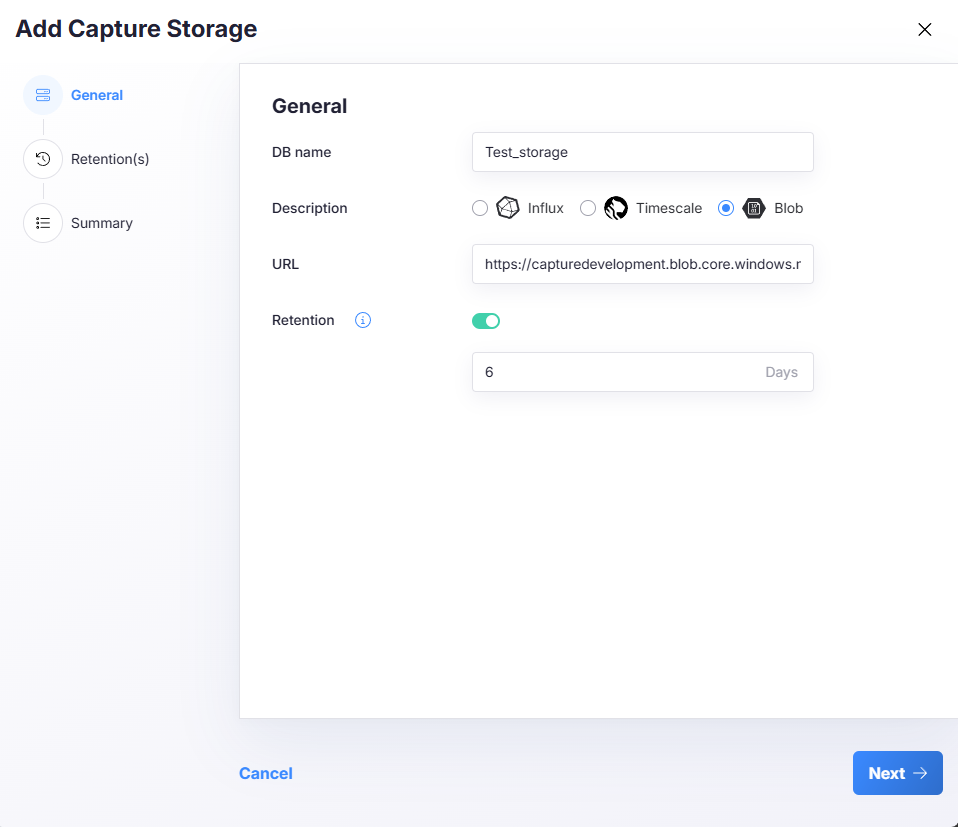
Click Next.
Each blobstore created needs to have a unique blob url. You cannot make 2 blob stores from 1 container.
Step 2 — Retention(s)
This step lets you link existing retention policies from other databases to this blob store, so those policies use it as their file backend. You can leave it empty and link retentions later from each database's settings.
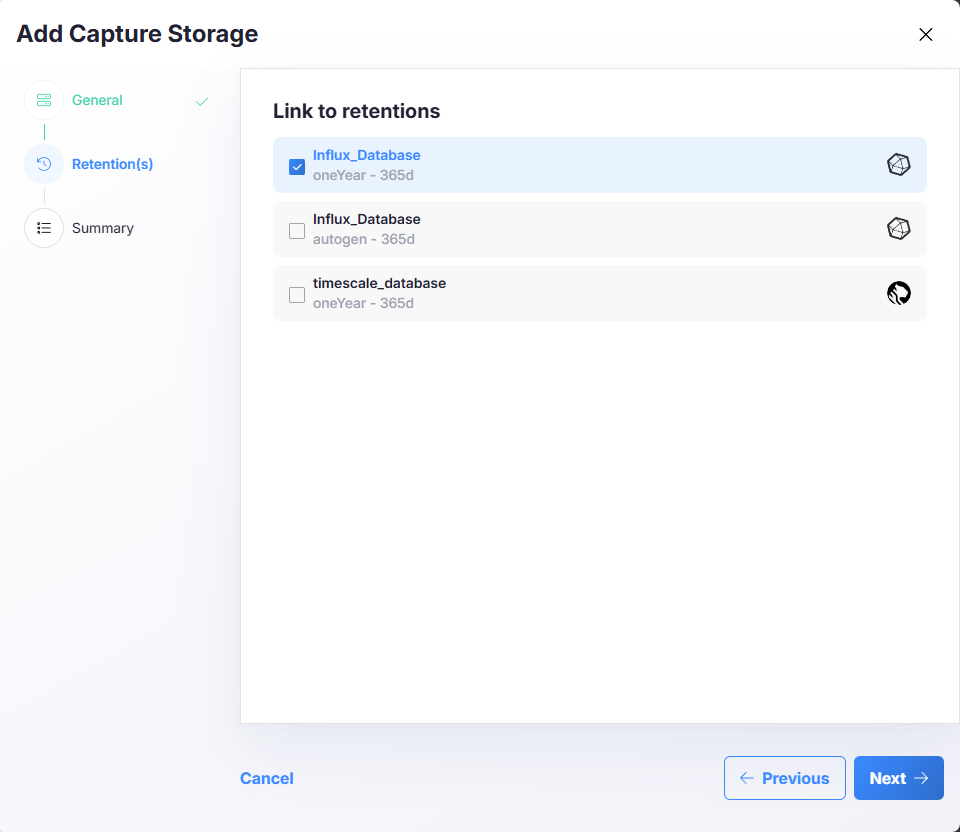
Click Next.
Step 3 — Summary
Review the values and click Create capture storage to finalize.
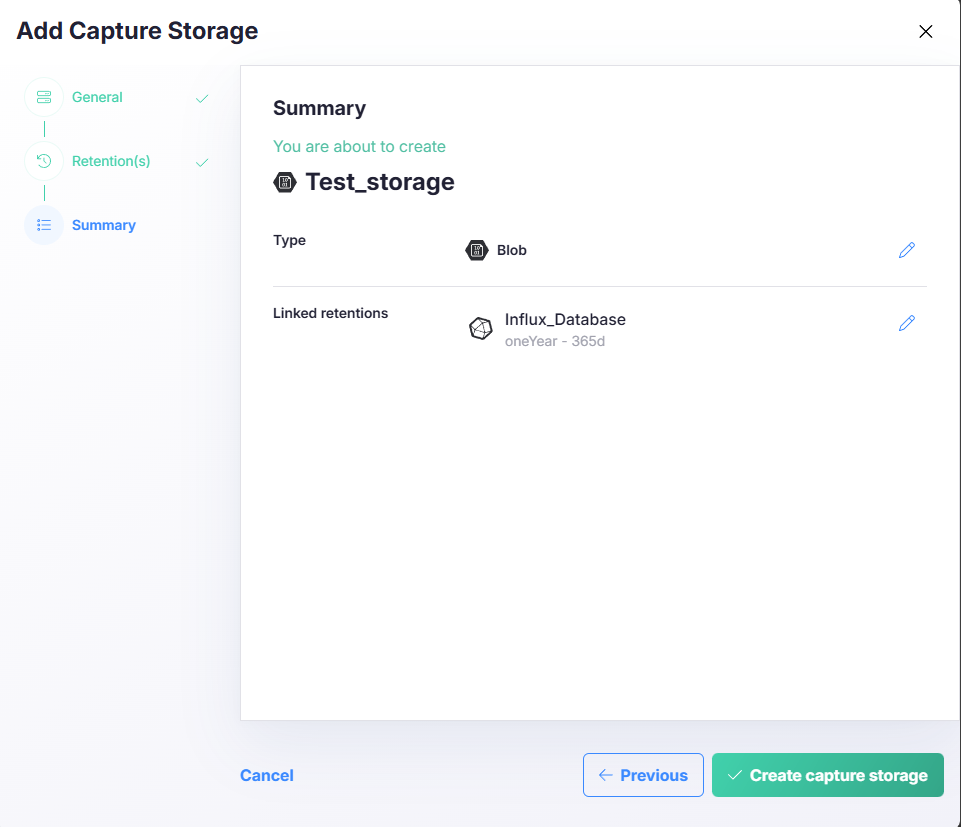
Retention
The Retention field on a blob store defines how many days a file is kept. Files older than the configured number of days are automatically removed from the container. The clock is based on each file's last-modified timestamp in Azure.
- Toggle off: files are never removed by Capture; the container keeps everything.
- Toggle on: enter the number of days. For example,
30means anything older than 30 days will be cleaned up.
Retention requires the Delete and List permissions on the SAS token. If your SAS is missing either, the Retention field is hidden and Capture will tell you which permissions are needed. Re-issue the SAS in Azure with those permissions included and paste it back into the blob store.
A blob store can be given a different retention than its linked timescale/influx retention policy, which can cause data inconsistencies. The UI flags this and offers to align them.
Managing an existing blob store
Click a blob store in the Storage Hub list to open its detail view.
Settings
The Settings tab shows:
- Name
- URL — paste a new Blob SAS URL here whenever you rotate or re-issue the token.
- Expires by — the SAS expiry pulled from the current token. Capture warns you when the expiry is approaching so you can rotate in time.
- Retention — see above.
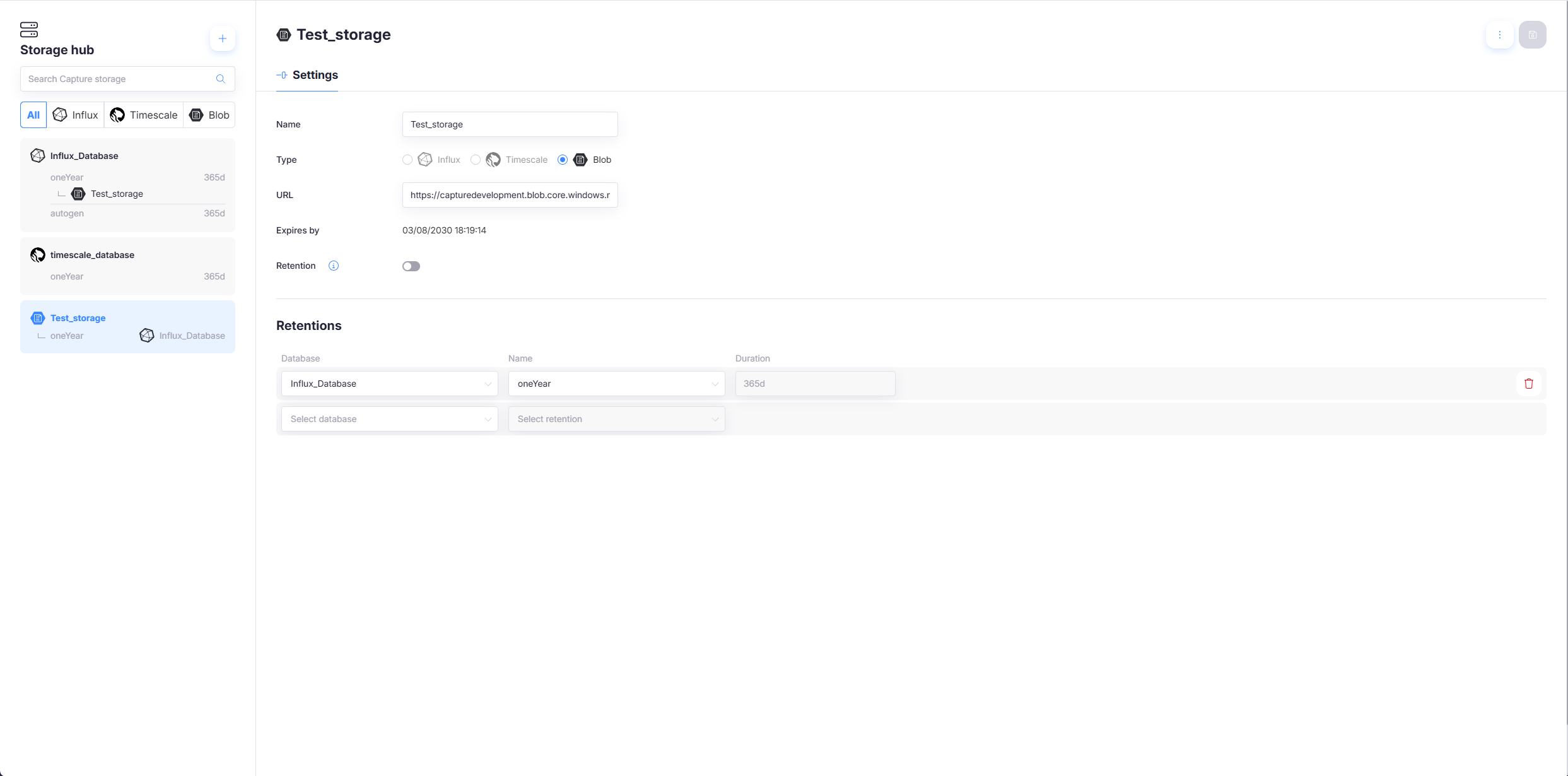
Linked retentions
The Retentions section on the detail page lists any database retention policies currently backed by this blob store. Add or remove links here to change which policies use this container.
You can also make the same link from the database's own settings — either place produces the same result.
Deleting a blob store
To delete a blob store:
- Open the blob store.
- Click the three dots (⋯) in the top-right corner.
- Choose Delete.
- Confirm the deletion.
Deleting a blob store in Capture removes the link — it does not touch the files in your Azure container. Any database retention policy linked to this blob store loses its file backend, so relink or reconfigure those policies afterwards.