Onboarding your first device
Prerequisites
Before onboarding your first device, you need to install the Capture Edge stack. For detailed installation instructions, see Edge Installation.
Quick checklist:
- Capture Edge software installed on your gateway
- Gateway has network connectivity (for online onboarding)
Once your Edge Gateway is running, the next step is to register it in the Capture Cloud. This process, called onboarding or provisioning, connects your gateway to your company account and enables cloud features.
Why Onboard?
Onboarding your gateway enables:
- Cloud storage — Data syncs to cloud time-series databases
- Remote monitoring — View gateway status from anywhere
- Dashboards — Visualize data in Grafana dashboards
- Alerting — Get notified when conditions occur
- Remote configuration — Push config updates to gateways
- Licensing — Activate gateway features and capabilities
Each gateway is onboarded once. After that, it remains registered and can reconnect automatically.
Two Onboarding Methods
Capture supports two onboarding modes depending on your gateway's connectivity:
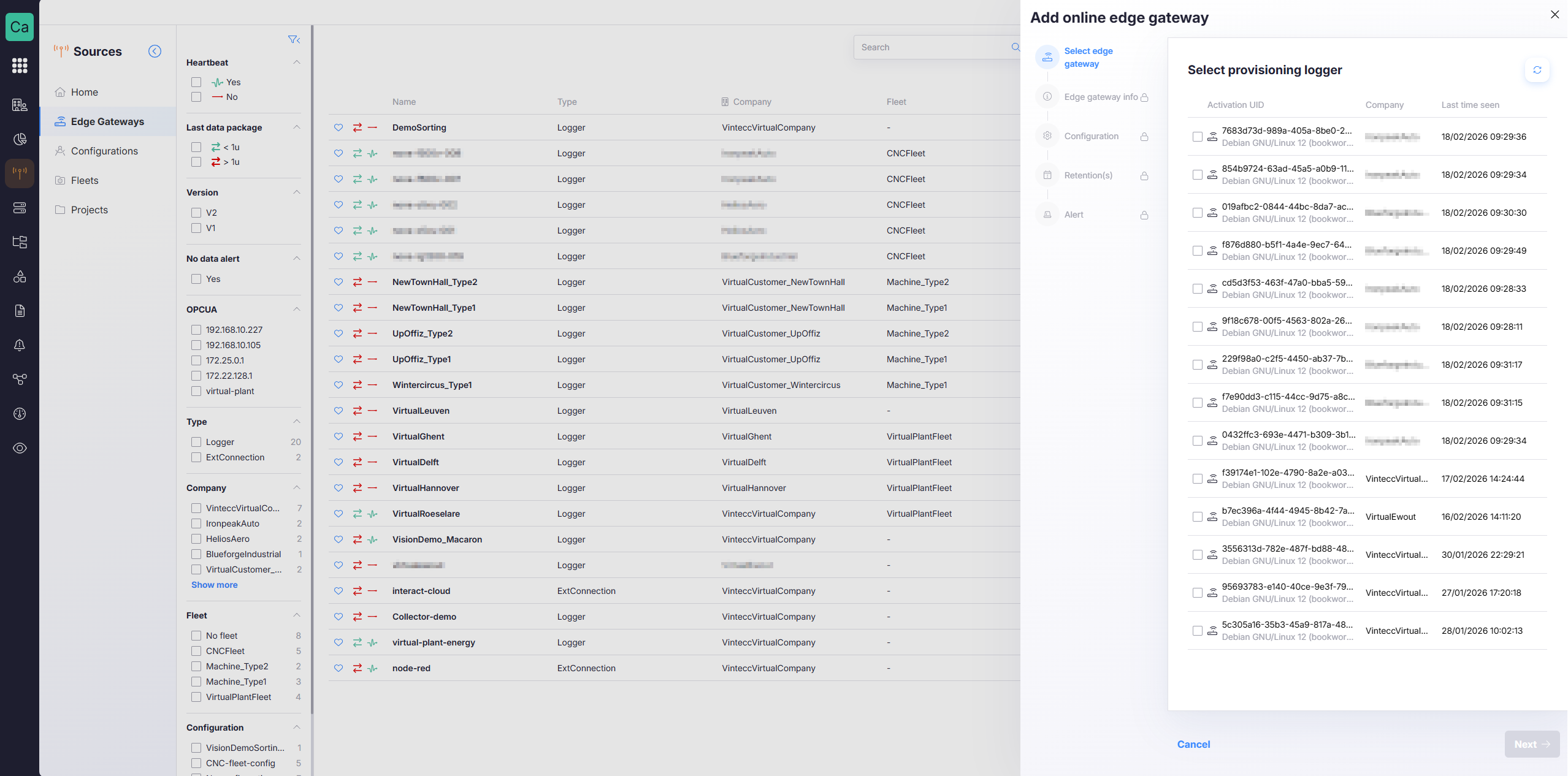
Online Onboarding (Recommended)
When to use: The gateway has internet access and can reach the Capture Cloud.
How it works:
- Gateway starts and announces itself to the cloud
- You select it from a list in the Capture Cloud UI
- Cloud registers the gateway and issues a license
- Gateway receives the license and becomes fully operational
Benefits:
- Fastest method
- Automatic discovery
- No manual IDs to copy/paste
Offline Onboarding
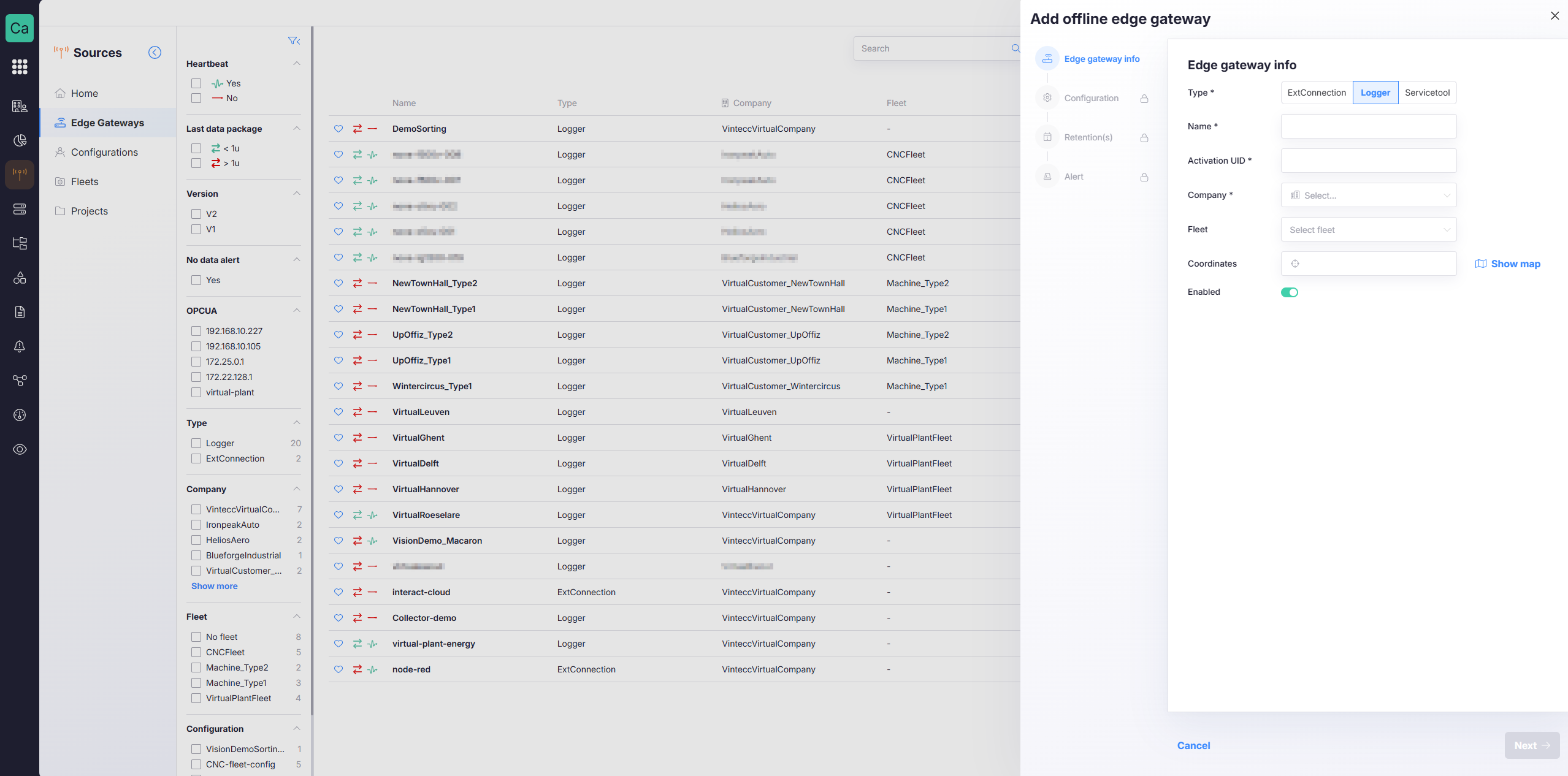
When to use:
- Gateway has no internet access (air-gapped)
- Gateway is behind strict firewall
- Manual provisioning is required
How it works:
- You provide the gateway's GUID manually
- Cloud pre-registers the gateway
- License is downloaded and transferred to the gateway manually
- Gateway activates offline
Use cases:
- Commissioning air-gapped sites
- Security-restricted environments
- Testing without connectivity
Quick Start: Online Onboarding
For a full guide on online onboarding, follow the guide at Add Edge Gateways - Online Mode.
Verify Onboarding Success
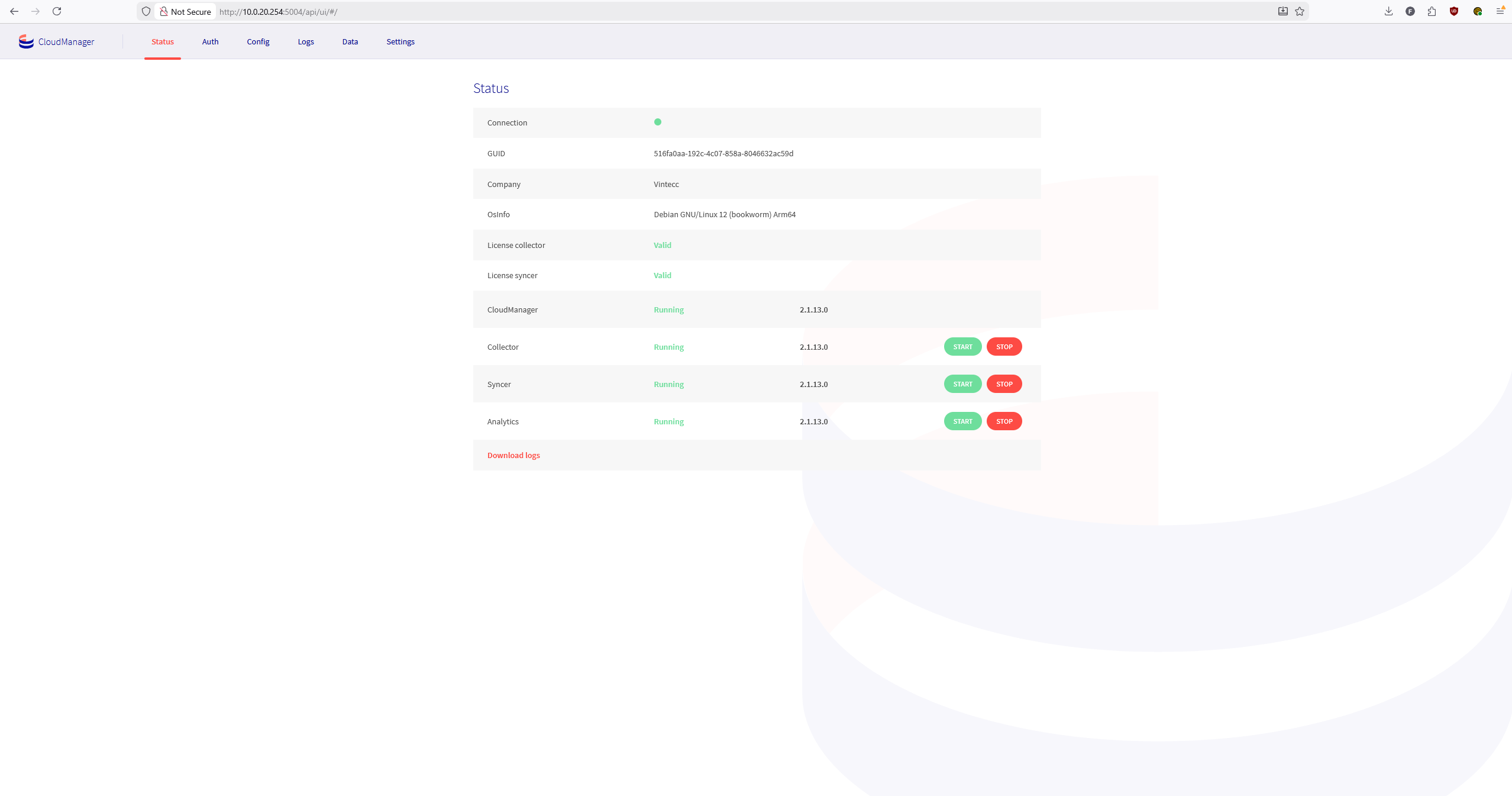
Check CloudManager UI
Visit http://[gateway-ip]:5004/api/ui and verify:
- License Status: Should show "Valid"
- Company: Should match what you selected
- Services: All running (Collector, Syncer, CloudManager, Analytics)
Check Cloud UI
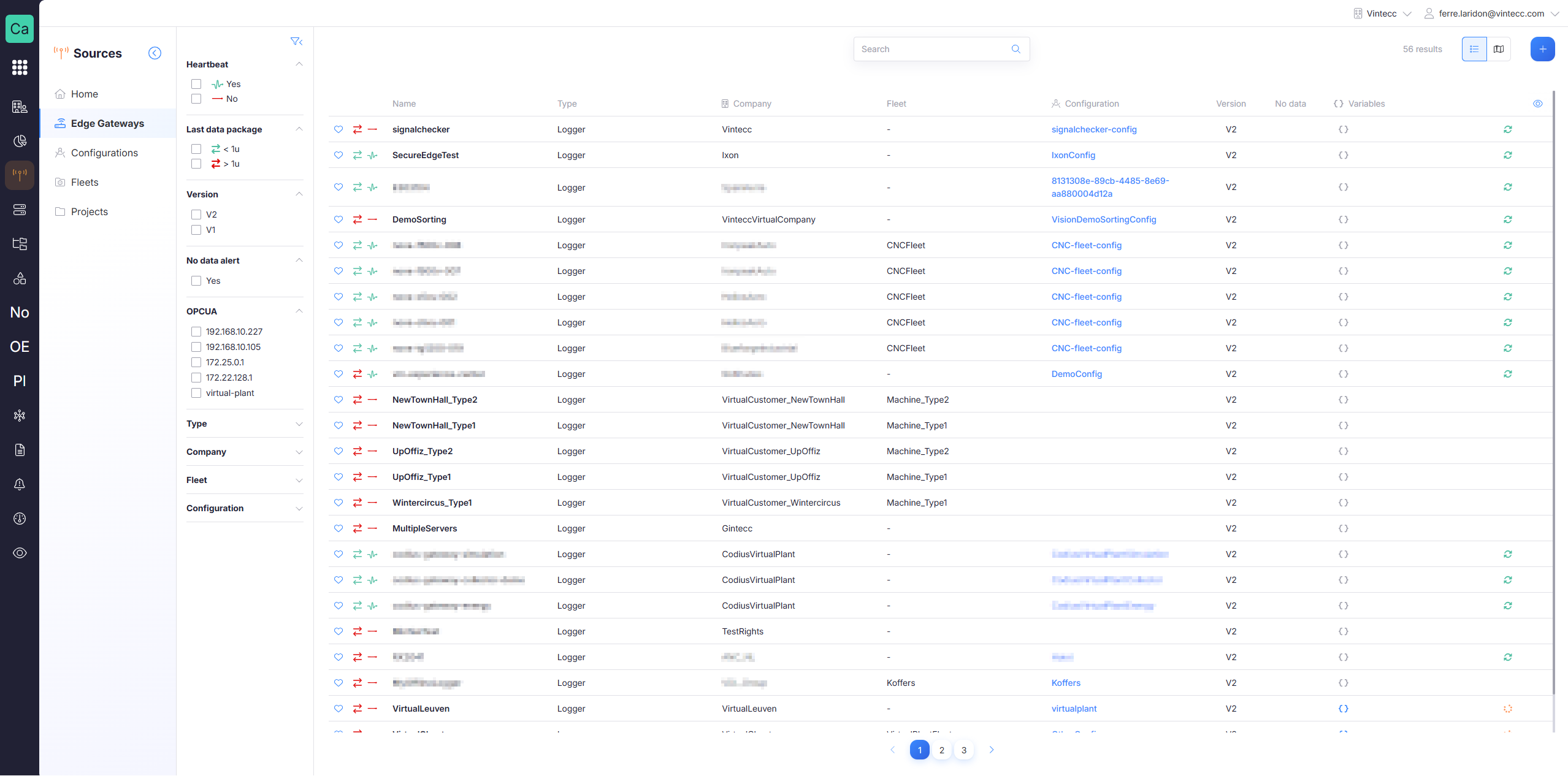
In Sources → Edge Gateways:
- Your gateway appears in the list
- Heartbeat indicator shows recent activity (green)
- Last data package updates as data flows
Offline Onboarding (Advanced)
For gateways without internet access, see the full guide at Add Edge Gateways - Offline Mode.
Summary:
- Note the gateway GUID from CloudManager UI
- In Cloud UI, choose Add Offline Gateway
- Enter the GUID manually
- Download the license file
- Transfer license to gateway manually
- Restart CloudManager service
Troubleshooting
Gateway Not Appearing in Discovery List
Possible causes:
- Gateway doesn't have internet access
- Firewall blocking outbound HTTPS
- CloudManager service not running
- Gateway already registered
- Gateway provisioned to wrong company
Solutions:
- Check network connectivity (ping portal.captureplatform.com)
- Verify CloudManager is running (check services)
- Check firewall rules (allow outbound 443)
- Use offline onboarding if online isn't possible
- Edit the local config via the Edge Gateway UI
License Stays Invalid
Possible causes:
- Gateway not connected to internet
- Wrong company selected during onboarding
- Firewall blocking cloud communication
Solutions:
- Check CloudManager logs for errors
- Verify internet connectivity
- Re-check company assignment in cloud
- Restart CloudManager service
Configuration Not Applying
Possible causes:
- Configuration not pushed yet
- Gateway configuration service error
- Config incompatible with gateway version
Solutions:
- Manually push config from Cloud UI (click sync icon)
- Check Edge Gateway detail page for config status
- Review CloudManager logs
- Verify gateway version supports config features
Next Steps
Now that your gateway is onboarded and licensed:
-
Manage Storage
Configure retention policies and data destinations -
Configure Data Collection
Set up connections to your machines and sensors -
Create Your First Dashboard
Visualize the data coming from your gateway -
Set Up Alerts
Get notified when important conditions occur -
Configure advanced data collection with UNS
Map raw data to human-readable nodes
Additional Resources
- Edge Gateways Overview — Detailed gateway management guide
- Add Edge Gateways (Full Guide) — Complete onboarding documentation
- Configurations — Configure what data to collect
- Fleets — Organize gateways into fleets