Rights Management
Intro
Capture uses Grafana for dashboards and folders. Grafana supports permissions at both the folder and dashboard level, and Capture lets you manage those permissions directly from the Dashboards app.
You can grant access to:
- Grafana roles (Viewer/Editor)
- User groups
- Individual users
A user must pass both checks to access a dashboard:
- Capture module access (permission to use the Dashboards app)
- Grafana folder/dashboard permissions (View/Edit rights on the specific folder/dashboard)
If either layer is missing, the user will not be able to open the dashboard—even if it appears in search.
1. The Team Management module
To manage Grafana dashboard permissions, you need Manage rights for the Team Management module in the Dashboards app.
Grant these rights in the Identity & Access app by:
- assigning the user to a role that includes Team Management permissions
- updating the user’s role permissions
- applying a user-level override (if your setup supports it)
If a user has only View rights for this module, they can inspect permissions but cannot change them.
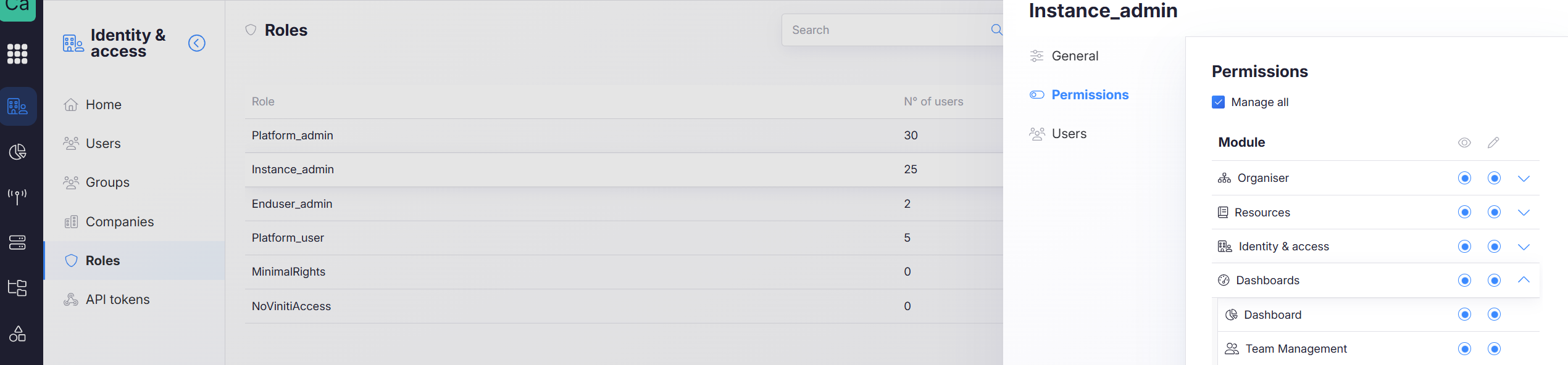
Use Identity & Access → Roles to control who can manage dashboard permissions.
See: Roles
2. Permissions
Permissions can be set on folders and dashboards.
Permission target
Choose who the permission applies to:
-
Grafana role (Editor or Viewer)
Capture maps users to Grafana roles in the background.
Granting a Grafana role permission on a folder/dashboard affects all eligible users in that company who have access to the Dashboard app module. -
User groups
Grants access to all users in a specific group (as long as they also have the correct company scope and Dashboards access). -
User
Grants access to a specific user (as long as they also have the correct company scope and Dashboards access).
Even with permissions, the user must have access to the company that owns the folder/dashboard.
Permission type
- Edit
Users can edit and delete the dashboard or folder (where allowed). - View
Users can view the dashboard or folder only.
Notes and inheritance rules
-
Folder permissions are inherited by all dashboards in that folder.
If a user has access through the folder, they automatically have access to its dashboards. -
Folder permissions can only be modified or removed at the folder level.
You can still add additional permissions on a dashboard for users/groups who do not already have access through the folder. -
The General folder is a default folder.
No permissions can be added to General, and dashboards in General do not inherit permissions. -
Default behavior is based on Grafana roles:
Editor → Edit and Viewer → View
Whenever possible, manage access at the folder level.
Dashboard-level permissions are best used for exceptions, not for primary access control.
3. Manage dashboard permissions
Open the Dashboards app. By default, you see only dashboards and folders you have permission to access.
To manage rights, enable Show Restricted at the top of the page. This lists dashboards and folders you normally cannot access, which helps administrators manage permissions across the catalog.
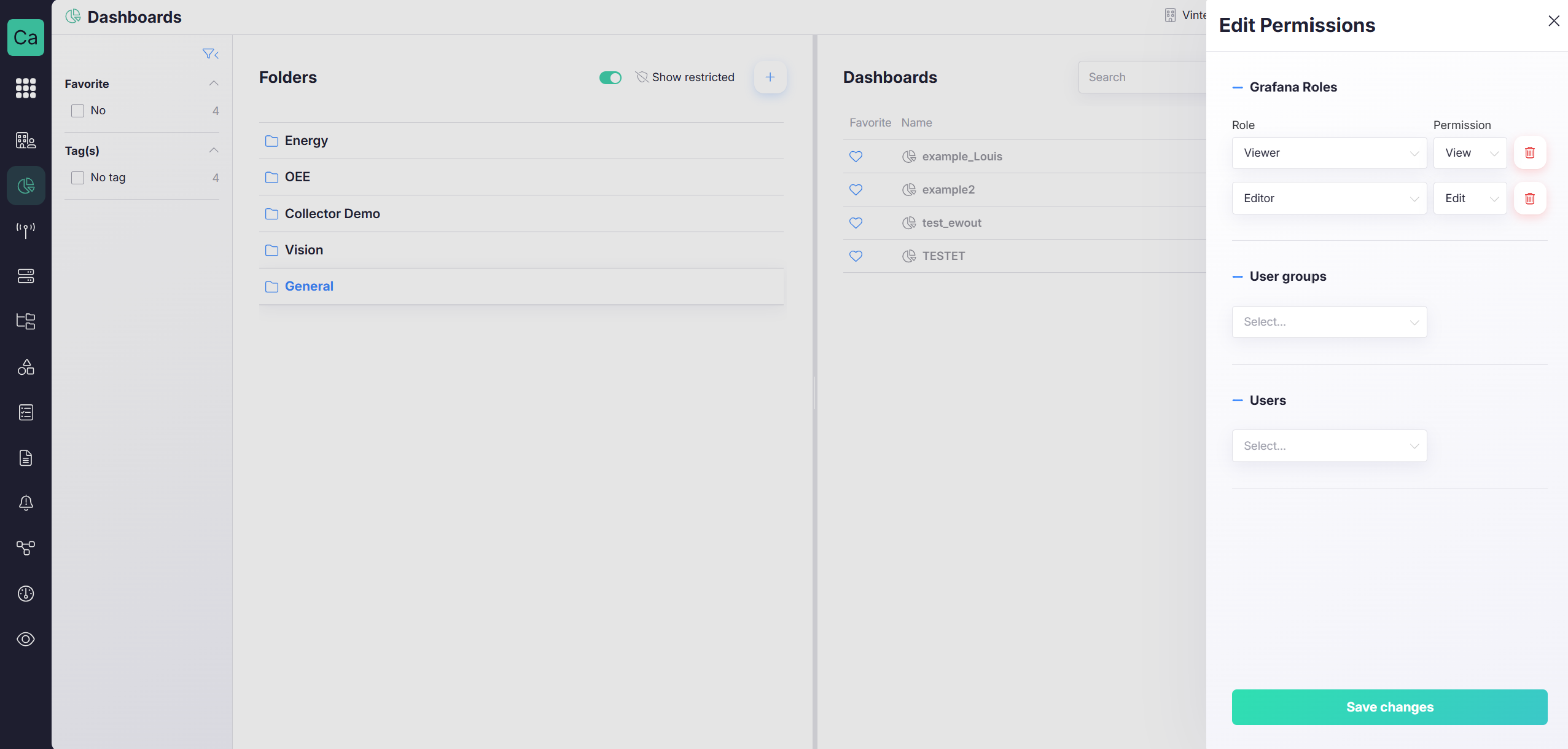
Show Restricted changes what you can see in the list for administration.
It does not change what you can open or edit. Permissions still apply.
4. Dashboard copies through fleet management
Dashboards and folders copied through Fleet management inherit permissions from the original as much as possible.
In practice, permissions are preserved only for identities that remain valid in the target scope, such as:
- users with the required subcompany scope
- shareable groups/tags (if your environment uses them)
- users mapped to the correct Grafana roles
Grant access using Grafana roles and shareable groups when you expect dashboards to be copied across subcompanies.
This keeps permissions consistent when dashboards are replicated.
5. Add tags to a dashboard
Tags help with quick filtering and discovery on the Dashboards Home page.
To add tags:
- Open a dashboard
- Click Edit in the top right corner
- Open Settings
- Add or update Tags
- Save the dashboard
Tags help users find dashboards faster.
They do not replace folder/dashboard permissions.