Fleet Example (Permissions + Fleet Copies)
This example shows how to set up dashboard permissions so that:
- Service users can edit and view dashboards
- Customer users can only view the customer dashboard
- dashboards are linked to Fleets, so they are copied to subcompanies where fleet devices exist
- copied dashboards preserve permissions as much as possible (within company/subcompany scope rules)
This is often interesting for machine builders
How folder and dashboard permissions interact with:
- user roles (Capture → Grafana role mapping)
- user groups (shareable across subcompanies)
- Fleet dashboard copies
This setup is especially useful for OEMs and machine builders running a servitization model (often called Equipment-as-a-Service or Product-as-a-Service):
service teams need broad visibility and edit rights, while customers typically get limited, read-only dashboards for their own assets.
This example assumes you already understand:
- basic folder/dashboard permission concepts
- how Fleets copy dashboards to subcompanies If not, read Dashboards → Manage (Rights Management) first.
Step 1: Company structure
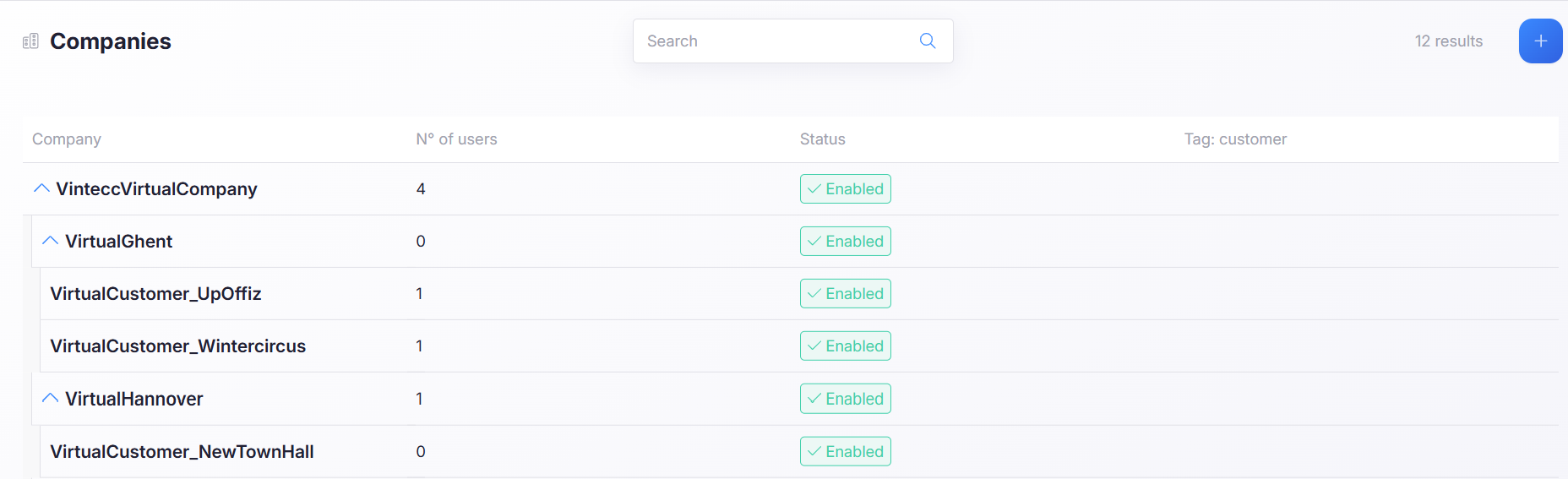
VinteccVirtualCompany is a fictional parent company with subcompanies such as VirtualGhent and VirtualHannover, which have their own subcompanies.
Step 2: Users, roles, and groups
Roles
VinteccVirtualCompany defines two roles:
-
Service
Only for users in VinteccVirtualCompany (service users). Includes manage permissions.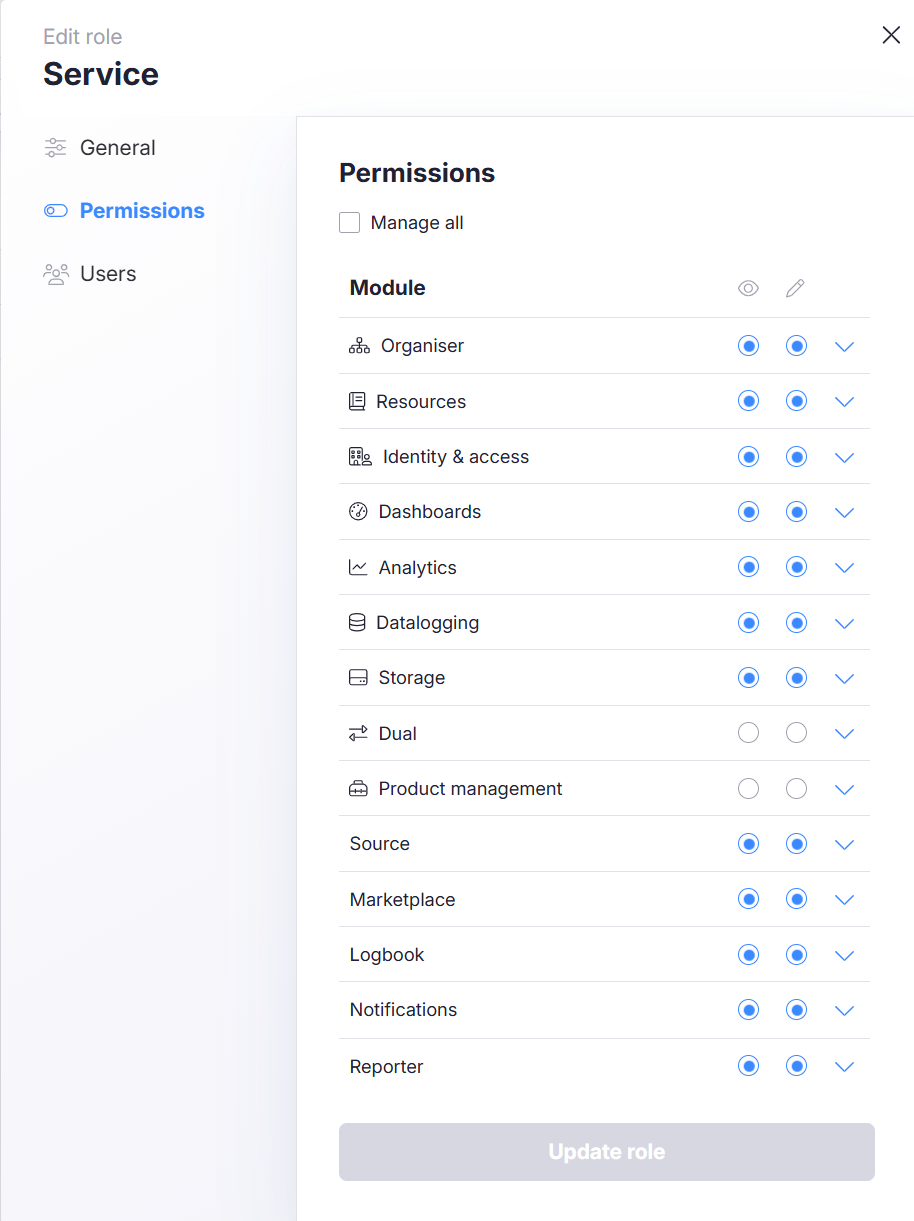
-
Customer
Shared with subcompanies (customer users). Typically restricted to view-only modules.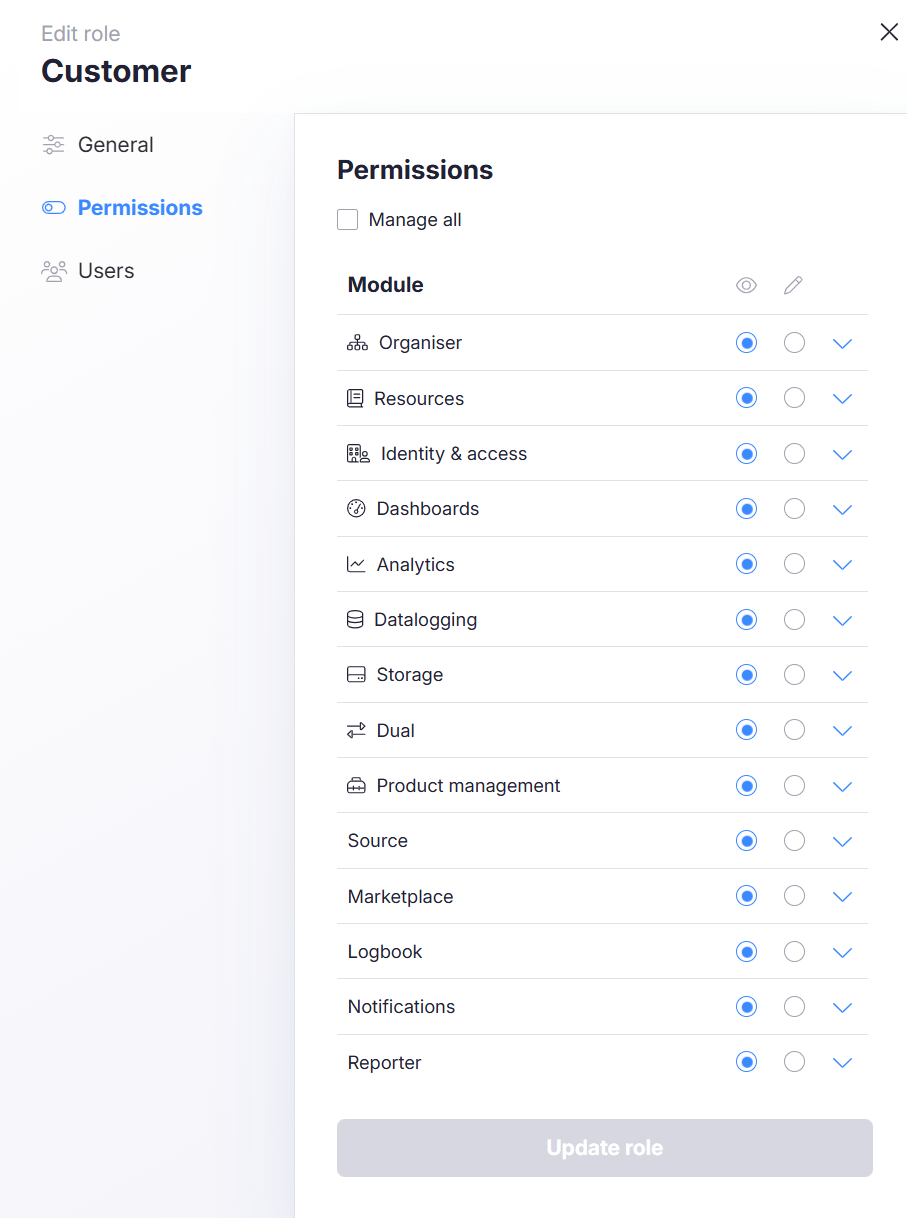
Shareable groups
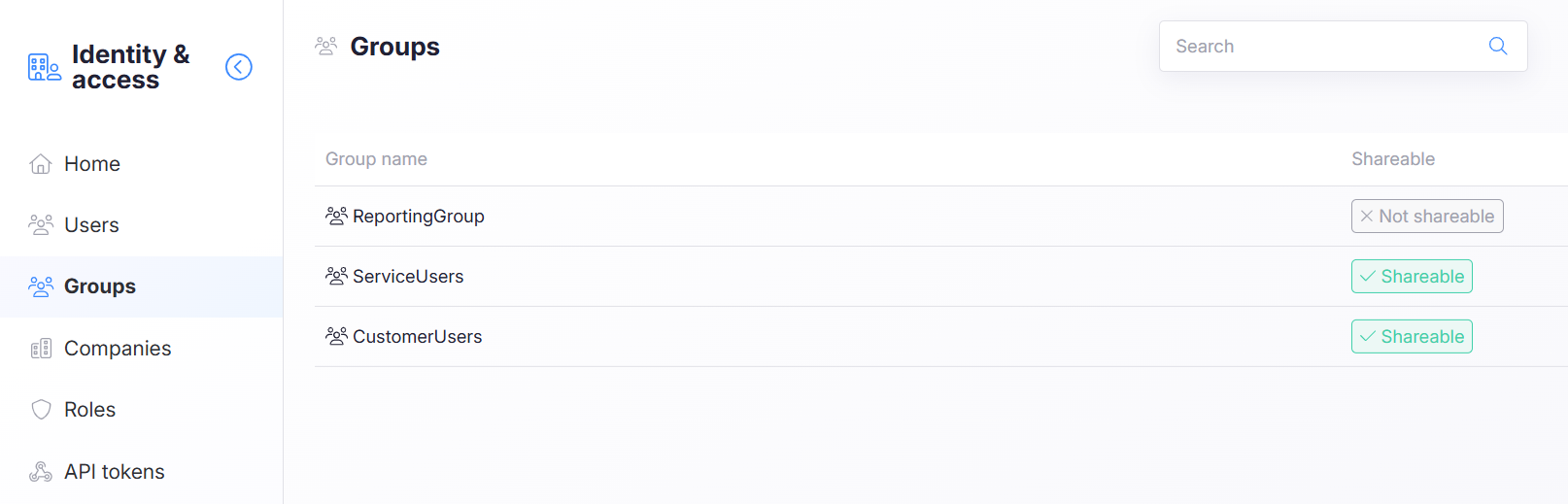
VinteccVirtualCompany defines two groups:
- ServiceUsers — service team
- CustomerUsers — customer users
Groups must be shareable to be usable in dashboard permissions across subcompanies.
If a group is not shareable, it cannot be applied consistently to dashboards copied into subcompanies.
Users
Five users exist across the company hierarchy:
| User | Company | Role | Groups |
|---|---|---|---|
| VirtualAdmin | VinteccVirtualCompany | InstanceAdmin | ServiceUsers |
| VirtualServiceUser | VinteccVirtualCompany | Service | ServiceUsers |
| CustomerWintercircus | VirtualCustomer_Wintercircus | Customer | CustomerUsers |
| CustomerUpOffiz | VirtualCustomer_UpOffiz | Customer | CustomerUsers |
| CustomerHannover | VirtualCustomer_NewTownHall | Customer | CustomerUsers |
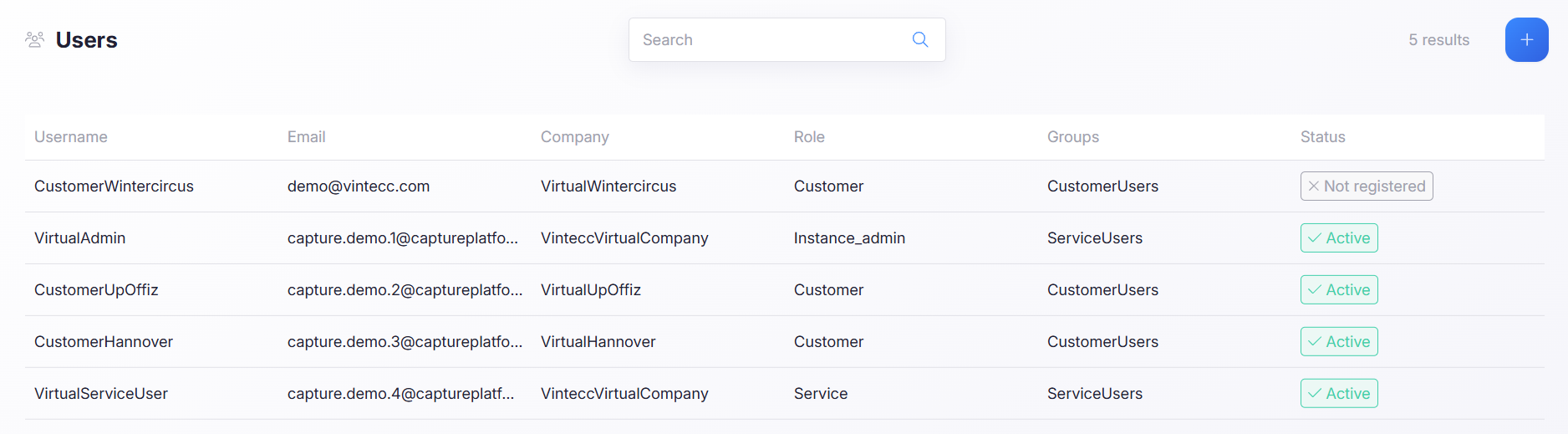
Roles provide baseline app/module access.
Groups provide targeted dashboard permissions (view/edit at folder/dashboard level).
Step 3: Devices (Edge Gateways)
All devices (Edge Gateways) are located in the customer companies.

Step 4: Dashboards and permissions
Two dashboards exist:
- ServiceDashboard — intended for service users
- CustomerDashboard — intended for customer users
Both dashboards are located in the Release folder.
Folder permissions: Release
Goal: ServiceUsers can edit everything in Release.
Action:
- Grant Edit permission to ServiceUsers on the Release folder.
Important additional step:
- Remove default Grafana role permissions from the folder.
Why remove default Grafana role permissions? Default role permissions can unintentionally grant access to broader audiences than intended. If Viewer/Editor role permissions remain in place, any user with:
- Dashboards module access and
- any path that grants folder visibility may gain access to more dashboards than you planned.
If you want access to be controlled strictly via groups (ServiceUsers/CustomerUsers), clear the default Grafana role permissions on the folder and define access explicitly.
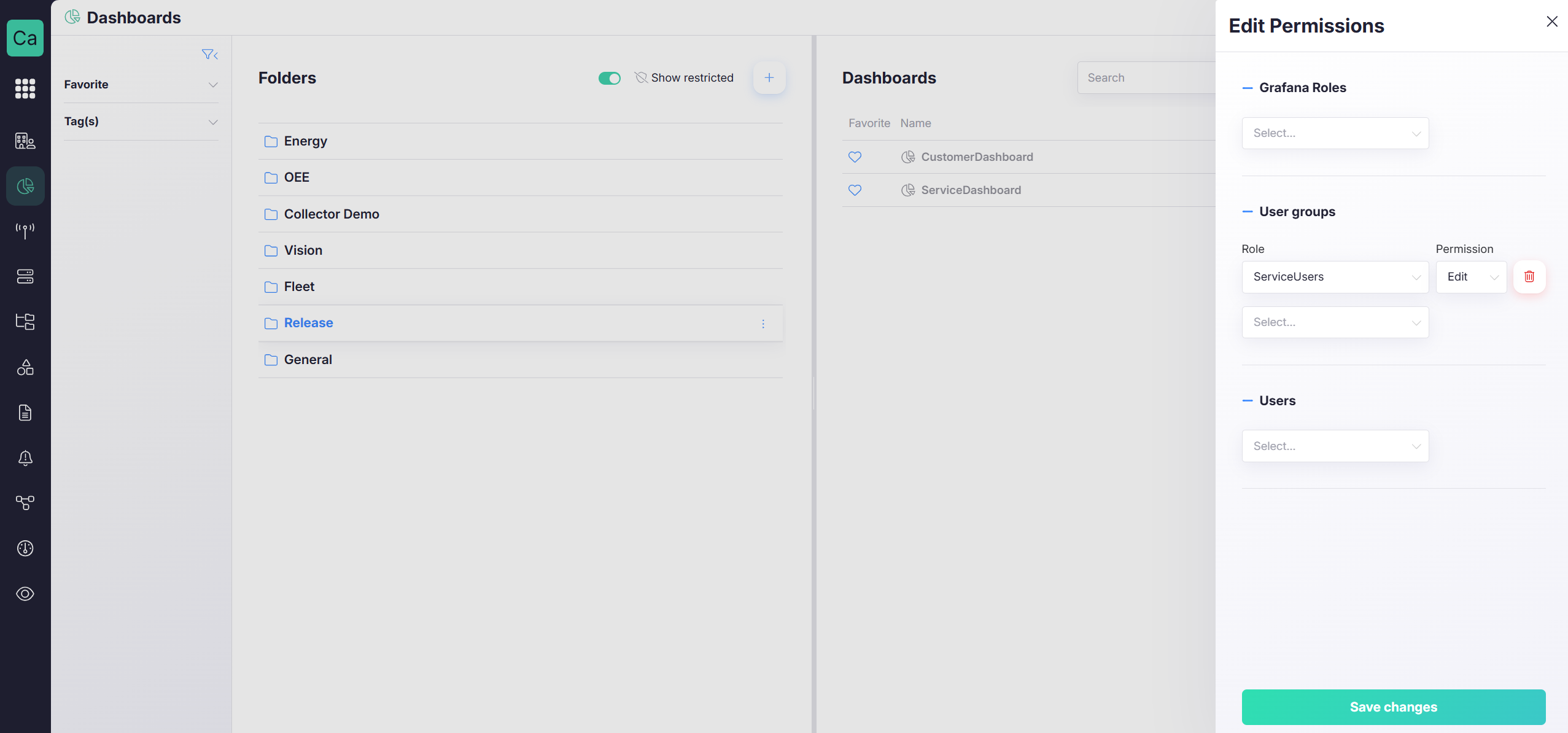
Dashboard permissions: ServiceDashboard
No extra permissions are added. Result:
- ServiceUsers can edit/view through folder permissions.
- Customers will not gain access (unless explicitly granted elsewhere).
Dashboard permissions: CustomerDashboard
Add an extra permission:
- Grant View permission to CustomerUsers on CustomerDashboard.
Result:
- ServiceUsers can still view/edit through folder permissions.
- CustomerUsers can view CustomerDashboard only.
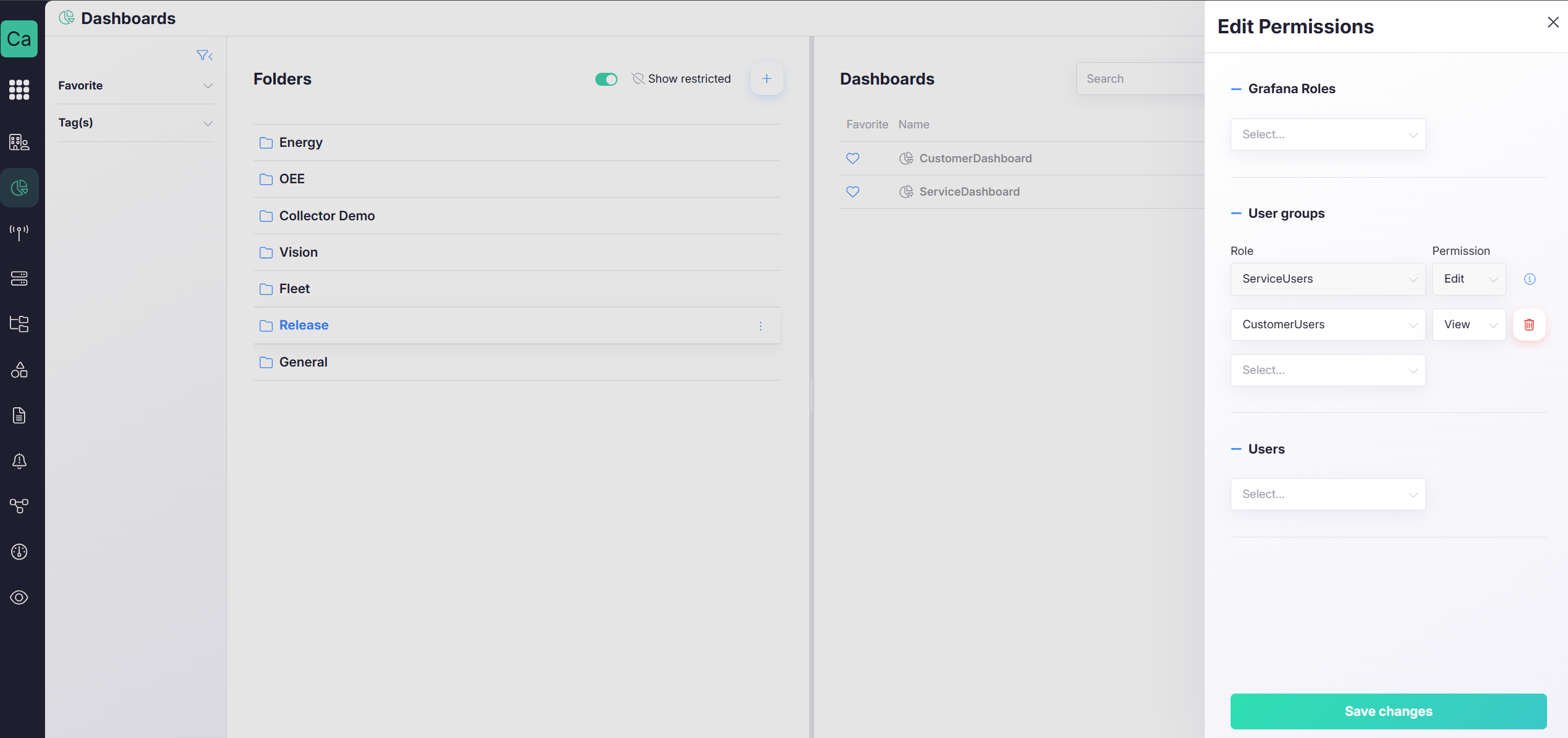
Use folder permissions for the default rule.
Use dashboard permissions for exceptions (like “customers can only view one dashboard in this folder”).
Step 5: Fleet management
Two fleets exist:
- Machine_Type1 — fleet for devices of type 1
- Machine_Type2 — fleet for devices of type 2
Both dashboards are added to the fleets, and all devices are added to the correct fleet.
This ensures:
- dashboards are copied into subcompanies where fleet devices exist
- permission intent is carried forward where possible
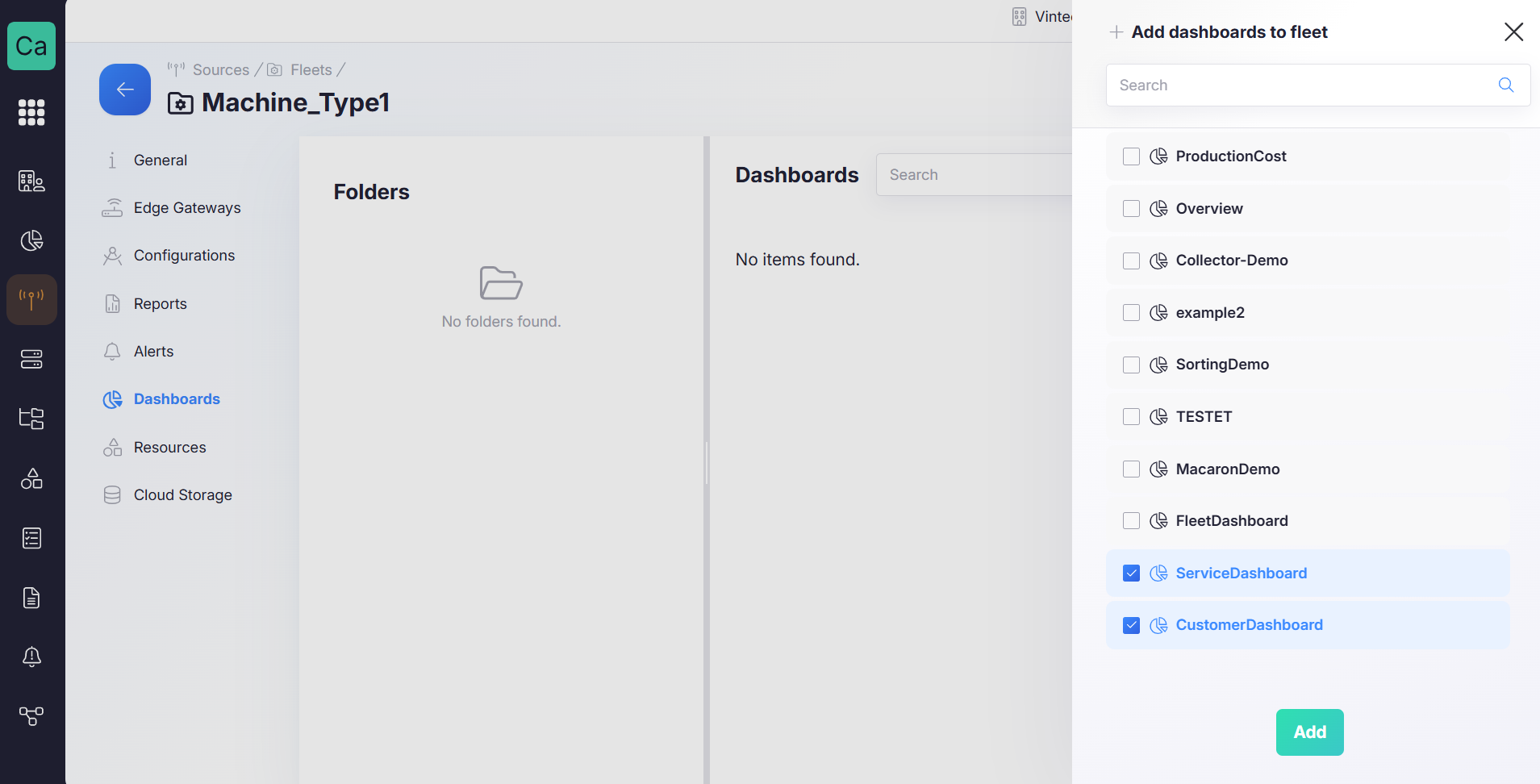
Dashboards and folders linked to a Fleet are copied to subcompanies that contain at least one device from that Fleet. Copies inherit permissions from the original as much as possible, subject to scope and shareability rules.
Step 6: Results
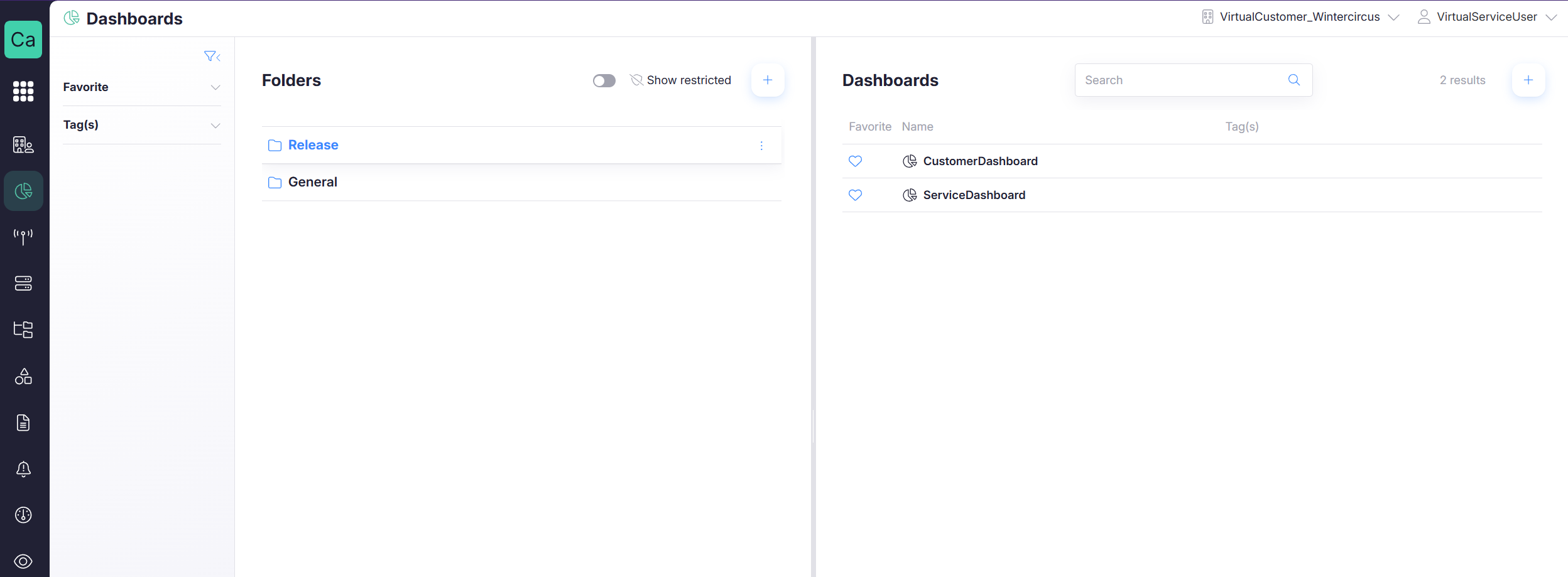
Service user view (in customer company scope)
Dashboard page from VirtualCustomer_Wintercircus as VirtualServiceUser:
- Full access to the Release folder dashboards (based on ServiceUsers permissions)
Customer user view (in customer company scope)
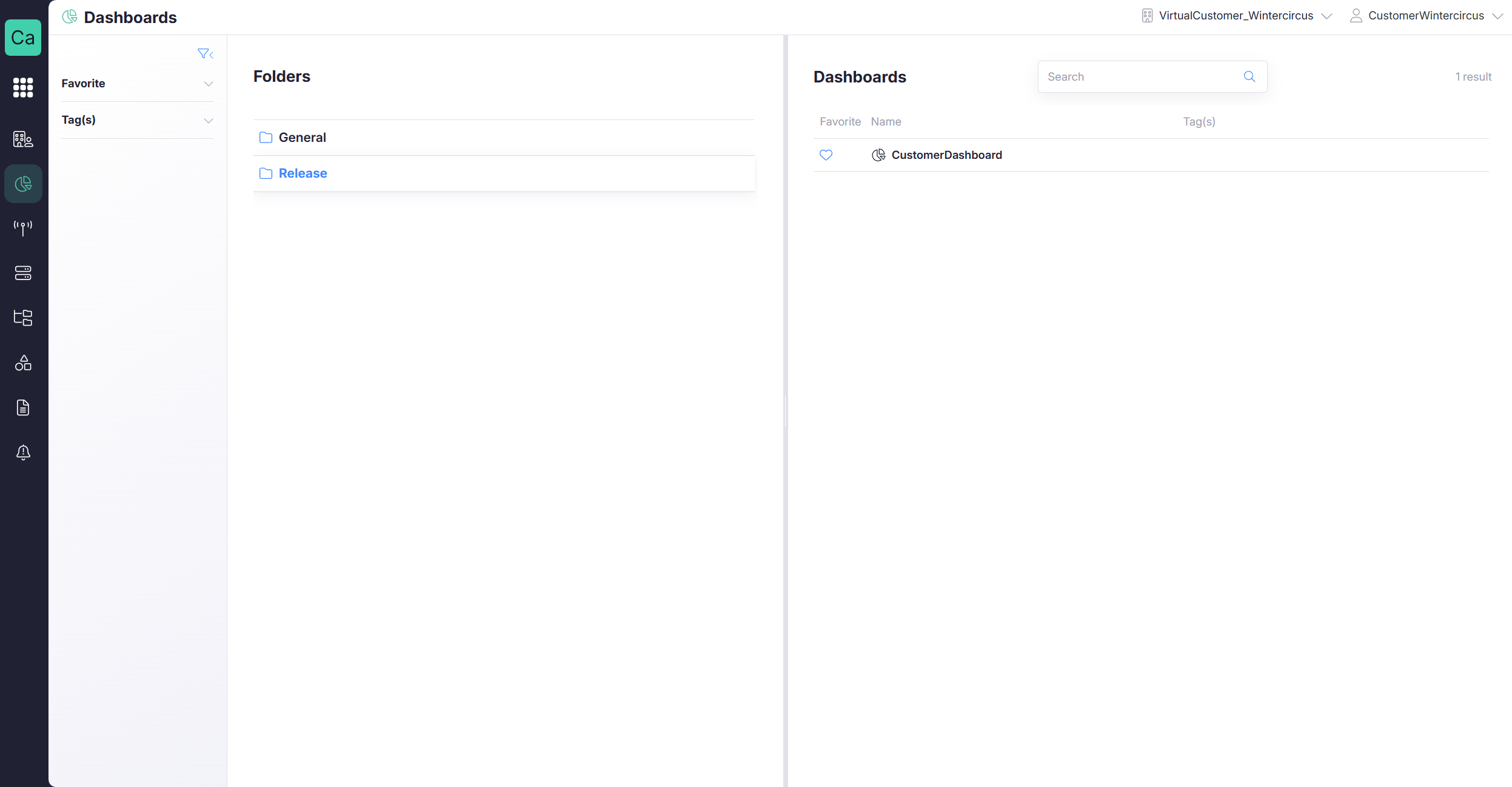
Dashboard page from VirtualCustomer_Wintercircus as CustomerWintercircus:
- Access to CustomerDashboard (View)
- No access to service-only dashboards
Troubleshooting checklist (common issues)
Likely causes:
- default Grafana role permissions were not removed from the folder
- a broad group was granted folder-level access
- the customer user has more Capture module rights than intended
Likely causes:
- groups were not marked shareable
- user/group does not exist in the target subcompany scope
- permissions rely on identities that cannot be resolved across the hierarchy
``