Captain
Captain is the AI assistant built into Capture. Ask a question in plain language and Captain answers from the Capture documentation, from the documents you share with it, and from your own data. It knows which company you work in, only uses what you are allowed to see, and shows you the sources and the steps behind every answer.
This page walks through Captain from the top: where to find it, how chats and companies work, how to give it context and documentation, how to read an answer, and what it can do.
Open Captain
Captain sits at the top right of Capture. Select the Captain button in the header to open the Captain panel without leaving the app you are working in. Select Open in standalone to continue the conversation on a full page.
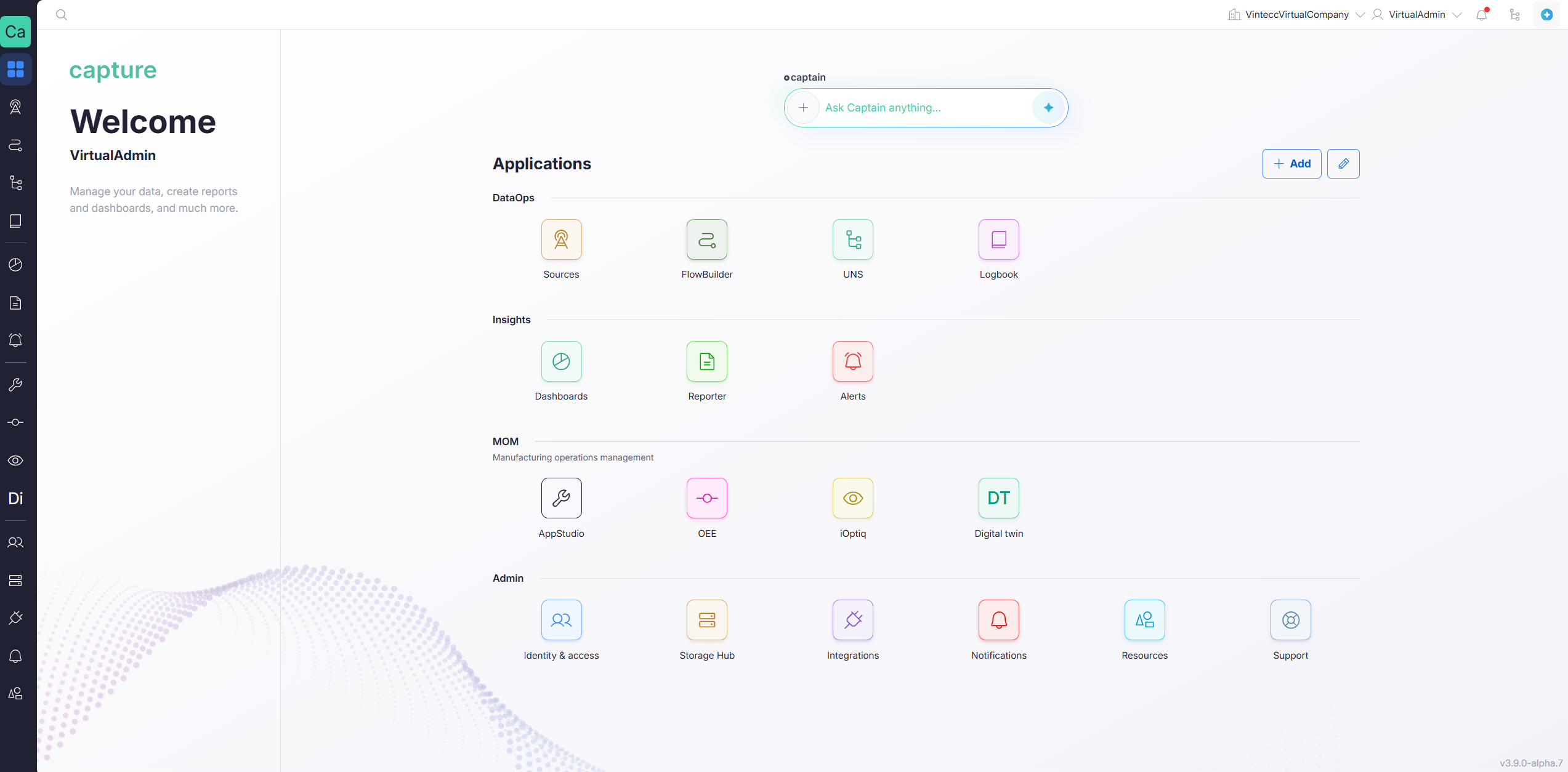
Captain has to be enabled for your environment, and your role needs access to it in the company you are working in. Ask your administrator to give your role access. See Roles for how roles and permissions work.
Chats and companies
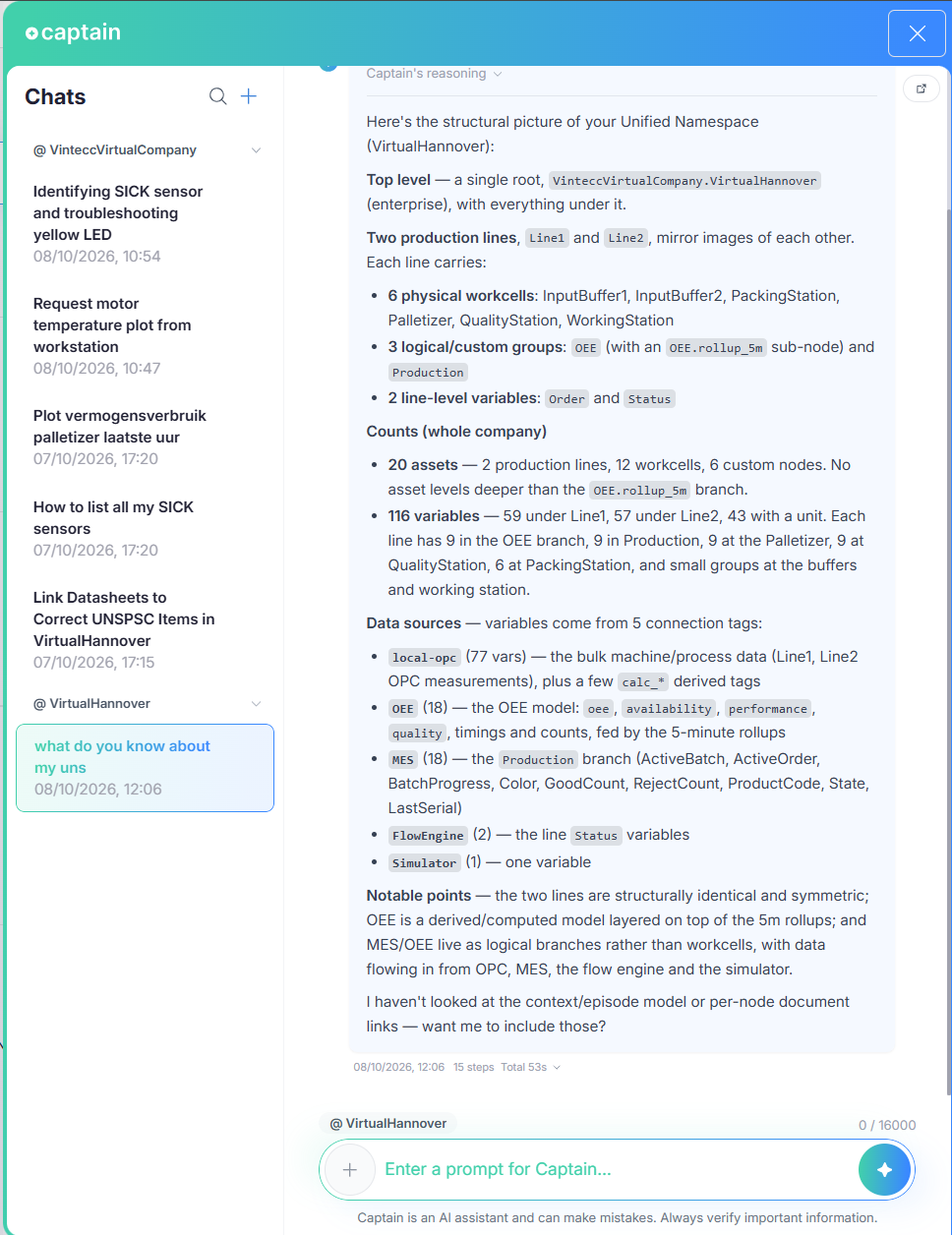
All your chats, grouped by company
On the left you find all your chats, grouped in one folder per company, named @ Company name. The company you are currently viewing comes first and is open. The other companies you can use Captain in are collapsed and sorted by their latest activity.
- Select a folder to open or close it.
- Select the magnifier to search your chats by title. Matching folders open by themselves.
- Select + (New chat) to start a new conversation.
- Open the menu of a chat to change its name, limit the resources Captain may use in it, or delete it.
Pick the company for a new chat
Above the prompt you see the company of the chat, for example @ Acme Plant. Before you send the first message of a new chat, select it to choose another company. You can pick the company you are viewing and its subcompanies. Recently used companies are listed first, and you can search for the rest.
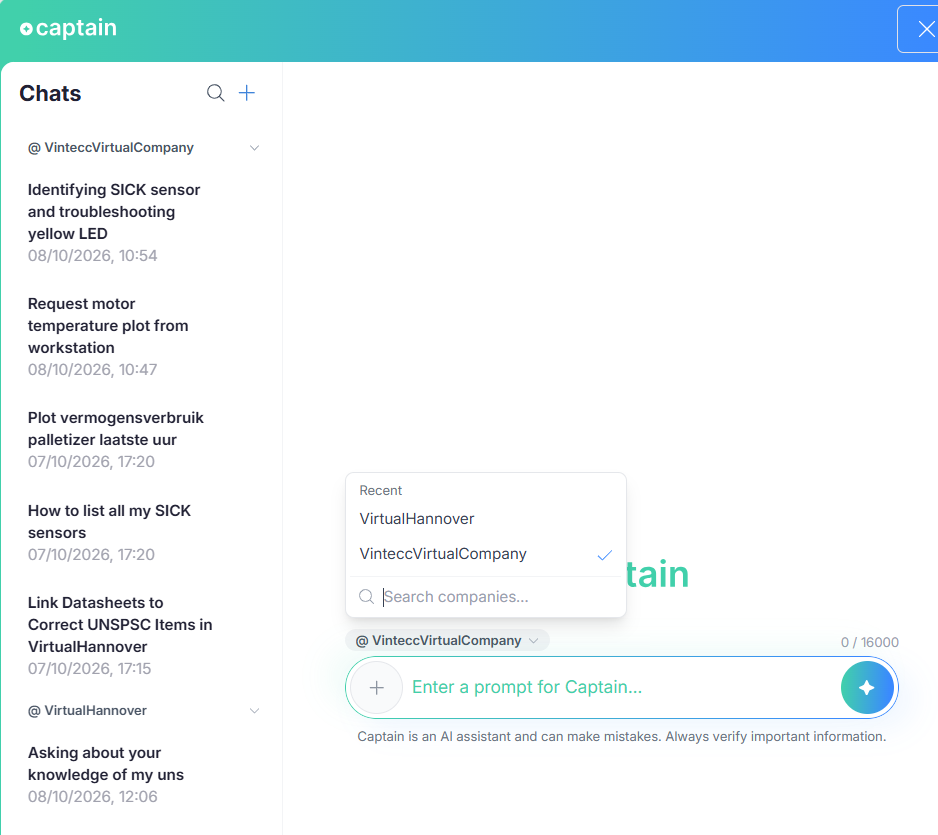
A chat always stays in the company it was started in, and Captain answers with the data and the permissions of that company. To ask the same thing about another company, start a new chat there.
Add context with +
Sometimes the answer is in something Captain cannot look up: a long log of an edge device, a section copied from a document, an error message with its full stack trace. Select + next to the prompt to attach it to the chat as context.
- Select +. The Attach context dialog opens.
- Paste or type the content.
- Give it a name, for example
router-log.txt. If you leave the name empty, Captain names it after the first line. - Select Save. The attachment appears as a chip at the prompt, and Captain can use it in every question of this chat.
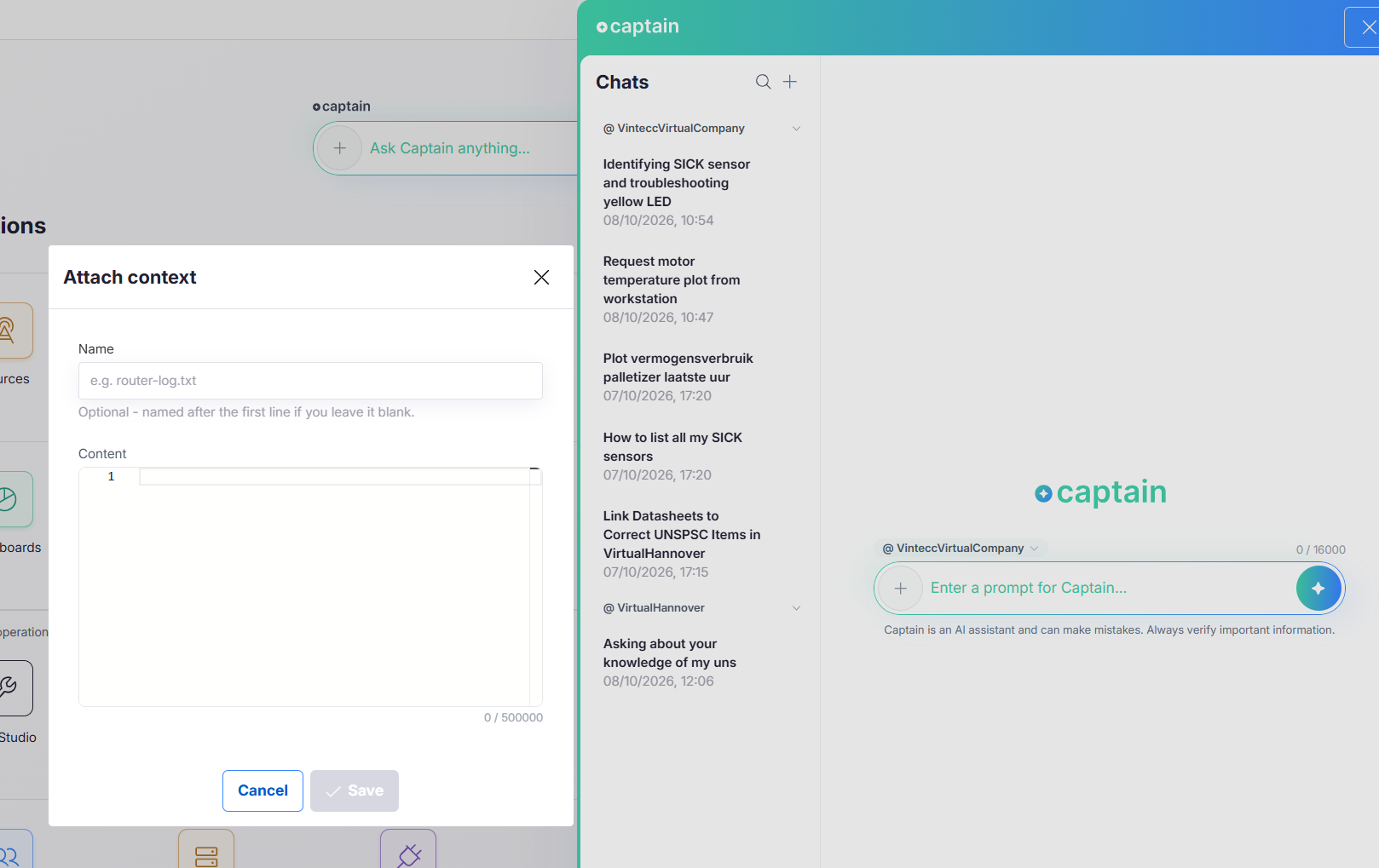
Pasting a very long text straight into the prompt works too: it becomes an attachment as it lands, so the message itself stays short. Remove an attachment with the remove button on its chip.
| Limit | Value |
|---|---|
| One attachment | 500,000 characters |
| Attachments per chat | 20 |
| All attachments in a chat | 1,000,000 characters |
The diagnostics package of Capture Edge contains the logs, configuration and system information of a device. Paste the relevant part as context and ask Captain what stands out.
Give Captain your documentation
Captain already knows the Capture documentation. To let it answer from your own manuals, procedures and instructions, share them from the Resources app:
- Open the Resources app and create a resource. See the Library for how resources work.
- Choose the type Documentation.
- Add a version and upload your files, for example PDF, Word or Markdown files.
- Switch on Discoverable for Captain in the resource details.
- Wait about 2 minutes while Captain reads and indexes the documents.
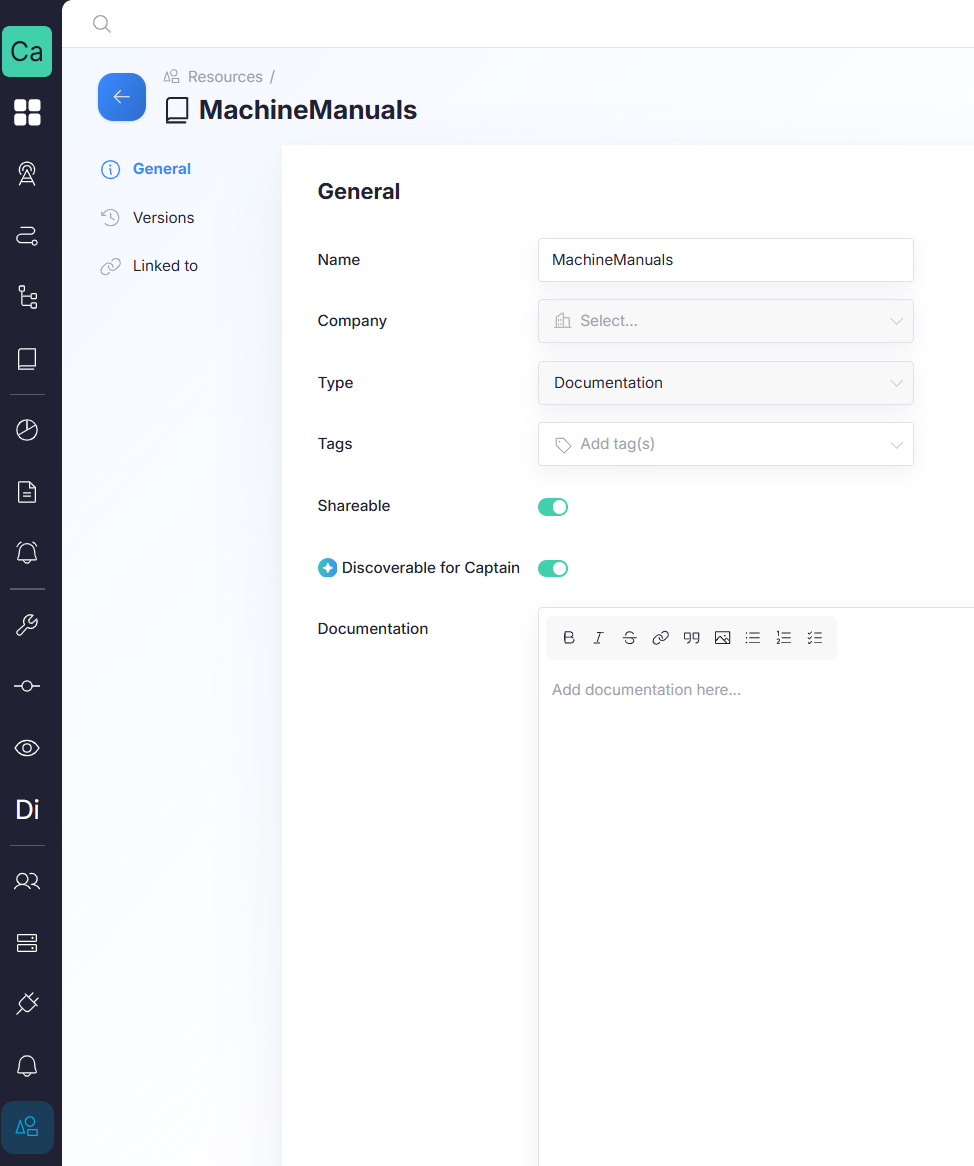
After that you can ask questions about the documents, and Captain cites them in its answers. Captain only uses documents you are allowed to see.
By default, Captain may use every resource that is discoverable for it. To narrow it down for one chat, open the chat menu and select Limit resources, then choose the resources Captain may use in that chat.
Check that Discoverable for Captain is on, that the 2 minutes have passed, and that the chat does not limit its resources.
While Captain works
While Captain prepares an answer, it shows you what it is doing instead of leaving you with a blank screen. The figure below plays one question from start to finish.
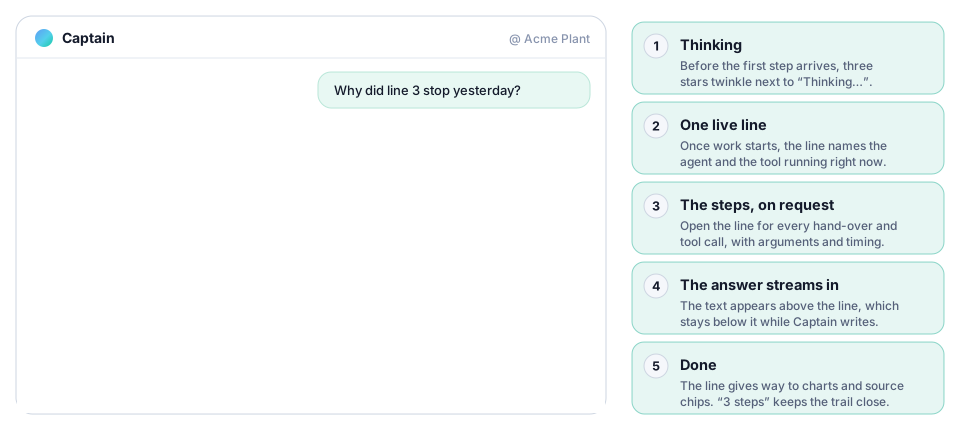
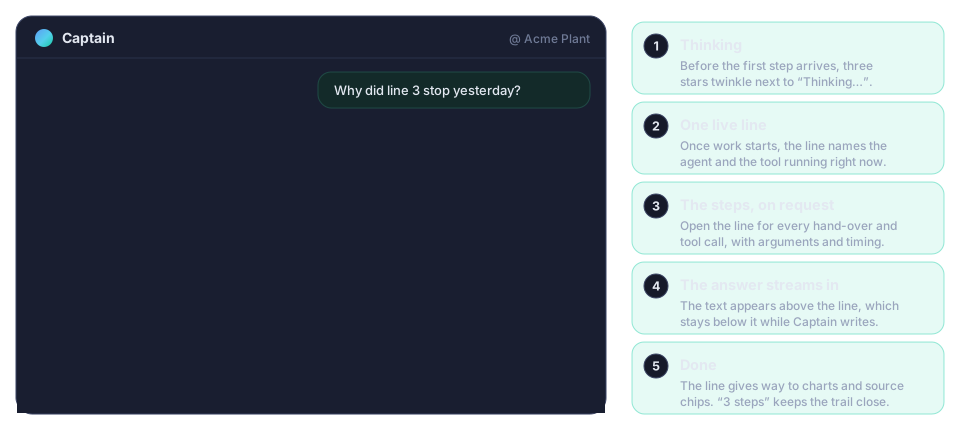
- Thinking. Before the first step arrives, three stars twinkle next to Thinking….
- One live line. Once work starts, a single line names the agent and the tool that is running right now, for example
Capture data · Uns search. - The steps, on request. Select the line to open every agent hand-over and tool call, with its arguments, duration and result size.
- The answer streams in. The text appears above the line, which stays below it while Captain writes.
- Done. The line gives way to charts, source chips and a collapsed step count.
You can stop an answer at any time with the stop button next to the prompt. The answer is then marked You stopped this answer, so a partial answer is never mistaken for a complete one.
Read an answer
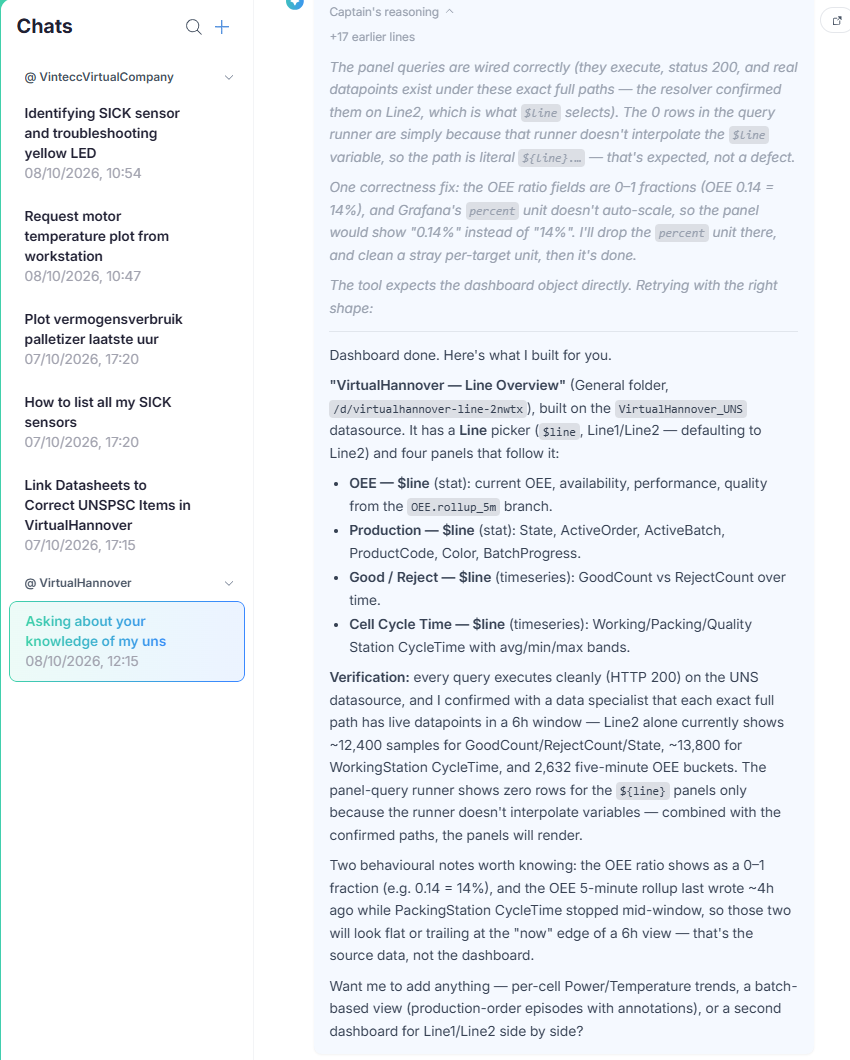
- The answer. Plain text, written for the company of the chat.
- Charts and tiles. Captain draws them from the exact values a tool returned. It never retypes numbers, so what you see in a chart or tile is what the tool delivered.
- Source chips. Each chip names a document Captain used. Select it to see the passages Captain read, or to open the document at the version it cited. A chip for a published page opens that page in a new tab.
- Steps. The footer, for example
3 steps · Total 4.8s, is collapsed by default. This is where the reasoning noise stays out of your way. Open it to see how Captain got to the answer. - The notice. Captain is an AI assistant and can make mistakes. Check important information before you act on it.
The steps behind an answer
The tools that were used are in the steps. Open the footer to see them in order.
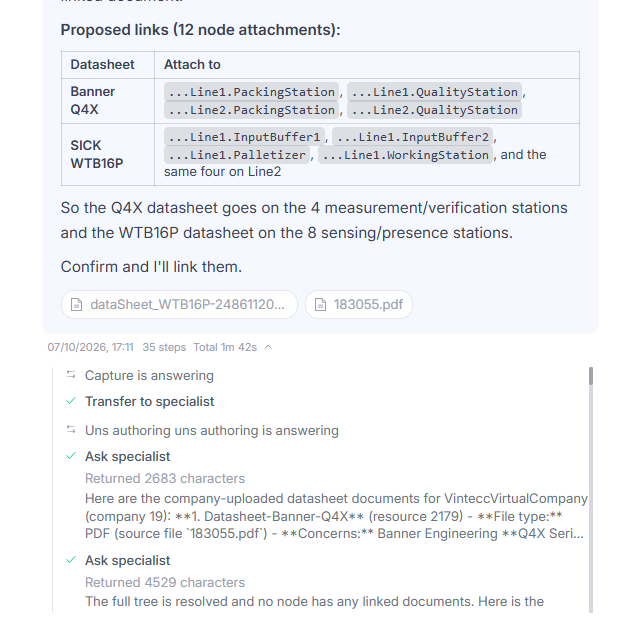
| You see | It means |
|---|---|
| X is answering | Captain handed your question to a specialist, for example one for Capture data or one for documents. |
| A tool name, with a duration | A tool Captain called, and how long it took. A spinner means it is still running, a check means it is done, and a warning means that step failed. |
| Names and values under the tool | What Captain asked the tool for, such as the search text or the asset. |
| Returned N characters | How much the tool sent back. |
Placeholders such as <PERSON_1> | A personal detail that was replaced before Captain's model saw it. See Your data and privacy. |
What Captain can do
Captain works with the tools of the Capture apps. It always acts with your permissions: it can only read and change what your role allows.
| Area | What Captain can do |
|---|---|
| UNS | Read and write |
| Raw data explorer | Read |
| Grafana dashboards | Read and write |
| Logbook app | Read |
| FlowBuilder | Read and write |
| AppStudio | Read and write |
| Capture documentation | Answer how-to questions about Capture itself |
| Your documentation | Answer from the resources you made discoverable, with sources |
And more is following soon. Every Capture app can add its own tools, and Captain picks them up as they appear.
Do you build an app on top of Capture? Your app can add tools for Captain as well. See Build on Captain.
Your data and privacy
Captain is built to be used on plant data, so the protections are part of how it works.
- Your company only. A chat runs in one company. Captain searches the documents and data of that company, and chats are private to you.
- Your permissions only. Every tool call runs as you. A tool you may not use is not offered to Captain.
- Personal data is redacted. Names, e-mail addresses, phone numbers and similar personal details are replaced by placeholders before they reach an AI model, and restored in the answer you read. Company, site and equipment names are sent as written, because Captain needs them to find your data.
- EU only. Captain's AI models are reached through a router with strict EU-only data processing.
- No training, no retention. Your data is not used to train models and is not retained by the router.
- Stored encrypted. Chats and the indexed content of your documents are stored encrypted.
Which AI models does Captain use?
Capture uses Requesty as a router to reach the AI models on the market, with strict EU-only data processing. Your data is not used for training and is not retained.
You do not have to choose a model. Capture selects the models that perform well and are good value for money. The exact model behind Captain changes over time, because we follow the state of the art every day and switch when a better option comes along.
Captain or your own AI tool?
You can also connect tools such as Claude Code to the same Capture tools through MCP. Captain adds what a general assistant does not have: it knows your companies and what you are looking at, it applies Capture's security and personal data redaction, and it has guidance on how to use each tool. See Captain or your own AI tool for the full comparison.