MCP
Capture has an MCP server. It gives the AI tools you already use access to the same Capture tools that Captain uses, so you can read and work with your Capture data from Claude, Mistral Vibe, Codex or Microsoft Copilot Studio.
What is MCP?
The Model Context Protocol (MCP) is an open standard for connecting AI assistants to the tools and data of other systems. It works in three steps:
- Discover. The assistant asks a server which tools it offers.
- Call. The assistant calls a tool with structured parameters.
- Receive. The tool answers with structured data the assistant can reason about.
Before MCP, every combination of assistant and system needed its own integration. With MCP, a system describes its tools once and every assistant that speaks MCP can use them.
Why it matters
- Real data, not guesses. An assistant that calls a tool works with the actual value from your system.
- A tool is a contract. Each tool says what it does, what it needs and what it returns, so an assistant knows when to use it.
- It is open. You are not locked in to one assistant. Choose the one that suits your team, and switch when a better one comes along.
How Capture uses MCP
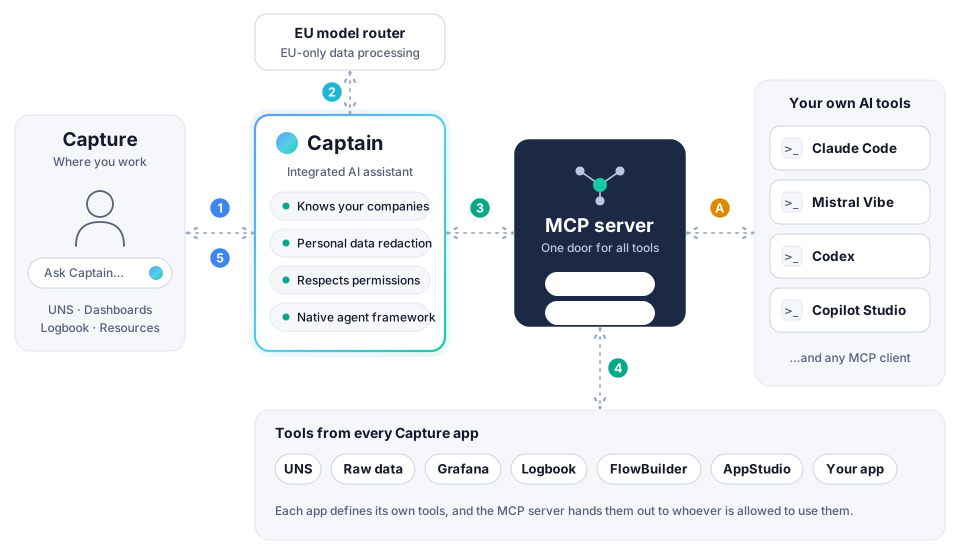
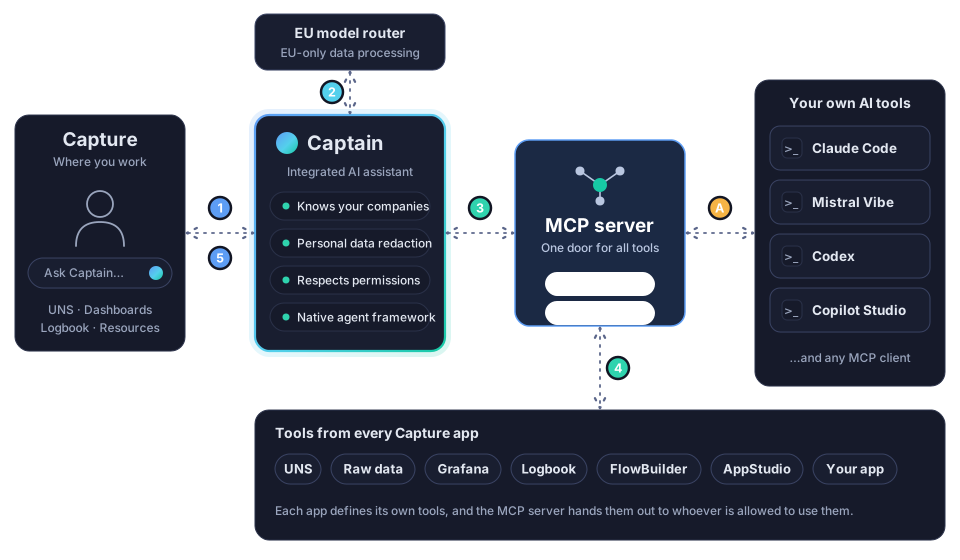
Each function in Capture can define its own tools. They are all registered at one central MCP server, the gateway to everything Capture can do for an AI assistant. It runs behind the scenes, but it is what makes the whole setup work:
- One door. Captain and your own AI tools use the same server, so a tool is built once and available everywhere.
- New apps appear by themselves. When a Capture app adds a tool, it shows up for Captain and for your own tools without an update on your side.
- Permissions are checked for you. You sign in as yourself. A tool is only offered when your role allows it, and a call runs with your permissions.
The tools available today are the ones listed under What Captain can do: the UNS, the raw data explorer, Grafana dashboards, the logbook app, FlowBuilder and AppStudio.
Connect your own AI tool
- Capture Cloud 3.9 or newer.
- A Public ClientId. This identifies your AI tool to Capture when you sign in. Contact Capture sales to get it.
- A Capture account whose role has access to the MCP server. Without it, every request is refused with a
403. Ask your administrator to give your role access. - An AI tool that supports remote MCP servers.
The address of the Capture MCP server is:
https://mcp-server.apps.captureplatform.com/mcp
You sign in with your Capture account, the same way you sign in to Capture. Your tool asks the server where to sign in, and the Public ClientId tells Capture which tool is asking.
- Claude
- Mistral Vibe
- Other tools
- In Claude, open Customize and go to Connectors.
- Select + Add, then Add custom connector.
- Enter a name, for example
Capture, and the address of the MCP server:https://mcp-server.apps.captureplatform.com/mcp. Select Continue. - Under Authentication, choose Sign in now. Under OAuth client, choose Use your own OAuth client and enter your Public ClientId. Leave the secret empty: it is a public client.
- Select Add, then Connect, and sign in with your Capture account.
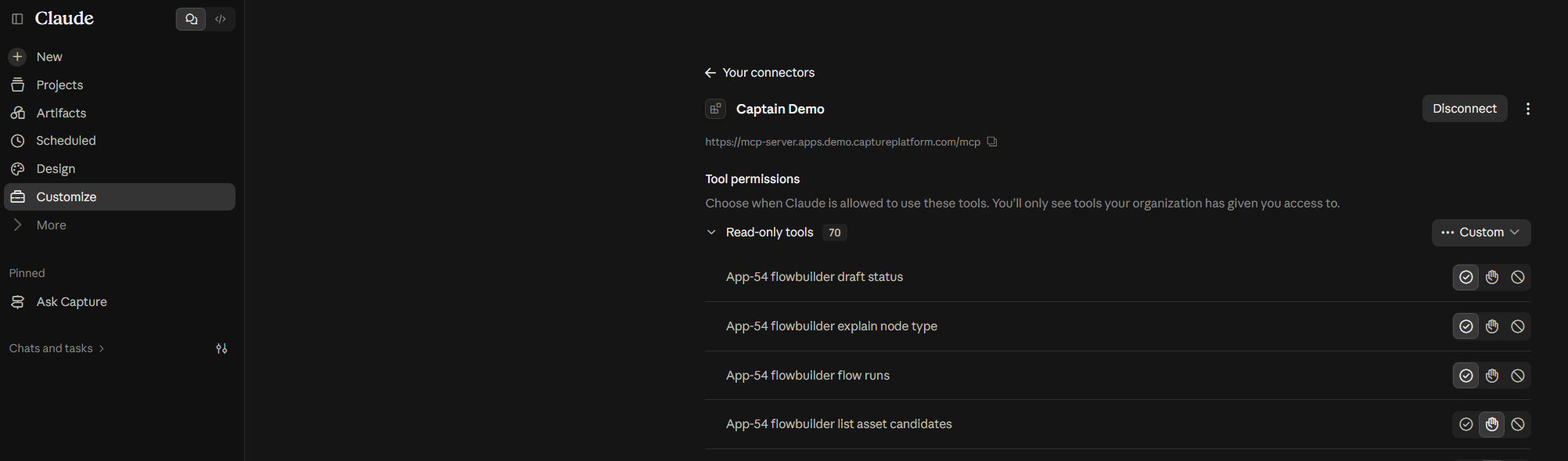
Start a new chat in Claude, select + and Connectors, and switch on Capture. Claude can now use your Capture tools.
Anthropic changes the screens of Claude from time to time, and what you see depends on your plan. Look for the setting where you add a custom connector and where you can enter your own OAuth client. On a Team or Enterprise plan, an owner of your organization adds the connector first.
- In Vibe, open Context and go to Connectors.
- Select + Add Connector, then switch to the Custom MCP Connector tab.
- Enter a name, for example
Capture. Vibe wants a unique name without spaces or special characters. - Enter the address of the MCP server as the Server URL:
https://mcp-server.apps.captureplatform.com/mcp. - Select Connect and complete the sign-in with your Capture account. If Vibe asks for a client ID, enter your Public ClientId and leave the secret empty.
When the connection is made, the connector shows its connection as Valid, together with the Capture tools you may use.
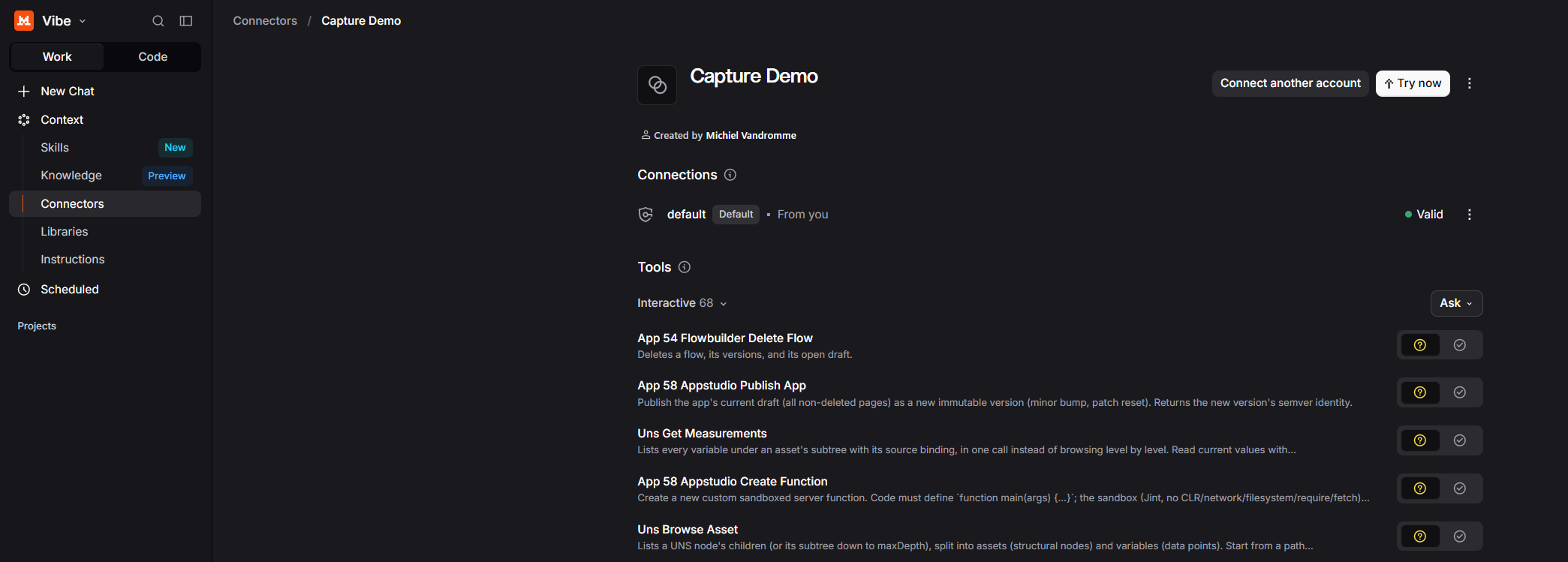
To let Vibe use a tool without asking you every time, open the connector from My Connectors, go to its Functions tab and switch on Always allow for that function. Keep this off for functions that change data until you trust the connector.
Mistral changes the screens of Vibe from time to time, and what you see depends on your plan. Look for the setting where you add a custom MCP connector.
Codex, Microsoft Copilot Studio, Claude Code and most other assistants can connect to a remote MCP server. Add a new MCP server in your tool with:
| Setting | Value |
|---|---|
| URL | https://mcp-server.apps.captureplatform.com/mcp |
| Transport | Streamable HTTP |
| Authentication | OAuth, with your Capture account |
| OAuth client ID | Your Public ClientId. Leave the client secret empty. |
The names of these settings differ per tool. See the documentation of your tool for where to add a remote MCP server and where to enter your own OAuth client.
For example, in Claude Code you add the server from your terminal:
claude mcp add --transport http --client-id YOUR_PUBLIC_CLIENT_ID capture https://mcp-server.apps.captureplatform.com/mcp
Then start Claude Code, run /mcp, select capture and sign in with your Capture account.
Only one group of tools
The address above gives your tool every tool you may use, in one list. To connect only one group, for example only the Grafana tools, add the name of the group to the address:
https://mcp-server.apps.captureplatform.com/mcp/grafana
Your AI tool can list the groups available to you at https://mcp-server.apps.captureplatform.com/mcp/groups. This request needs your Capture sign-in.
Captain or your own AI tool?
Both use the same Capture tools. The difference is everything around the tools.
| Captain | Your own AI tool, such as Claude, Mistral Vibe, Codex or Copilot Studio | |
|---|---|---|
| Knows Capture | Yes. It knows your companies and what you are looking at. | No. It sees a list of tools and has to work out the rest. |
| Guidance | A native agent framework: specialists per Capture app that know how to use their tools well. | A whole bunch of tools, without the guidance on how to combine them. |
| Security | Built-in. Personal data is redacted before it reaches the model, and every call follows your permissions. | Your permissions still apply to every call, but what happens with your data is up to the vendor you chose. |
| Data processing | Strict EU-only processing. Your data is not used for training and is not retained. | Under the terms of your AI vendor. |
| Cost | Lower. Capture selects models that perform well and are good value for money. | You pay your AI vendor, with the model you pick. |
| Where you use it | Inside Capture, next to your data. | In the tool you already work in, for example your editor or a workflow. |
Use Captain for everyday questions about your plant, your documentation and your data, and when you want answers you can trust to follow your company and your permissions.
Use your own AI tool when your team already works in one, when you build automations that include Capture data, or when you want to combine Capture with other systems that also speak MCP.
Build on it
Do you build an app on top of Capture? Your app can add its own tools, and even its own agents and skills, to the MCP server. They then show up in Captain and in your own AI tools. See Build on Captain.