Overview
Why Use Ioptiq
The Ioptiq application transforms vision models from isolated inspection tools into a transparent, controllable, and continuously improving quality system. It enables you to:
- Gain full visibility into all inspection results across your production lines
- Eliminate black-box behavior by making every model prediction traceable and reviewable
- Accelerate the feedback loop between operations and the vision team
- Continuously improve model accuracy through structured feedback collections
- Maintain control over multiple vision setups within one centralized environment
The result: faster model optimization, improved detection performance, reduced manual validation effort, and higher confidence in automated quality control.
Inspections
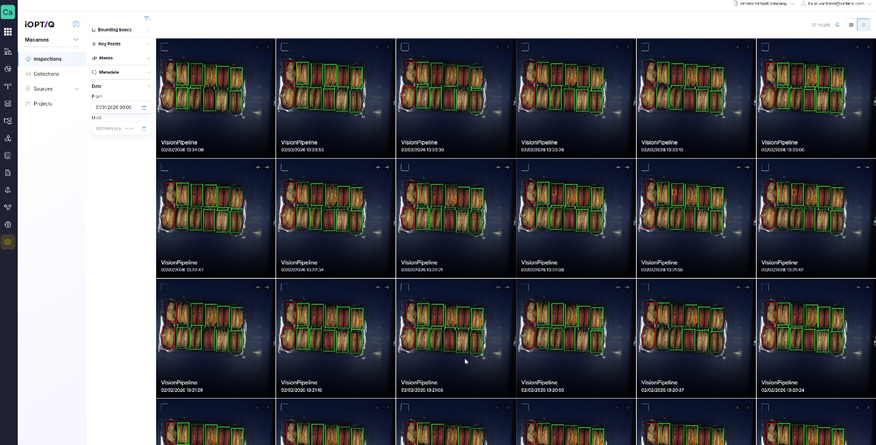
Upon opening the application, users are presented with an overview of inspections for the active model. This overview allows you to:
- View all inspection results generated by the model
- Filter inspections by a selected date range (start and end date)
- Filter inspections based on the predictions found on each image
- Option to view the results in a list or grid with thumbnails to have a quick overview of what the model is generating.
This provides operational insight into model performance and inspection throughput.
Detailed Prediction Analysis
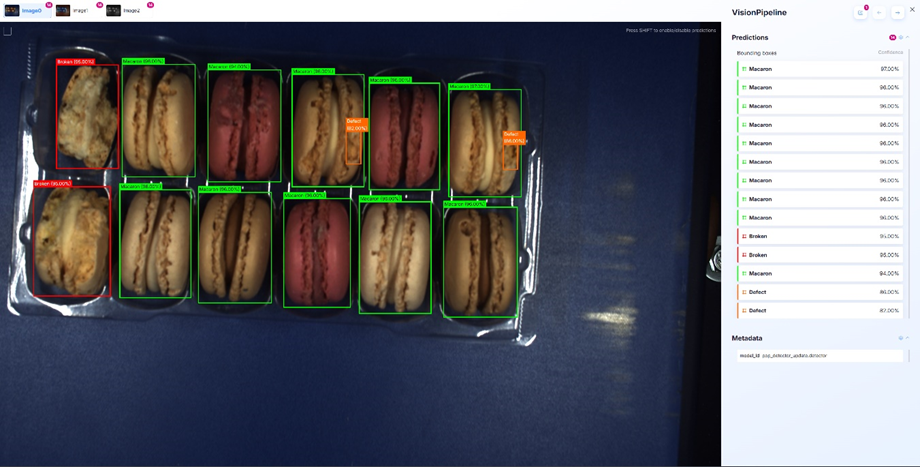
For in-depth analysis, users can open any individual inspection image. Within the detailed view, you can:
- See all predictions made by the model on that specific image
- Analyze detected features or anomalies
- Review prediction confidence and results per case
This enables detailed case-by-case validation and performance assessment.
Collections
If the model produces an incorrect or uncertain prediction, the image can be added to a Collection. A Collection is a structured group of images that can be reviewed by the vision team to:
- Process operational feedback efficiently
- Analyze recurring false positives or false negatives
- Improve and retrain the model in a targeted manner
Adding Images to a Collection
Images can be added in two ways:
Via the Inspection Overview
- Select one or multiple images using the checkboxes
- Add them to an existing collection or create a new collection
Via the Detail View
- Open a specific image
- Add it directly to a collection
This structured feedback mechanism ensures a short and efficient improvement cycle.
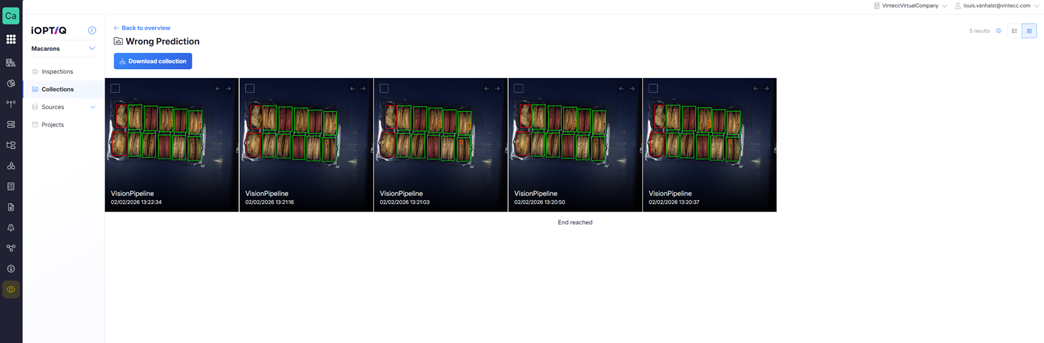
Consulting collections
All created collections are accessible through the Collections Overview. This provides:
- A structured overview of bundled feedback cases
- Clear traceability of reported model issues
- A central reference point for optimization discussions
Sources
In sources it is possible to enable / disable and change all aspects of your configuration in the UI itself.
- Rename image fields and metadata
- Reorder images & metadata
- Enable / Disable predictions, images & metadata
Adding or deleting items is currently only possible via the json configuration. Info about this can be found here: Configuration
Projects
If multiple vision models or production setups are active on-site, separate projects can be configured. A project represents one complete vision setup on the production floor. Users can:
- Switch between projects via the project selector at the top of the application
- Maintain clear separation between different production lines or model configurations
Go to Configuration to see how to setup your very own project.