Users
Summary
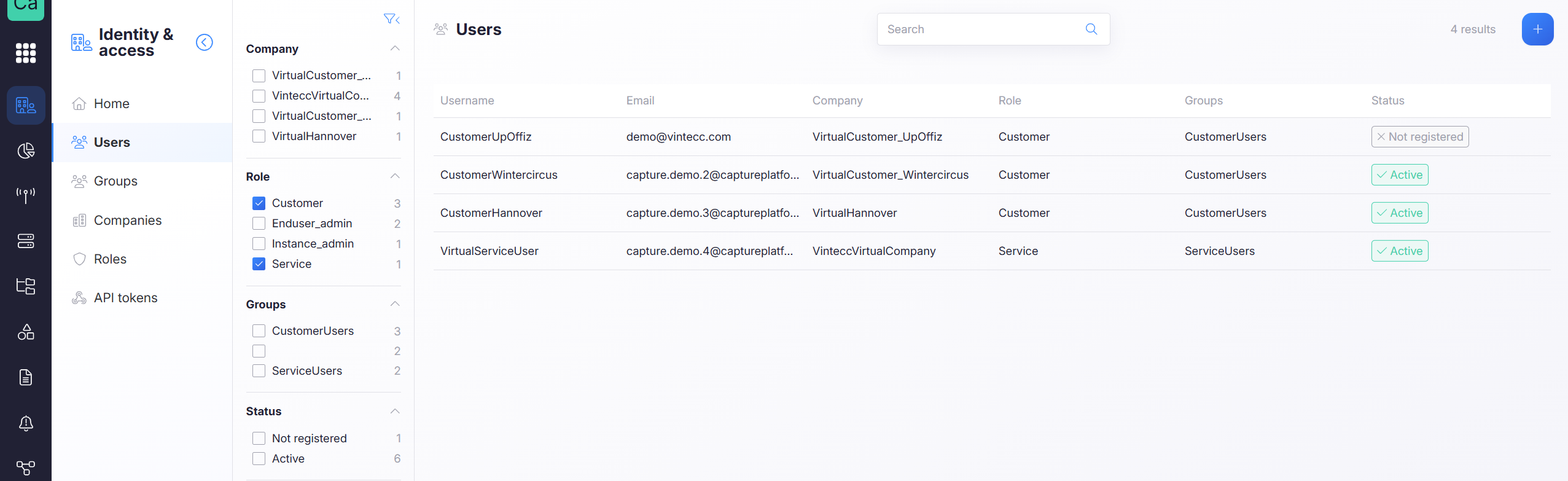 On the User page you can see all the users of this company and all users of subcompanies.
You can use the search and filters to find specific users.
On the User page you can see all the users of this company and all users of subcompanies.
You can use the search and filters to find specific users.
Subcompany users are only visible if your role has the Apply permissions to subcompanies permission enabled.
Add users
In the top right you can add a new user.
To add or edit users, you require the Manage users permission, but also the View companies and View roles permissions.
Remove users
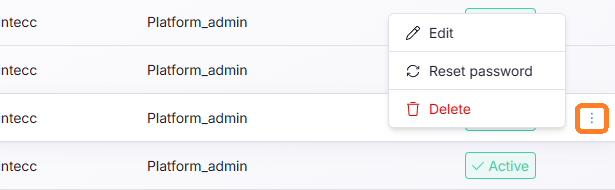
To change the password, edit or remove a user, click on the three dots at the end of the user row, and select the desired action.
Properties
- Username - Name of the user
- Email - Email of the user, this is used for signing in and for notifications
- Phone Number (optional) - Phone number of the user, this is used for notifications
- Company - The company this user is assigned to
tip
A user can see info from subcompanies, but not from parent companies. Assign a user to the top-most company this user has rights to, so that you can easily manage the user and its permissions from one place.
- Role - The role assigned to this user, which determines their permissions within the company.
- Force MFA - If this is enabled, the user will be required to use multi-factor authentication when signing in. For more information about multi-factor authentication, see the Single Sign-On page.
- Groups - You can assign a user to one or more groups, this is used for notifications and filtering users in the user management page.