Companies
Summary
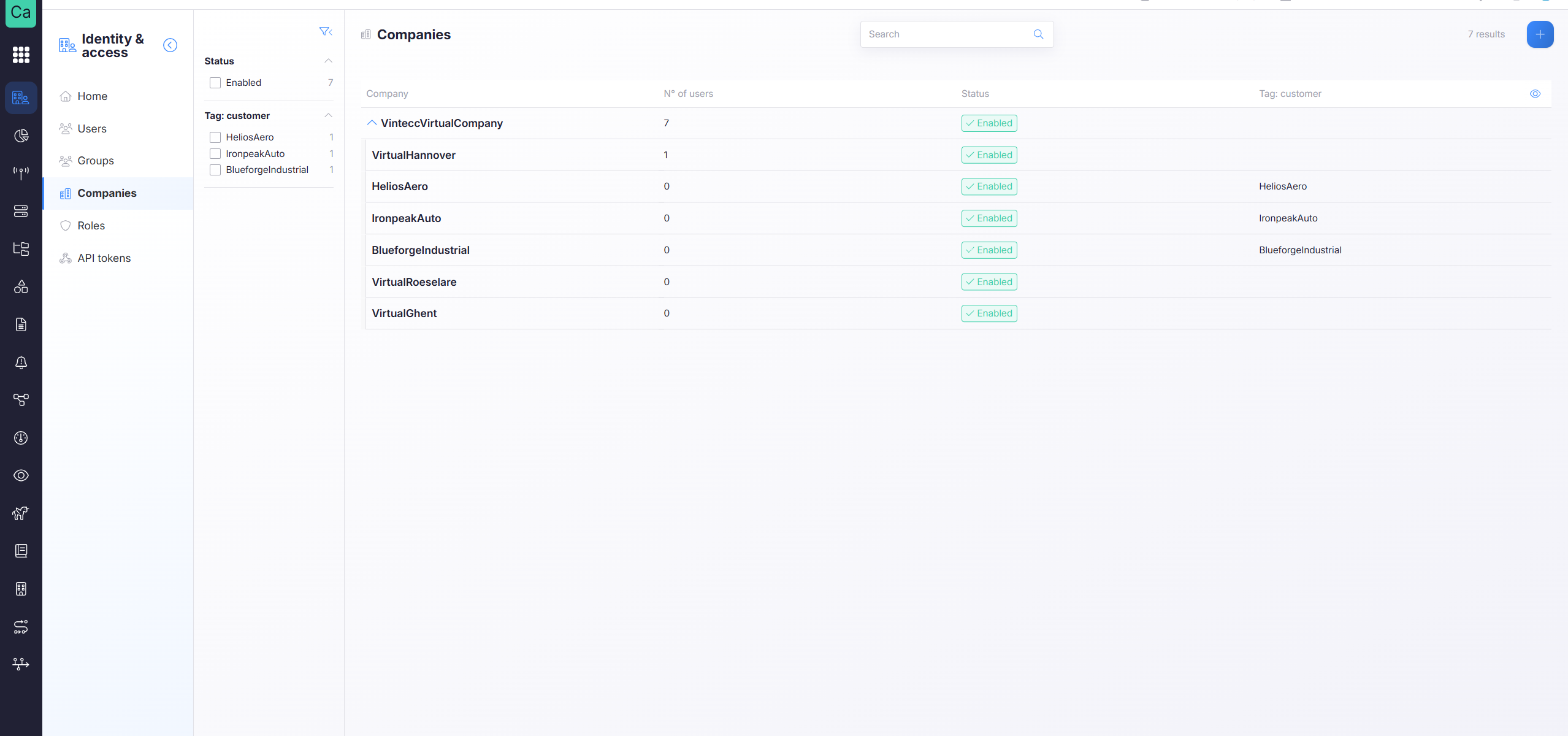
A company is the main starting point of the platform. In the top right of the screen, you can see your current user and company. Each company can have multiple sub-companies, this is explained in more details in Company structure.
Company structure
Companies have a parent-child relationship, this means that a company can have multiple sub-companies, and each sub-company can also have multiple sub-companies, creating a tree structure.
An example of this structure is something like this:
Headquarters (parent company)
- Country 1 (sub-company per country)
- Plant 1 (sub-company)
- Assembly line
- Plant 2 (sub-company)
- Plant 1 (sub-company)
You can create users, devices or roles on each level of the company structure. A parent company can see all the data of its sub-companies, and a sub-company can only see its own data. But this access depends on the user's access level, which is explained in roles
Companies are never able to interact with sibling companies.
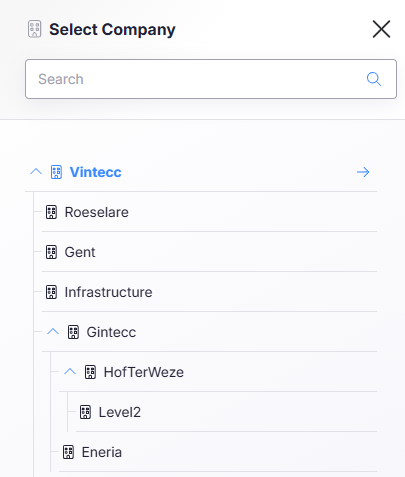
Switching company
When you switch from one company to another, this changes what users, devices, apps, etc. you can see and manage.
Properties
- CompanyName - Name of the company, this is unique
- Parent company - Every company has a parent company, this is explained in more details in Company structure
- Enabled - If you disable a company, it cannot be used anymore, there is no data collected and the users are unable to sign in.
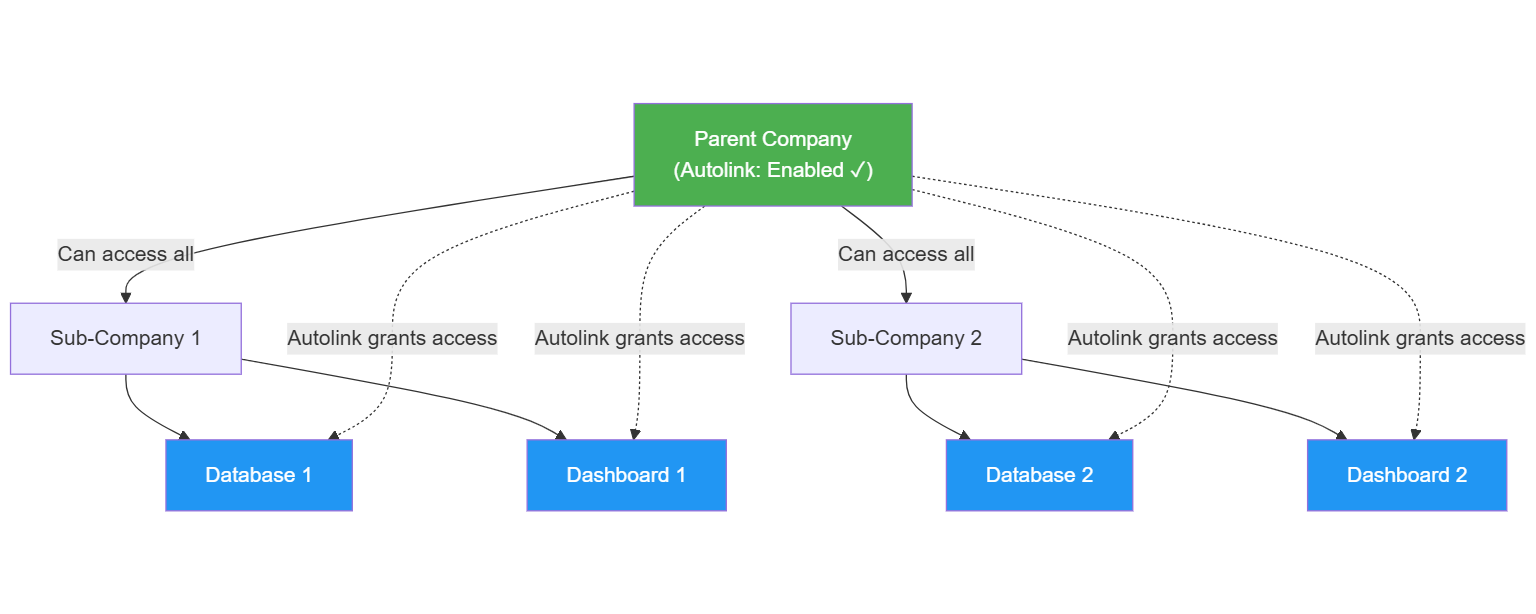
- Autolink - If true, all this company gets access to all the databases and dashboards of its sub-companies. More info here
- Database endpoint(s) - These are the connected databases for this company, you can have multiple databases connected to a company.
- Dashboard endpoint - The URL or endpoint of the dashboard environment that is used to visualize data for this company.
- Installed Apps - These are the apps that this company can use, unchecking any of these apps will make them unavailable for this company.
- Enable Microsoft Authentication - If this is enabled, users of this company can sign in with their Microsoft account, if not enabled, users can only sign in with their email and password.
- Allowed email domains - If Microsoft Authentication is enabled, you can specify the allowed email domains for signing in, if this is empty, there are no restrictions on the email domain.
- Microsoft authentication required - If this is enabled, users of this company can only sign in with their Microsoft account, and not with a username / password. For more information about multi-factor authentication, see the Single Sign-On page.
When a company is disabled, its users cannot login anymore.
Autolink