Linux
The Linux installer installs these components:
- Collector
- Syncer
- Analytics
- Cloud Manager
- InfluxDB, Redis or both, as you choose during the installation
The Linux builds are self-contained: they include the .NET runtime, so the installer does not install a runtime and the device does not need one.
There is one installer zip per architecture:
| Architecture | Installer |
|---|---|
| 64-bit x86 (Intel, AMD) | Capture.Edge_Install_<version>_linux-x64.zip |
| 32-bit ARM | Capture.Edge_Install_<version>_linux-arm.zip |
| 64-bit ARM | Capture.Edge_Install_<version>_linux-arm64.zip |
Installer package structure
The installer package contains the capture installer zip and an optional default configuration file. On a new device, if you run the installer without the configuration file, the logger will start the provisioning flow with the Vintecc company. (This is the default config) If you want the logger to start the provisioning flow with your company, a Config.json file with your company name in the placeholder is needed. It is possible to download the installer and default Config (or a selected one) from the Docs section in the cloud platform. Selecting "Default" as config will generate an empty config with your company name already filled in. (based on the company of the logged in user) 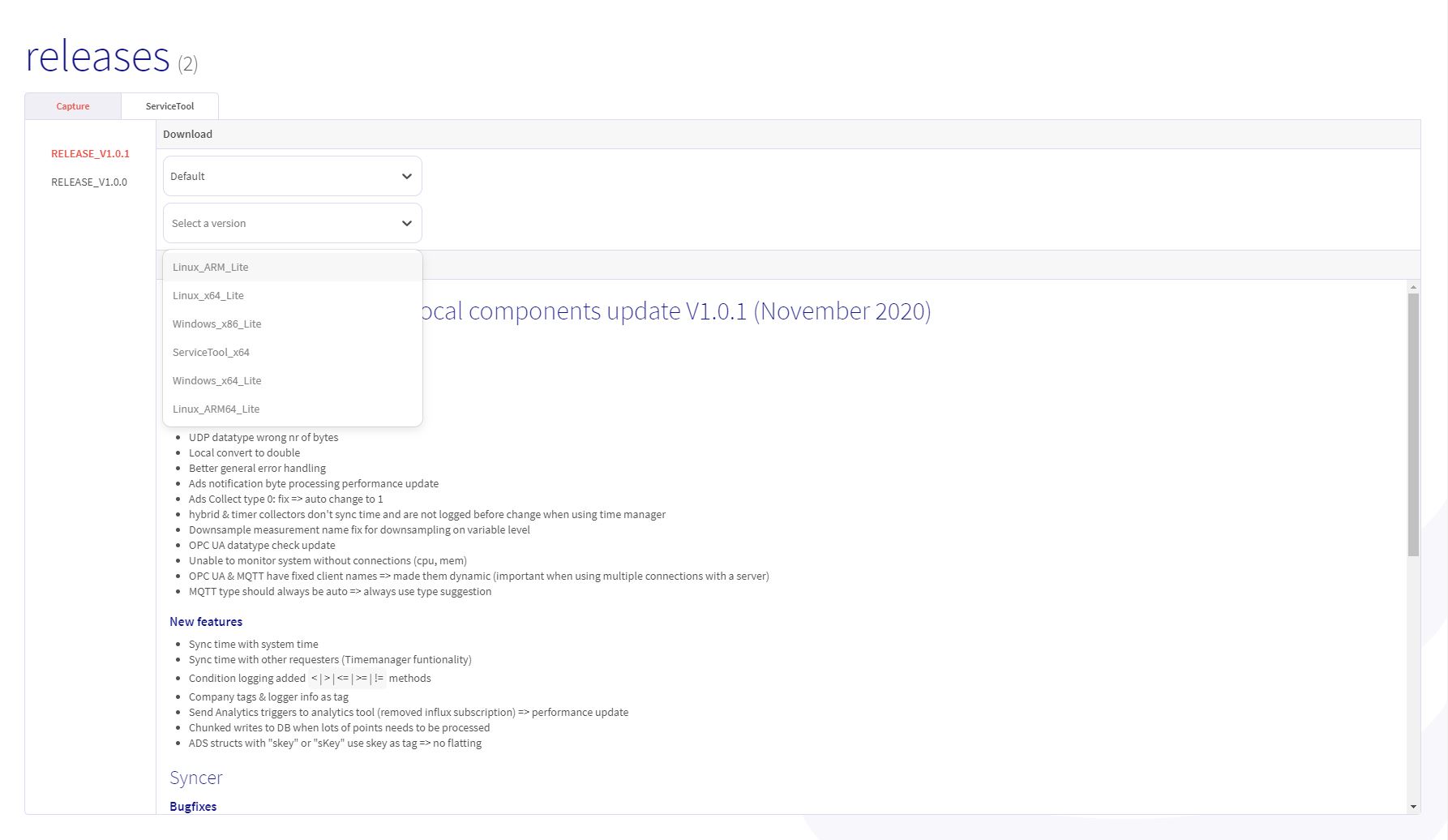
Installation
The config file must be named Config.json. Rename the file if this is not the case.
Copy the installer zip and the Config.json file to the same folder on the installation target. The zip has no top-level folder, so extract it into a folder of its own and run the installation script from there:
unzip Capture.Edge_Install_<version>_linux-x64.zip -d capture-install
cd capture-install
sudo sh ./InstallCapture.sh
Use the zip name for your architecture. The script looks for Config.json in its own folder and in the folder above it. On a new device, it copies the file to /etc/capture/Config/Config.json, and Capture Edge starts with it.
Once Capture Edge has started on a device, it runs the configuration it stored in /etc/capture/DataStore, and running the script again keeps that configuration. The script then leaves a Config.json next to it alone and prints Not using …/Config.json: this device already has a stored configuration, and it keeps that one. This also holds after an uninstall, which keeps /etc/capture.
To change the configuration of a device that has run before, use the Configuration page in the CloudManager UI, restore a snapshot on the Configuration Backups page, or change it in the Capture portal.
Running the script again on a device where Capture Edge is running updates it in place: the script stops the Capture services before it replaces their files, then starts them again.
The script asks three questions. Press Enter to accept the default.
| Question | Default |
|---|---|
| Which databases do you want to install? Choose 1 (Influx), 2 (Redis) or 3 (Both) | 3 (Both) |
| Where do you want to install capture? | /opt/capture |
| Where does Influx need to store the data? Only asked when you install InfluxDB. | /var/lib |
InfluxDB stores its data in an influxdb folder under the location you enter, so by default in /var/lib/influxdb.
The installation script creates following folder structure:
/opt
  | capture             (the installation location you entered)
    │ Collector
    │ Syncer
    │ Analytics
    │ CloudManager
    | Influx            (only when you install InfluxDB)
    | Redis             (only when you install Redis)
    | UNINSTALL_Capture.sh
/etc
  |capture
    │ Config
    | DataStore
    | Updates
The installer also creates, enables and starts following systemctl services:
- collector
- syncer
- cloudmanager
- analytics
- influx (only when you install InfluxDB)
- redis (only when you install Redis)
Uninstall
Navigate to the installation folder (default /opt/capture) and run the following command. Use the copy in the installation folder, not the one in the installer zip: only the installed copy knows which folder to remove.
sudo sh ./UNINSTALL_Capture.sh
The script stops and removes the Capture services and removes the installation folder.
Some data in Capture is still stored on your pc after an uninstall. This means that an accidental uninstall will not harm your data. The files that are kept are:
- /etc/capture
- The InfluxDB data, in
influxdbunder the location you entered during the installation (default/var/lib/influxdb)