Edge Gateways
The Edge Gateways page is your operational inventory: a single place to see every known gateway, understand whether it’s alive and sending data, and quickly determine whether it’s running the expected configuration.
You will typically come here for three reasons:
- Operations — confirm gateways are online and producing data.
- Add Edge Gateways — Find a tutorial here.
- Troubleshooting — spot gateways that stopped sending data or stopped sending heartbeats.
- Rollouts — check configuration drift and push updates when needed.
An Edge Gateway is the edge device that runs your edge software and sends captured data to the cloud. In older documentation this was also called a Device or Logger.
Not all Edge Gateways are physical devices. An External Connection is a special type that represents any external service pushing data into Capture via the API. See External Connections.
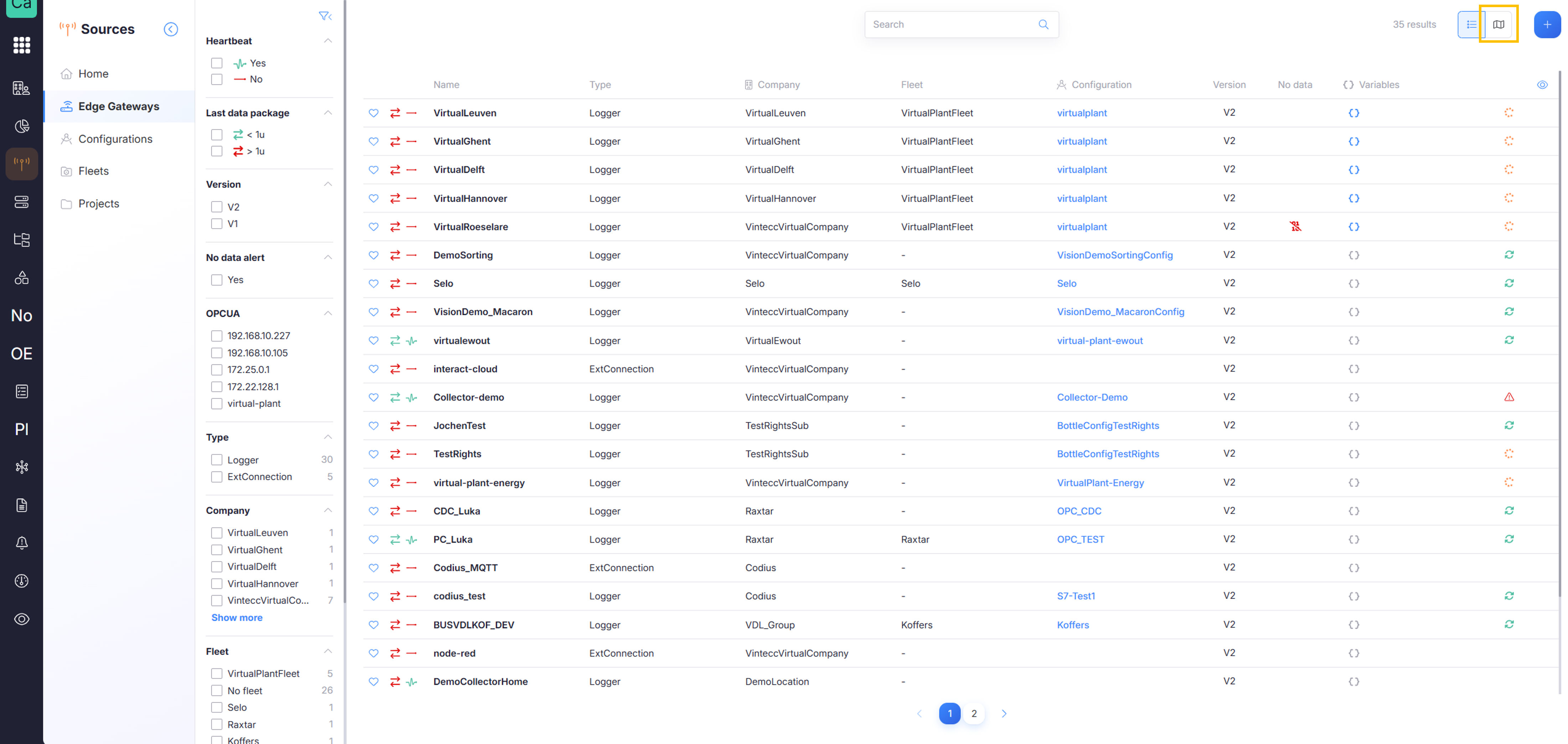
Page layout: list view and map view
By default, the page opens in a table/list view: one row per gateway, with useful metadata columns (such as name, company, fleet, configuration, and version).
In the upper-right corner, you can switch to a map view using the view toggle button (highlighted in orange in the screenshot). The map view is useful when you operate multiple sites and want quick geographic context—especially when combined with favorites and company/fleet filtering.
Map view requires location data for a gateway to be present. Gateways without coordinates may not be shown on the map.
When you are responsible for a small subset of gateways (for example, a production fleet, a customer pilot, or a test bench), it’s easy to lose them in a long list. The Favorites feature solves this by allowing you to pin gateways so they stay at the top of the table.
The table can show a lot of metadata, which can become overwhelming. Use the eye icon on the right to select which columns are visible.
Understanding gateway activity: data vs heartbeat
Two adjacent indicators at the start of each row help you distinguish between “is it alive?” and “is it delivering data?”. This distinction makes troubleshooting much faster.
Last data package received (double-arrow column)
The first column (double arrows) shows the last time the cloud received a data package from the gateway. This is the best indicator for whether your end-to-end data flow is still working.
Typical interpretation:
- Recent timestamp → data is arriving as expected.
- Old timestamp → data has stalled or the device is no longer delivering.
Heartbeat (icon next to it)
The heartbeat indicator shows the last time the gateway reported it is alive. This is a connectivity/liveness signal, separate from data delivery.
Typical interpretation:
- Recent heartbeat + stale data → gateway is reachable, but the data pipeline/app may be stuck, misconfigured, or blocked.
- Stale heartbeat → gateway may be offline, disconnected, powered down, or unable to reach the cloud.
Configuration sync status: detect drift and push updates
On the far right of each row, you’ll see status icons that indicate whether the gateway is in sync with the configuration known in the cloud. This is your primary tool for managing configuration drift and rollouts.
Status legend
-
Warning icon
The gateway is not up to date with the configuration in the cloud.
This usually means the configuration changed in the cloud, but the gateway has not applied it yet. -
Orange loading icon
A configuration push is in progress.
The gateway is currently fetching and/or applying a configuration. -
Green sync icon
The gateway configuration is up to date with the cloud.
Clicking the icon = pushing configuration
These icons are not only indicators; they are also actions. Clicking a status icon triggers a configuration push to the gateway.
Depending on the runtime and edge applications, applying a new configuration can restart services or briefly interrupt data flow. Plan pushes during safe windows when possible.
Edge Gateway detail page
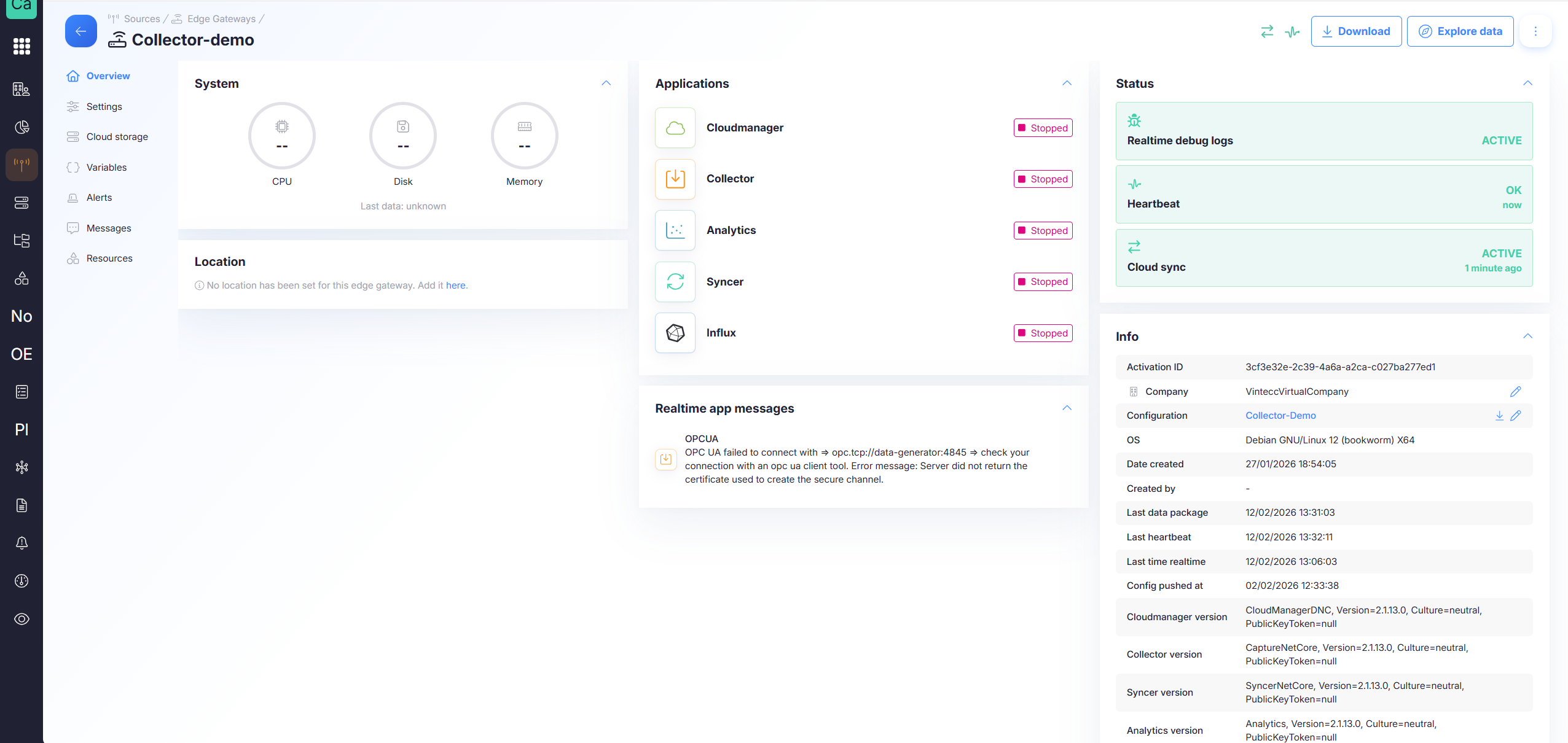
Select a gateway in the list to open its detail page. The detail page is where you go from “status overview” to “hands-on management”: deeper health signals, device-specific settings, storage management, variables, alerts, logs, and linked resources.
At the top of the detail page you can also access quick actions:
-
Download Auth Config
Used to manually authenticate the edge gateway to the cloud (common in manual or constrained provisioning flows). -
Download Config file
Exports the configuration currently used by the device. Useful for audits, debugging, or offline workflows. -
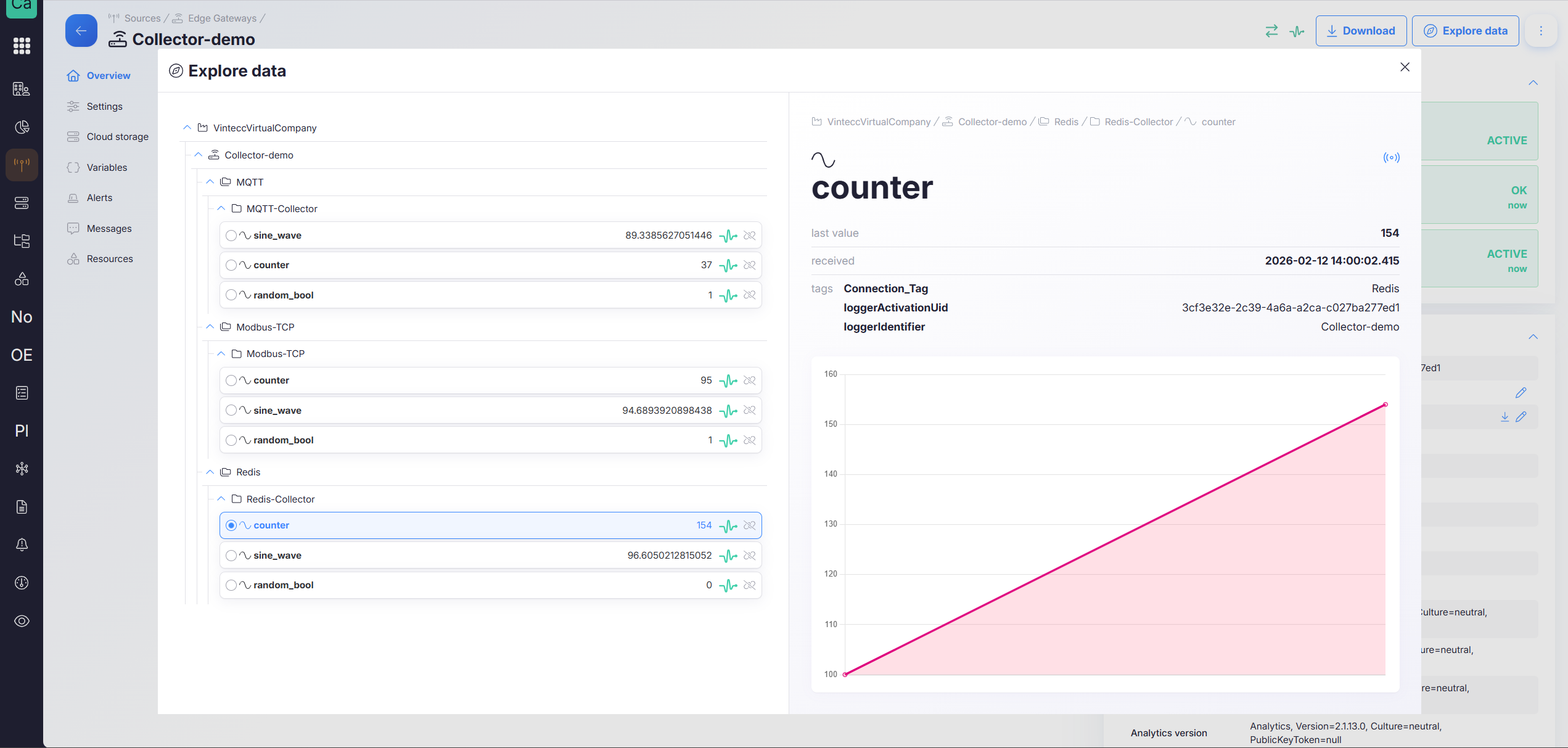
Explore Data
Opens the latest data for this gateway so you can validate whether data is arriving and shaped as expected.
What’s available in the detail page
Overview tab
The Overview tab is the fastest way to understand what is happening on the gateway right now. It typically includes:
- System metrics (resource usage and general health indicators)
- Edge applications (what is running at the edge)
- Status (connectivity and operational signals)
- Device information (versions, assigned configuration, and other metadata)
This is usually the first stop for investigations: it tells you whether the gateway is healthy, what it is running, and how it is configured.
Settings tab
Use Settings to edit gateway-level properties such as:
- name
- company assignment
- fleet assignment
- other metadata fields available in your environment
Assigning or changing a fleet can change which shared assets apply (configurations, dashboards, alerts, resources, and storage settings depending on your setup). Treat fleet changes as an operational change, not just an administrative one.
Cloud Storage tab
Gateways that sync data to the cloud require cloud storage. Use this tab to manage storage for the gateway.
If cloud storage is not configured (or not available), data may not be retained as expected in cloud-backed workflows.
If a gateway is expected to sync data to the cloud, ensure cloud storage is configured for it. Without storage, you may see “alive” signals but still lose persistence.
Variables tab
Variables are placeholders used inside configuration properties. They are replaced by gateway-specific values at runtime.
This is ideal when you want to reuse the same configuration for many gateways while allowing small differences, such as:
- IP address
- port
- site identifier
- per-device tag or routing parameter
Variables reduce configuration duplication. One template, many devices—only the tiny differences change.
Alerts tab
The Alerts tab contains gateway-specific alerts. A common example is alerting when a gateway stops logging data to the cloud.
This is complementary to fleet-level alerting: device alerts focus on a single gateway, while fleet alerts focus on patterns across many gateways.
Find more info about the 'No Data' alert here
Messages tab
Messages shows real-time logs from the edge gateway. This is often the most direct way to spot:
- runtime errors
- connectivity issues
- failed configuration applies
- application crashes or misbehavior
A common troubleshooting loop:
- Check heartbeat + last data package
- Open Messages for errors
- Push config or correct variables if needed
- Validate via Explore Data
Resources tab
Use Resources to manage software resources linked directly to the gateway, and to change which version of each Capture component it runs. An update can be pushed straight away, or scheduled for a time window or a trigger — see Software updates.
This is useful for gateway-specific software attachments that should not apply to an entire fleet or project.
A gateway can receive resources through multiple scopes:
- directly linked on the gateway
- inherited via fleet
- assigned via project Documenting precedence rules (if any) is recommended if users can combine these.
Next steps
- Learn how to create and manage Configurations
- Use Fleets for shared assets and scaled governance
- Use Projects for targeted browsing and project-level software resources
- Push or schedule a Software update on a gateway
- Learn about External Connections if you need to push data from your own services